If you are dealing with SpamCop blacklist troubles, chances are your WordPress emails are not reaching inboxes. Order confirmations are missing. Password reset links never arrive. Contact form replies disappear, and customers assume you ignored them.
In most cases, WordPress is not the real problem. A compromised script, vulnerable plugin, or misconfigured email setup can trigger unsolicited email from your server. SpamCop detects it and your server IP address lands on the SpamCop blocking list.
The good news is that listings are not permanent. Once spam stops, SpamCop automatically removes IP addresses. This guide shows you how to find the cause, fix it properly, and prevent repeat blacklisting.
TLDR: Quick Fix for SpamCop Blacklist Troubles
- Check your server IP address using the SpamCop lookup tool to confirm whether it is blacklisted.
- Run a deep malware scan on your WordPress website and identify any spam sending scripts or backdoors.
- Remove malware completely, then re scan to confirm the site is clean.
- Secure contact forms with CAPTCHA, validation, and rate limits to stop bot abuse and unwanted email.
- Review user accounts, delete suspicious users, and tighten registration and login security.
- If you are on shared hosting, contact your host because other users on the same IP can trigger listings.
- Once spam stops, SpamCop usually delists IP addresses automatically within about 24 hours.
- Focus on prevention, because the goal is not only getting removed, it is keeping your site off the blocking list.
What is SpamCop Blacklist and Why WordPress Owners Should Care?
The SpamCop blocking list is a real time blocklist that lists IP addresses currently sending spam.
Unlike static blacklists that rely on manual reviews, SpamCop focuses on active behavior. If an IP address is observed sending unsolicited email, it can be added to the list within minutes.
Email providers use this blocking list to filter incoming mail. When your server IP address appears on SpamCop, receiving mail servers may reject or silently drop messages coming from your site. That is why WordPress emails suddenly stop arriving.
SpamCop users around the world submit spam reports. When someone receives unwanted email and reports it, SpamCop analyzes the message headers to trace where it originated.
If the investigation confirms spam activity, SpamCop adds the sending IP address to the blocking list.
Important detail: SpamCop does not blacklist your domain name. It lists IP addresses. This means even a perfectly legitimate website can be affected if something on the server sends spam.
For WordPress site owners, this distinction matters. SpamCop does not block your site for its content. It blocks your IP address because something on your server sent email that other users reported as spam.
When to Bring in Professional Help?
If your IP address keeps getting blacklisted after multiple cleanup attempts, or your business depends heavily on email communication, bring in professionals to identify the root cause and fix the issue correctly.

Seahawk Media specializes in WordPress security, malware cleanup, and hacked site repair. Instead of repeatedly reacting to spam reports, a structured security audit can identify deeper vulnerabilities and fix them permanently.
For ecommerce stores, membership sites, and agencies managing multiple websites, professional intervention protects both revenue and reputation.
Need Help Fixing a Blacklisted WordPress Site?
From malware cleanup and security hardening to restoring email deliverability, Seahawk Media helps businesses recover fast and protect their WordPress sites long term.
How the SpamCop Blocking List Actually Works?
Understanding the process helps remove confusion and panic. SpamCop maintains a network that processes thousands of spam reports every day. These reports come from individual users, corporate mail servers, and automated spam traps.
When reports are received:
- SpamCop examines email headers
- It identifies the sending IP address
- It checks whether that IP has a recent history of spam
- If confirmed, the IP address is added to the blocking list
SpamCop lists IP addresses only while spam activity continues. Once spam stops, the system automatically removes the IP after a cooldown period, usually around 24 hours.
There is no manual approval process required for most cases. You do not need to submit proof or wait for a human review. You simply need to stop the spam.
This design makes SpamCop very effective but also very unforgiving. If your site keeps sending even a small amount of spam, your IP address will remain blacklisted.
Why WordPress Sites Commonly End Up Blacklisted?
Most WordPress site owners never intentionally send spam. Blacklisting almost always happens because of technical issues or security failures.
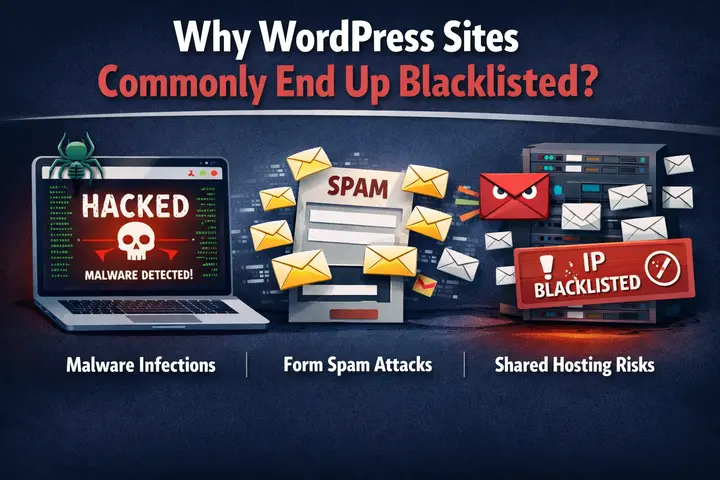
Malware Infection on the Website
Malware is the number one reason WordPress sites get blacklisted. Attackers inject hidden scripts into files or the database.
These scripts send unsolicited email in the background using your server resources. You may never see any visible changes on the website.
Common hiding places include:
- Modified theme files
- Injected PHP files inside plugin folders
- Backdoors added to wp-config.php
- Encoded payloads stored in the database
Because the spam originates from your server, your IP address gets blamed.
Vulnerable Contact Forms and Email Scripts
Poorly secured forms can be exploited to send spam.
Attackers use automated bots to abuse form handlers and inject malicious payloads. Some scripts allow email header injection, which lets attackers send email through your server without authentication.
If your forms lack CAPTCHA, rate limiting, or validation, they become easy targets.
Compromised User Accounts
Hackers sometimes create fake WordPress user accounts and use them to send email through site functionality. Weak passwords, no two factor authentication, and open registrations increase this risk.
Shared Hosting IP Address Issues
If you are on shared hosting, multiple websites use the same IP address. Another customer’s infected site can send spam and trigger a blacklist listing for the shared IP address, even when your own website is completely clean.
That shared infrastructure makes these environments more vulnerable to SpamCop blacklist troubles.
Misconfigured Email Authentication
Missing or incorrect SPF, DKIM, and DMARC records make your email look suspicious to receiving servers.
While misconfiguration alone usually does not cause SpamCop listings, it increases the likelihood that legitimate email is flagged and reported.
How to Check if Your IP Address is on SpamCop?
Before fixing anything, you need to confirm whether your server IP address is blacklisted.
Step 1: Find Your Server IP Address
You can find your IP address by:
- Checking your hosting control panel
- Asking your hosting provider
- Using online tools that display your site’s server IP
Make sure you identify the mail server IP, not just your website’s domain.
Step 2: Use the SpamCop Lookup Tool
Go to the SpamCop website and use their blocking list lookup. Enter your IP address and submit the check. Within seconds, SpamCop will display your status.
Step 3: Interpret the Results
If you see a message showing BLOCKED, your IP address is currently blacklisted. If it says Not Listed or No matches found, your IP is clean.
Sometimes you may see a message indicating the IP was listed but has already expired. This means SpamCop previously blocked it but has already removed it.
Scroll down to review additional information, including:
- When spam reports were received
- How many reports triggered the listing
- Sample headers or descriptions
- Estimated removal time
This information helps determine how active the spam issue is.
What to Do Immediately After You Confirm Blacklisting?
Once you confirm your IP address is blacklisted, do not rush to request removal. Requesting delisting before stopping spam is a mistake. Your IP will simply get re added. Your first priority is identifying and eliminating the spam source.
Step 1: Scan Your WordPress Website for Malware
Most SpamCop blacklist troubles trace back to malware. If you skip this step, nothing else matters. A deep malware scan examines:
- Core WordPress files
- Plugins and themes
- Database entries
- Hidden backdoors
- Encoded payloads
Manual inspection rarely catches sophisticated malware. Modern attacks use obfuscation and encryption to hide inside legitimate looking code.
A dedicated WordPress security scanner performs server side scanning and compares files against clean signatures. This allows it to identify malicious code that looks normal to the human eye.
Run a full scan and review the results carefully. If malware is detected, do not attempt random deletions. Removing the wrong file can break your site. Partial cleanup often leaves backdoors behind, which leads to repeated blacklisting.
Step 2: Identify How Spam is Being Sent
Alongside malware detection, you should determine how email is leaving your server. Check:
- Registration forms
- Comment systems
- Custom email scripts
- Cron jobs
Look for patterns such as:
- Sudden spikes in outgoing mail
- Unknown scripts sending email
- Large mailing lists you did not create
Understanding the sending mechanism helps prevent future abuse.
Step 3: Remove Malware Completely Without Leaving Backdoors
Once you identify malicious files or database injections, removal must be thorough. Partial cleanup is one of the most common reasons an IP address gets blacklisted again.
If even a small script continues to send spam or unwanted email, SpamCop will continue receiving spam reports. That keeps your IP address on the blocking list.
A proper cleanup process should include:
- Removing infected files
- Restoring modified core files
- Cleaning injected database entries
- Checking for hidden cron jobs
- Resetting all passwords
Before making changes, create a full backup copy of your website. This allows you to restore your site if something breaks during cleanup.
If you are not confident handling server level cleanup, this is where professional support becomes critical.
A misconfigured removal attempt can introduce new error messages or break essential site processes. It is far safer to eliminate malware correctly than rush through the process and create a bigger issue.
After cleaning, run another full scan to confirm nothing malicious remains. Only when the spam activity stops should you expect your IP address to be removed from the SpamCop blocking list.
Step 4: Secure Contact Forms and Outgoing Mail Processes
Contact forms are one of the most abused entry points on WordPress websites. Attackers exploit weak validation to send unsolicited email through your server.
To prevent further spam reports, strengthen your forms immediately. Implement the following:
- Add CAPTCHA or reCAPTCHA to all forms
- Enable honeypot spam protection
- Limit submission frequency
- Validate email fields properly
- Log all outgoing form activity
If you use mailing lists for newsletters or promotions, review them carefully. Confirm that every subscriber has legitimately opted in.
Sending bulk email to outdated or purchased mailing lists increases the risk of spam reports from other users.
Also check your mail sending configuration. If your site uses PHP mail instead of authenticated SMTP, that can look suspicious to receiving servers.
Switch to authenticated SMTP so receiving servers can verify your messages and trust your sending source.
Stronger form security combined with proper mail authentication greatly reduces the chance that any blocklist adds your IP address again.
Step 5: Clean Fake Users and Strengthen Account Security
Spam activity sometimes originates from compromised accounts. Hackers may create fake users or exploit weak admin credentials to send unwanted email.
Review your WordPress users list carefully. Look for:
- Random usernames
- Suspicious email addresses
- Accounts created in bulk
- Accounts with no activity history
- Delete suspicious accounts immediately.
Next, strengthen your login processes:
- Enable two factor authentication
- Limit login attempts
- Disable unused registrations
If you have employees managing your website, ensure each user has the minimum required permissions. Over privileged accounts increase risk.
When you reduce entry points, you reduce the chance of further spam activity and future blacklisting.
Step 6: Work with Your Hosting Provider
If you are on shared hosting, your IP address may have been blacklisted due to activity from other users on the same server.
Contact your hosting provider and explain that your IP address is currently blacklisted on SpamCop. Ask them to determine whether other users on the server are sending spam.
Possible solutions include:
- Reassigning your account to a clean IP address
- Moving you to a different network segment
- Offering a dedicated IP address
- Investigating server wide vulnerabilities
Reputable hosts monitor outgoing mail processes and can often identify abnormal traffic patterns.
If your host appears unwilling to address repeated spam issues, it may be time to upgrade to a more secure environment. A stable hosting network is essential for maintaining clean IP addresses.
How SpamCop Automatic Delisting Works?
Many website owners assume they must contact SpamCop to be removed. In most cases, that is not necessary.
SpamCop automatically removes IP addresses from the blocking list once spam activity stops. Here is how the process works:
- SpamCop continues receiving spam reports
- When no new reports are received from your IP address
- A cooldown period begins
- After approximately 24 hours without new spam
- Your IP address is removed automatically
The system updates frequently. You can check your status every few hours to see whether the IP has been removed.
You should only contact SpamCop if you are certain spam has stopped and the listing persists beyond the expected window.
Even then, contacting SpamCop does not override the automated system. It simply allows you to provide additional information about the cleanup processes you completed. In most cases, patience is part of the solution.
How to Prevent Future SpamCop Blacklist Troubles?
Removing your IP address from the blocking list solves the immediate problem. Prevention ensures it does not return.
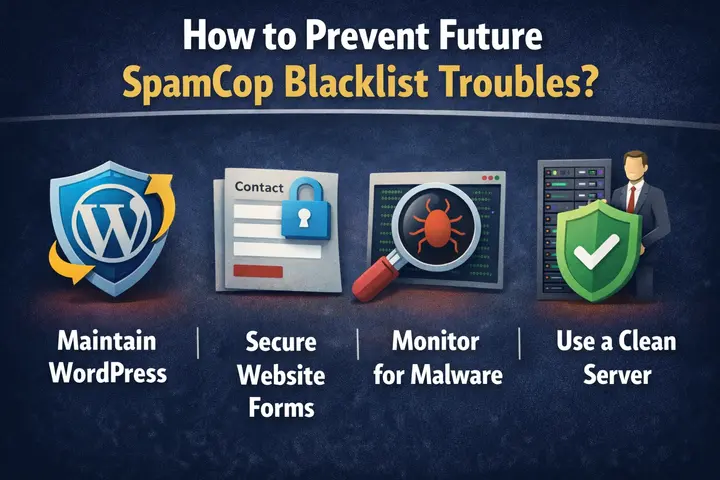
Install Firewall Based WordPress Security
A firewall blocks malicious traffic before it reaches your website. A strong security solution can:
- Filter suspicious network activity
- Block known malicious IP addresses
- Prevent spam bots from exploiting forms
When malicious traffic never reaches your site, attackers cannot use your server to send spam.
Configure Proper Email Authentication
Proper email configuration protects your reputation. Set up:
- SPF records
- DKIM signing
- DMARC policies
These records help receiving servers verify that your mail is legitimate.
Use an authenticated SMTP solution instead of default PHP mail. Authenticated mail reduces the likelihood of being rejected or marked as suspicious.
Improving your mail configuration improves deliverability and reduces the chance of spam reports from other users.
Keep Everything Updated
Outdated plugins and themes often contain vulnerabilities that attackers exploit. Keep your WordPress core, plugins, and themes updated so you close known vulnerabilities and prevent attackers from exploiting outdated software.
If you worry about breaking your website during updates, test changes in a staging environment first. Regular updates reduce the risk of malware infections and repeated blacklisting.
Monitor Outgoing Email Activity
Monitor how many messages your website sends daily. Unusual spikes in outgoing mail often indicate compromise.
Many hosting providers allow you to review mail logs. Early detection allows you to stop spam before SpamCop users begin submitting reports.
The Real Business Impact of Being Blacklisted
When your IP address is blacklisted, customers do not receive order confirmations. Password resets fail. Support replies never arrive.
Customers assume your website is unreliable. They may contact competitors instead.
Internally, employees may not immediately understand the problem. Because the website loads normally, the issue appears invisible. Yet mail failures quietly damage trust.
Email acts as core infrastructure for modern websites, so you should protect it with the same level of care as your payment gateway.
Final Thoughts
SpamCop blacklist troubles are stressful, but they are solvable. The listing itself is not the core problem.
It is a signal that something on your server sent spam. Once you identify the source, stop the spam, and secure your website, your IP address will be removed automatically.
Treat this as an opportunity to strengthen your security, improve your mail configuration, and protect your customers from future disruption.
If you need structured support to resolve persistent issues, Seahawk Media is ready to help you restore clean email delivery and secure your WordPress website properly.
FAQs About SpamCop Blacklist
What is SpamCop?
SpamCop is a spam reporting and blocking system that collects spam reports from users and lists IP addresses actively sending spam. It helps mail servers filter unwanted email and protect inboxes.
Why was my IP address blacklisted?
Malware infections and abused forms that send unsolicited email cause most IP addresses to get blacklisted. Shared hosting environments can also contaminate clean sites when other users on the same server send spam.
How long does a listing last?
If spam stops completely, SpamCop automatically removes your IP address within about 24 hours.
Does SpamCop block my website?
SpamCop lists IP addresses for mail filtering. It does not shut down your website. The impact primarily affects outgoing email delivery.
Should I contact SpamCop directly?
You only need to contact SpamCop if spam has stopped and the IP address remains blacklisted beyond the expected timeframe. In most cases, automatic removal works efficiently.