If your current CMS is holding back performance, scalability, or marketing agility, it’s time to reconsider your stack. This guide walks you through a structured, conversion-focused migration plan, from evaluation to execution, so you can move from Mura CMS to WordPress smoothly and strategically.
While Mura CMS offers flexibility, many businesses outgrow its ecosystem due to limited integrations, fewer plugins, and higher maintenance complexity.
So, how do you transition without risking your data, rankings, or user experience? Read further to find out!
TL;DR: Quick Recap to Mura to WordPress Migration
- Migrating to WordPress improves scalability, flexibility, and ease of content management.
- Choose between manual migration or professional services based on complexity and resources.
- A structured migration plan ensures data integrity, SEO preservation, and minimal downtime.
- Key steps include auditing, exporting data, importing content, and setting up redirects. Additionally, testing and optimization are critical post-launch.
- Ultimately, WordPress empowers better performance, enhanced user experience, and long-term growth.
What is Mura CMS?
Mura CMS is an open-source content management system built on CFML (ColdFusion Markup Language).

It’s known for:
- Flexible content architecture
- Custom development capabilities
- Enterprise-level deployment options
However, despite its strengths, Mura often requires specialized development expertise, making it less accessible for marketing teams and non-technical users.
Why Switch to WordPress From Mura CMS?
Before diving into the website migration process, it’s important to clarify the “why.” Businesses typically move to WordPress for both operational efficiency and growth opportunities.
- Greater Ease of Use: WordPress offers an intuitive dashboard, enabling content teams to publish and edit pages without relying on developers.
- Extensive Plugin Ecosystem: With 60,000+ plugins, WordPress supports SEO, security, performance optimization, and eCommerce out of the box.
- SEO Advantages: WordPress is inherently SEO-friendly, with clean URL structures, metadata control, and integrations with tools like Yoast SEO and Rank Math.
- Cost Efficiency: Compared to maintaining a CFML-based system, WordPress reduces long-term development and hosting costs.
- Scalability: From small business websites to enterprise platforms, WordPress scales effortlessly with your needs.
Migration Methods: Choosing the Right Approach
There are two primary ways to migrate from Mura CMS to WordPress. Your choice depends on budget, timeline, and technical expertise.
Manual Website Migration
If you have in-house technical expertise, manual migration is possible, but requires precision. It is best for:
- Small websites
- Basic content structures
- Limited budget projects
Manual migration can be highly time-intensive, especially for large or complex websites. It also carries a significant risk of broken links, missing data, and formatting issues. Additionally, it requires in-depth knowledge of both CMS architectures to ensure accurate content transfer and functionality.
Professional Website Migration (Recommended)
This is the most reliable approach, especially for business-critical websites. It is best for:
- Large or complex websites
- eCommerce platforms
- SEO-sensitive businesses
Professional site migration ensures faster execution while minimizing errors through expert handling. It preserves your SEO value by maintaining URL structures and rankings.
Additionally, it enables accurate replication of custom functionality, ensuring your website performs post-migration seamlessly. This approach reduces risks, saves time, and delivers a reliable, high-quality transition to WordPress.
How Seahawk Media Supports Seamless Migration?
Migrating CMS platforms is not just a technical task; it’s a business-critical transformation. That’s where expert support becomes essential.
A professional migration partner like Seahawk Media ensures:
- Zero data loss during migration
- SEO preservation, including URL structures and rankings
- Custom theme development aligned with your brand
- Performance optimization post-migration
Most importantly, we minimize downtime and ensure your website remains fully functional throughout the process.
Make Your Move to WordPress: Fast and Risk-Free
Partner with experts to ensure a seamless, secure, and SEO-friendly transition. Get professional support, zero downtime, and a high-performing website tailored to your business goals.
Steps for Mura CMS to WordPress Website Migration
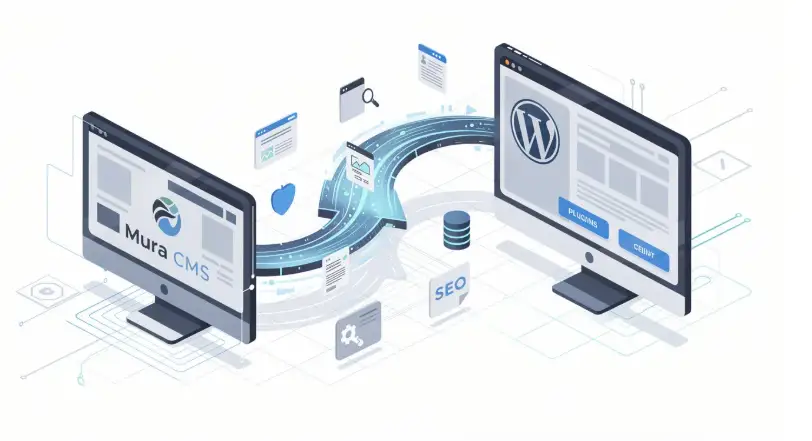
A structured migration plan ensures minimal disruptions, preserves SEO value, and helps you systematically transition your website while maintaining performance, design consistency, and core functionality.
Step 1: Perform a Full Website Audit
Begin by evaluating your existing website’s structure, content, and performance to identify what should be retained, improved, or removed during the migration process.
- Analyze Site Structure: Review your current pages, navigation, and hierarchy to understand how content is organized.
- Identify Key Assets: List important files, media, and integrations that must be migrated.
- Evaluate Performance: Assess loading speed, SEO metrics, and user behavior to set benchmarks.
Step 2: Set Clear Migration Goals
Next, define clear objectives for the migration, such as improving SEO, enhancing the user experience, or simplifying content management to improve long-term scalability and performance.
- Define Success Metrics: Decide what success looks like: better rankings, faster load times, or improved usability.
- Prioritize Features: Identify which functionalities are essential and which can be upgraded or replaced.
- Align Stakeholders: Ensure everyone involved understands the goals and expected outcomes.
Step 3: Choose Hosting and Install WordPress
After planning, select a reliable hosting provider and install WordPress to create a strong foundation for your new website’s performance, security, and scalability.
- Select Hosting Provider: Choose a hosting provider that supports WordPress installations, SSL, and database management, such as WP Engine or InMotion Hosting.
- Install WordPress: Use one-click installation tools to quickly set up your environment.
- Configure Basics: Set permalinks, site title, and user roles to prepare for content migration.
Step 4: Export Content From Mura CMS
Now, export all relevant content from Mura CMS, including pages, media, and databases, ensuring no critical data is lost during the transition process.
- Export Pages and Media: Download all website pages, images, and documents systematically.
- Extract Database: If applicable, export your database to retain dynamic content.
- Verify Completeness: Double-check that all necessary files and content are included.
Step 5: Prepare and Clean the Data
Before importing, clean and organize your data to remove redundancies, correct errors, and ensure it meets WordPress’s structure and formatting requirements.
- Remove Redundant Content: Eliminate outdated or duplicate pages to streamline your site.
- Standardize Formatting: Ensure consistent headings, URLs, and metadata across content.
- Optimize Media Files: Compress images and rename files for better SEO and performance.
Step 6: Import Content into WordPress
Import your cleaned content into WordPress using tools or plugins, ensuring proper mapping of pages, posts, media, and categories for seamless integration.
- Use Import Tools: Leverage WordPress importers or plugins to transfer content efficiently.
- Map Content Correctly: Assign categories, tags, and authors to maintain structure.
- Verify Imported Data: Check for formatting issues or missing elements post-import.
Step 7: Recreate Website Design
After importing content, rebuild your WordPress website’s design to match or improve the original layout while enhancing responsiveness and the overall user experience.
- Choose a Theme: Select a theme that aligns with your design goals.
- Customize Layout: Use page builders or custom code to replicate your design.
- Optimize UX/UI: Improve navigation, readability, and mobile responsiveness.
Step 8: Set Up URL Structure and Redirects
To maintain SEO rankings, replicate your existing URL structure and implement proper redirects, ensuring users and search engines can seamlessly access your new website pages.
- Match Permalinks: Configure WordPress URLs to mirror your previous structure.
- Implement 301 Redirects: Redirect old URLs to new ones to preserve SEO value.
- Update Internal Links: Ensure all internal links point to the correct pages.
Step 9: Install WordPress Plugins
Install essential WordPress plugins to enhance SEO, security, performance, and functionality. This will ensure your website operates efficiently and meets modern digital standards.
- SEO Plugins: Install tools like AIOSEO to manage metadata and optimization.
- Security Plugins: Protect your site with firewalls and malware scanners. Install plugins like SolidWP for website security and BlogVault for backup.
- Performance Tools: Use caching and optimization plugins to improve speed, such as WP Rocket, FastPixel, and ShortPixel.
Step 10: Test the Website Thoroughly
Before launching, conduct comprehensive testing to identify and fix errors. This ensures your website performs well across devices, browsers, and user interactions.
- Check Responsiveness: Test your site on multiple devices and screen sizes.
- Validate Features: Ensure contact forms, buttons, and integrations work properly.
- Monitor Performance: Use tools to evaluate speed, uptime, and usability, such as our free site speed test tool.
Step 11: Launch and Monitor Performance
Finally, launch your WordPress website and continuously monitor performance. Also, make necessary adjustments to optimize SEO, user experience, and overall site functionality post-migration.
- Go Live: Point your domain to the new hosting and make your site accessible.
- Monitor Analytics: Track traffic, engagement, and rankings using tools such as Google Search Console and Google Analytics.
- Optimize Continuously: Refine performance, fix issues, and update content regularly.
Common Migration Challenges and How to Avoid Them
Even with a well-defined migration strategy, unexpected issues can arise. Therefore, identifying potential risks early and applying preventive measures ensures a smoother, disruption-free transition to WordPress.
Challenge 1: Data Loss
Firstly, data loss is one of the most critical risks during migration. Missing files, incomplete databases, or corrupted content can impact website integrity.
How to avoid:
- Perform complete backups before migration.
- Validate exported and imported data.
- Run post-migration verification checks.
Challenge 2: SEO Drops
Search rankings may decline if SEO elements are not preserved. Changes in URL structure or missing metadata can negatively affect visibility.
How to avoid:
- Maintain existing URL structures wherever possible.
- Implement 301 redirects strategically.
- Reapply meta titles, descriptions, and alt tags.
Challenge 3: Design Inconsistencies
Mismatched layouts or broken UI elements can harm user experience and brand consistency. This often happens when themes are not properly replicated.
How to avoid:
- Use a staging environment for testing.
- Ensure responsive design across devices.
- Conduct UI/UX audits before launch.
Challenge 4: Downtime Risks
Finally, website downtime can disrupt user access and business operations if not planned carefully.
How to avoid:
- Schedule migration during low-traffic periods.
- Use a staging or temporary domain.
- Monitor performance during deployment.
By proactively addressing these challenges, you can ensure a seamless, efficient migration.
Conclusion
Migrating from Mura CMS to WordPress is more than a platform switch. It’s a strategic upgrade that unlocks flexibility, scalability, and better digital performance. However, success depends on careful planning, structured execution, and ongoing optimization.
By following this step-by-step approach, you can minimize risks, preserve SEO value, and create a future-ready website.
If your goal is a seamless, zero-downtime transition with measurable business impact, partnering with an expert team like Seahawk Media can make all the difference. Contact us!
Mura to WordPress Migration FAQs
Why should I consider a WordPress migration?
A WordPress migration offers numerous benefits, including a user-friendly interface, scalability, and access to a vast array of plugins that enhance performance and flexibility.
Will my existing site data be safe during migration?
Yes, with proper planning and professional support, you can securely migrate content from your previous CMS without losing critical data or functionality.
How does migration impact SEO?
If handled correctly, your WordPress site can maintain or even improve search engine rankings through proper URL mapping, optimized meta descriptions, and tools like the Yoast SEO plugin.
Do I need technical expertise for migration?
Not necessarily. A migration service with technical support and a dedicated project manager can streamline the migration project from your old site to the new site efficiently.
What else should I prepare before migration?
Ensure reliable web hosting, plan digital marketing updates, and consider adding interactive elements to maximize the performance of your WordPress CMS.