One of the most crucial aspects of website security is having a valid SSL certificate. It keeps your website’s data encrypted and assures visitors that their information is safe.
However, SSL certificates don’t last forever. They have an expiration date, and when that date arrives, you must renew your SSL certificate to maintain trust and avoid browser warnings.
In this detailed guide, we break down the SSL certificate renewal process, explain why it matters, and provide easy steps for renewal.
What is SSL Certificate Renewal?
An SSL certificate renewal is the process of replacing your current SSL certificate with a new one before it expires. Even though it’s called a “renewal,” you’re not simply extending the old certificate’s validity; you’re getting a completely new certificate from a Certificate Authority (CA).
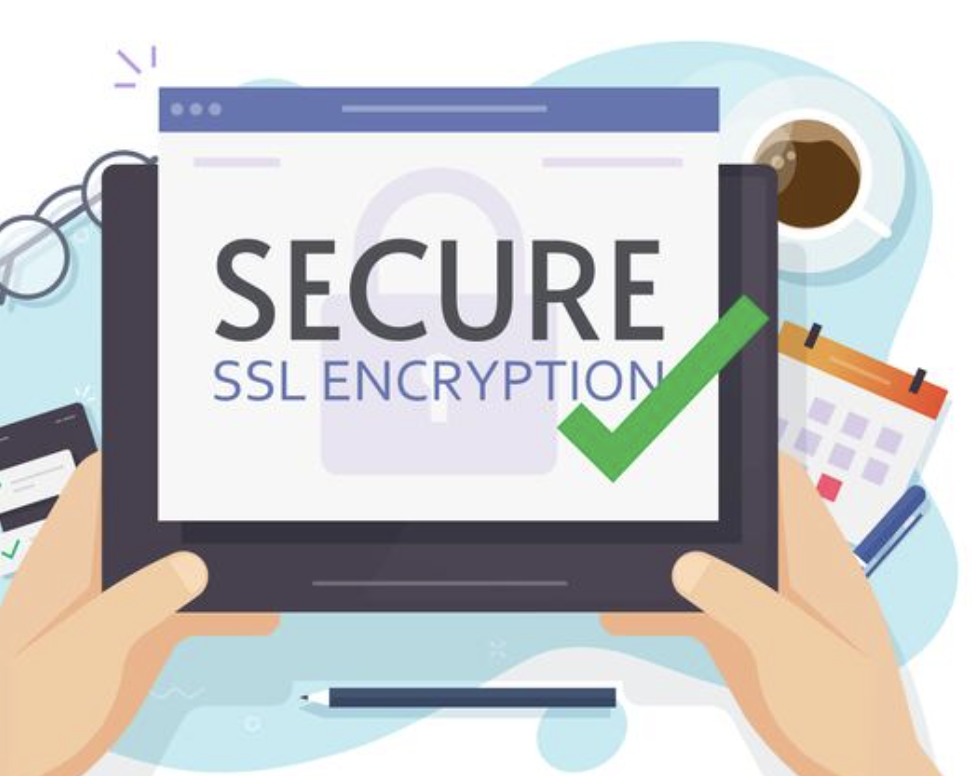
This new certificate includes an updated expiration date and ensures your website continues to use up-to-date encryption standards. In short, renewing your SSL certificate helps:
- Keep your website’s HTTPS connection secure.
- Prevent “Not Secure” browser warnings.
- Protect customer trust and data privacy.
- Maintain SEO rankings and website credibility.
Why do SSL Certificates Expire?
You might wonder, “Why can’t SSL certificates last forever?” The reason is security evolution.
Technology changes quickly, and cryptographic standards need to stay current. By having certificates expire periodically (usually every 12-24 months), CAs ensure:
- Encryption keys remain secure and uncompromised.
- Websites use the latest security algorithms.
- Domain ownership and identity validation stay accurate.
So, SSL expiration isn’t an inconvenience but rather a security best practice.
What Happens When Your SSL Certificate Expires
When your SSL certificate expires, browsers immediately flag your website as insecure. Visitors will see alarming messages, such as “Your connection is not private” or “This site may be unsafe.”
That’s not only bad for security, but it’s also detrimental to business. Here’s what can happen:
- Traffic drops because visitors avoid unsafe sites.
- Conversions decline as trust erodes.
- SEO rankings fall since Google favors secure (HTTPS) websites.
- Revenue loss for eCommerce or lead-generation sites.
This is why renewing your SSL certificate before it expires is absolutely crucial.
When to Renew Your SSL Certificate
You should ideally start the renewal process at least 30 days before the certificate’s expiration date.
Most certificate authorities and hosting providers will send email reminders as your SSL nears expiration. However, don’t rely solely on notifications; instead, keep track of your expiration date manually or through your hosting dashboard.
You can check your certificate’s validity anytime by:
- Using SSL Checker tools online.
- Looking at your browser’s padlock ⟶ Certificate details.
- Checking your web hosting control panel (like cPanel or Plesk).
Starting early ensures you have enough time to handle validation, installation, and testing without risking downtime.
Step-by-Step Process to Renew Your SSL Certificate
Before you begin, find out if your web host offers automatic SSL renewal.
Many hosts (like Bluehost, SiteGround, and WP Engine) provide auto-renewal for SSLs issued through them. This means you won’t need to generate a new CSR or manually install the certificate; it will be handled for you.
If your host doesn’t offer auto-renewal, you’ll need to renew manually. In that case, follow the below steps.
Step 1: Generate a New CSR
A Certificate Signing Request (CSR) is a block of encoded text that contains information about your website and domain. It’s used to request a new SSL certificate from the Certificate Authority.
Here’s how to generate it:
- Log in to your hosting control panel or server.
- Use the SSL/TLS option to generate a new CSR.
- Fill in the details, such as your domain name, organization, and country.
- Save your private key securely, as it will be required later during installation.
If you already have a website care plan (like the one offered by Seahawk Media), you don’t have to worry about these technical steps. The team will handle SSL generation and renewal from start to finish.
Step 2: Choose a Certificate Authority (CA)
Next, you’ll need to select a Certificate Authority to issue your new SSL. Some popular CAs include:
- Let’s Encrypt (Free, automated SSLs)
- DigiCert (Premium, trusted by enterprises)
- GlobalSign
- Sectigo/Comodo
If you already have an SSL from a specific CA, you can simply renew it through their portal.
For small businesses and bloggers, Let’s Encrypt or your hosting provider’s SSL is often sufficient. For larger organizations handling sensitive data, a paid SSL from DigiCert or GlobalSign is recommended.
Step 3: Submit the CSR and Complete Validation
Once you have your CSR, submit it to your chosen CA during the renewal process. The CA will verify your domain ownership. This may involve:
- Clicking a verification link sent to your registered domain email.
- Adding a DNS record.
- Uploading a verification file to your website.
Once verified, your new SSL certificate will be issued.
Step 4: Install the Renewed SSL Certificate
After receiving your new certificate, install it on your web server or hosting control panel.
If you’re using WordPress, most hosts make this easy through the SSL section in your dashboard. Otherwise, you can upload the certificate manually via cPanel or SSH.
Always remember to:
- Restart your web server after installation.
- Clear your browser cache.
- Test your SSL installation using an SSL checker tool.
Step 5: Test Your Website
Once your new SSL is installed, it’s time to test everything. Use these checks:
- Visit your website using https:// — it should load without warnings.
- Check for the padlock symbol in the browser.
- Use tools like Qualys SSL Labs to verify the strength and validity of SSL.
If you see any mixed content errors (e.g., some elements loading over HTTP), Seahawk’s WordPress experts can fix them quickly to ensure full HTTPS compatibility.
Why Choose Seahawk Media for WordPress Security?
Renewing your SSL is just one part of keeping your website secure. True security comes from continuous maintenance and that’s where Seahawk Media shines.

With Seahawk’s WordPress maintenance services, you get:
- Automatic SSL renewals and security monitoring.
- 24/7 uptime checks and performance optimization.
- Malware protection and threat detection.
- Expert technical support from skilled WordPress professionals.
Our team ensures that your site remains secure, fast, and compliant without you needing to lift a finger. If you’re ready to simplify SSL renewal and keep your WordPress site protected, partnering with us is the smart move.
Keep Your WordPress Site Secure at Just $49/mth
With our WordPress Care Plan, you’ll get automatic site management, regular updates, malware protection, and expert 24/7 support.
Common Issues During SSL Renewal (and How to Fix Them)
Even with clear steps, the SSL certificate renewal process can sometimes run into roadblocks. These issues are usually easy to fix once you understand their causes. Below are some of the most common SSL renewal problems and practical ways to resolve them quickly.
Expired Certificate Not Replaced Properly: Sometimes, after renewing your SSL certificate, the old one remains cached. As a result, your browser may still show your site as insecure.
Fix: Clear your browser cache and restart your web server to ensure the new SSL certificate is properly applied.
Mismatched CSR: Using an old or incorrect Certificate Signing Request (CSR) can lead to validation failure during renewal.
Fix: Always generate a fresh CSR for every renewal to avoid mismatches and ensure successful verification.
Incomplete Chain of Trust: If intermediate certificates are missing or not installed correctly, browsers might not recognize your SSL as secure.
Fix: Install the complete certificate bundle provided by your Certificate Authority (CA).
Domain Ownership Validation Fails: Sometimes, SSL renewal fails because the CA can’t verify domain ownership due to outdated WHOIS records or DNS issues.
Fix: Update your domain contact details and DNS records before starting the renewal process.
Best Practices for SSL Certificate Management
Managing SSL certificates effectively ensures your website remains secure, trusted, and fully compliant with modern web standards.
By following a few best practices, you can simplify the renewal process, avoid downtime, and maintain user confidence. Here’s how you can stay on top of your SSL management effortlessly.
- Set Reminders: Never let your SSL certificate expire unexpectedly. Track expiry dates using a calendar, reminder tool, or automated alert system to stay informed well in advance.
- Automate Renewals: Automation eliminates manual errors and ensures accuracy. Use your hosting provider’s SSL management tools or a WordPress maintenance service that automatically renews certificates.
- Backup Your Keys: Your private keys are essential for SSL verification. Keep secure backups of your keys and certificates to prevent data loss or complications during certificate renewal.
- Regularly Test Your SSL: Run periodic SSL checks using online tools to detect issues early. This ensures your SSL remains valid, trusted, and properly configured.
- Keep WHOIS Information Updated: Ensure your domain contact details are accurate. Updated WHOIS information helps Certificate Authorities verify ownership quickly.
- Use a Reliable Hosting Provider: Select a trusted hosting provider that supports automated or free SSL certificates for seamless security management.
Automating SSL Renewal for WordPress Websites
Manually managing SSL certificates can feel complicated, especially for WordPress users juggling multiple site tasks. Thankfully, automation makes the process easier, faster, and error-free. By automating SSL renewals, you can ensure your website remains secure without constant manual effort.
- Use SSL Automation Plugins: Plugins such as Really Simple SSL and WP Encryption simplify SSL management by automating tasks like renewals and HTTPS redirects. They ensure your website always runs on a secure connection with minimal setup.
- Opt for Managed WP Maintenance Services: Choosing a managed service takes automation even further. The tech team handles everything, from SSL renewals and malware scans to updates and uptime monitoring, so your site stays safe and compliant.
Conclusion
Renewing your SSL certificate may seem technical, but it’s simpler than you think, especially when you plan ahead.
By understanding the SSL renewal process, generating a new CSR, verifying your domain, and installing the new certificate correctly, you can maintain a secure HTTPS connection and protect your visitors’ trust.
Don’t wait until your SSL expires; renew it early or automate the process. Your website’s security, credibility, and SEO depend on it.
FAQs About SSL Renewal
What happens if I have an expired SSL certificate?
An expired SSL certificate makes your website appear insecure, triggering browser warnings that can drive visitors away. Renew it quickly to restore encryption and protect user trust.
How can a certificate lifecycle management solution help website owners?
A certificate lifecycle management solution helps website owners automate renewals, track expiration dates, and ensure certificates remain compliant with the latest security standards.
Why do I need to validate domain ownership during SSL issuance?
You must validate domain ownership before issuance to confirm that your company legitimately controls the domain, ensuring secure and authorized certificate communication.
What is the typical validity period of an SSL certificate?
The validity period usually lasts 12-24 months, after which you must generate a CSR and create new keys to stay valid longer and meet modern encryption standards.
What are the above steps to renew an SSL certificate, and what should I note?
Follow the above steps carefully, checking your host’s instructions, verifying details, providing contact information, and proceeding with renewal or purchasing through trusted solutions with professional expertise. Always note renewal reminders to avoid missing the notice period.