Thinking about transforming your Notion workspace into a dynamic WordPress website? You’re in the right place! Whether you’re a business owner, a team lead, or a solo creator, this guide will walk you through every step of the process, from exporting content in Notion to WordPress website.
Here, you’ll learn how to use Notion’s versatile tools and blocks to streamline project management and content sharing in your WordPress workflow.
With our easy-to-follow instructions, you’ll see just how seamless it is to combine the best of Notion’s app features with WordPress’s powerful website capabilities. Let’s dive in and bring your ideas to life!
Why Convert Notion to WordPress?
Imagine you’re a content writer juggling multiple WordPress websites. Sound familiar?
If you’re looking to boost productivity while keeping things organized, Notion is your ultimate sidekick.
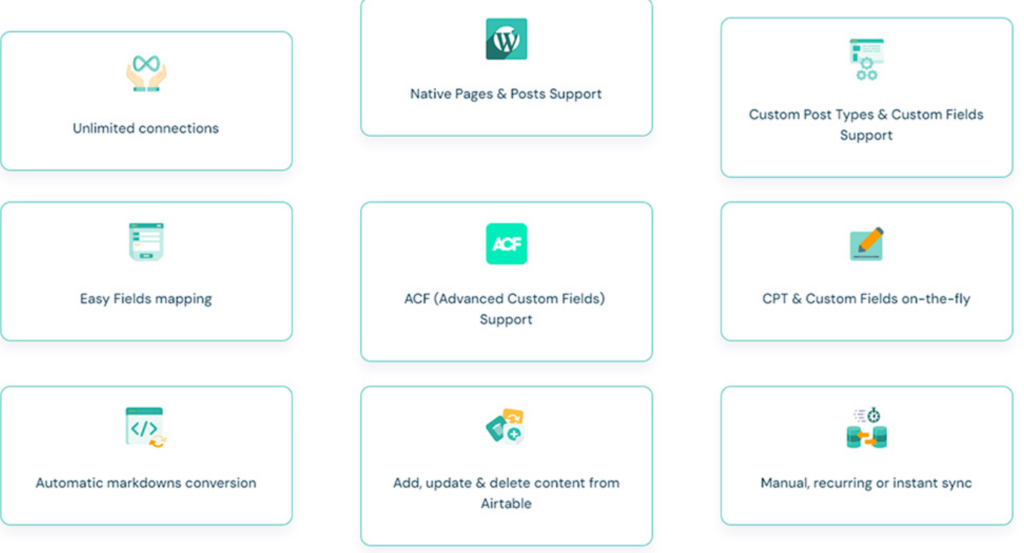
With everything managed from a single, intuitive dashboard, Notion simplifies your workflow like never before.
Notion’s content editor, much like the WordPress Gutenberg editor, is built on blocks, making writing and editing posts effortless.
When productivity is your top priority, integrating Notion with WordPress is a game-changer. Say goodbye to tedious copy-pasting!
With seamless integration, you can automate the creation of WordPress posts and pages directly from Notion.
This not only saves you time but also ensures your content stays consistent and up-to-date across platforms.
Notion’s collaboration features take things to the next level by improving team task management and making progress sharing a breeze.
Pair that with WordPress’s unmatched flexibility, and you have a recipe for creative and efficient content management.
Converting Notion to WordPress with Ease
Our professional WordPress developers can convert your current content platform to a seamless WordPress website with ease.
Convert Notion to a WordPress Website: Simple Steps
Let’s get started with converting Notion to WordPress in just a few simple steps below:
Step 1: Setting Up Your Notion Account
Let’s start by setting up your free Notion account via the Notion website with your email or Google account.
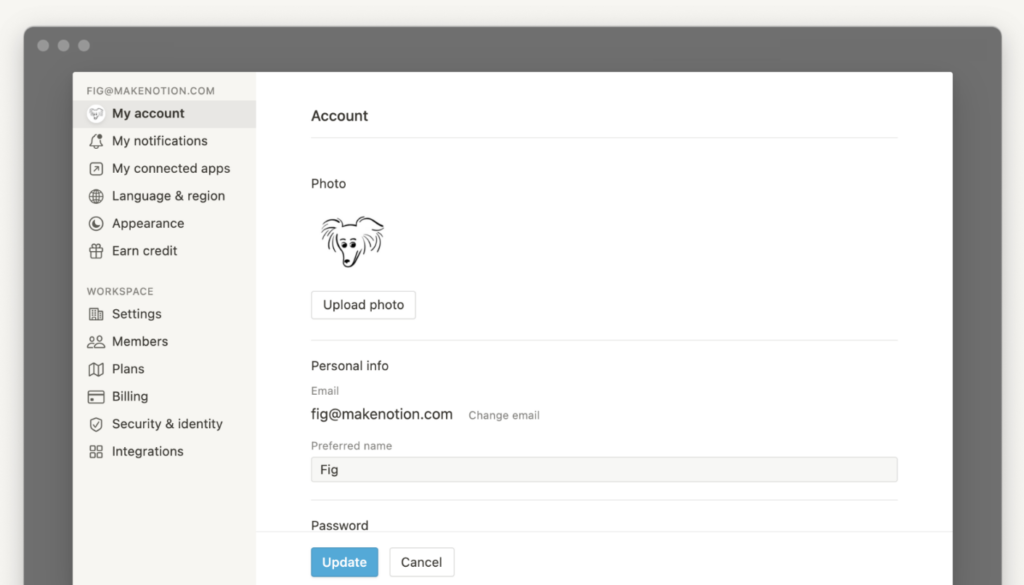
After verifying the confirmation email, log in to your workspace, which may be blank or contain pre-populated content based on your signup choices.
New users can begin with a blank page, explore templates, or join an existing workspace. Notion supports various content types like tasks, notes, and databases essential for WordPress integration.
Its intuitive interface facilitates easy content creation and management, making it popular for note-taking and project management.
With your Notion account set up, explore its features.
Go to the My Integrations tab to manage integrations, accessible only to workspace owners. Here, create an internal integration token to connect Notion to WordPress.
Also Check: WordPress Vs Contentful
Step 2: Creating an Internal Integration Token in Notion
To create an internal integration token in Notion, click the Create New Integration button and enter the necessary details.
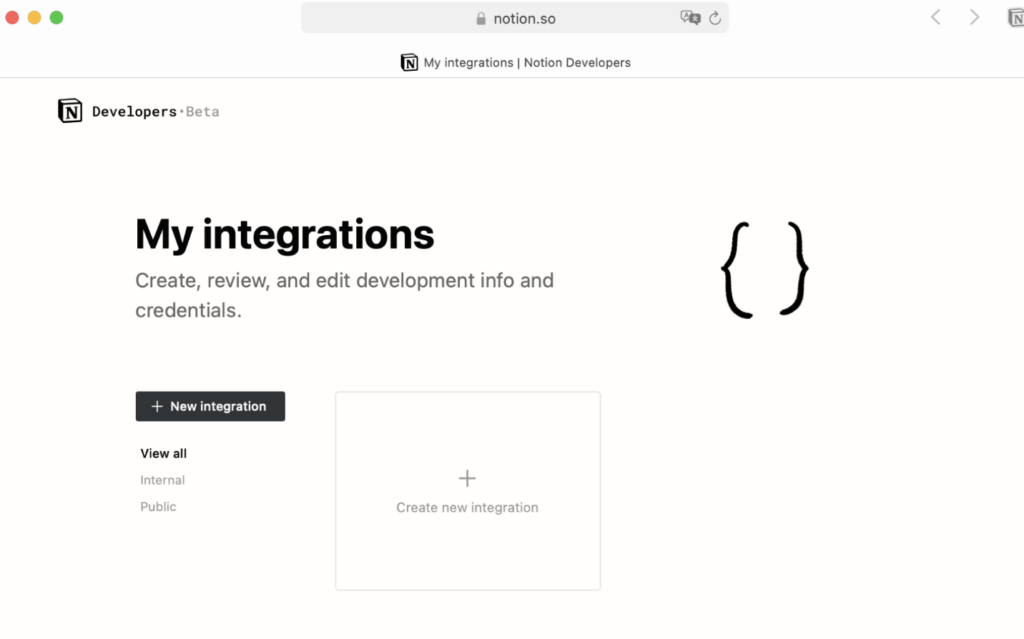
The Notion will generate a secret key, retrievable via the options next to the integration. The token is vital for the WP Sync for Notion plugin to securely access your Notion data.
Step 3: Installing WP Sync for Notion Plugin
With your integration token ready, install the WP Sync for Notion plugin on your WordPress site.
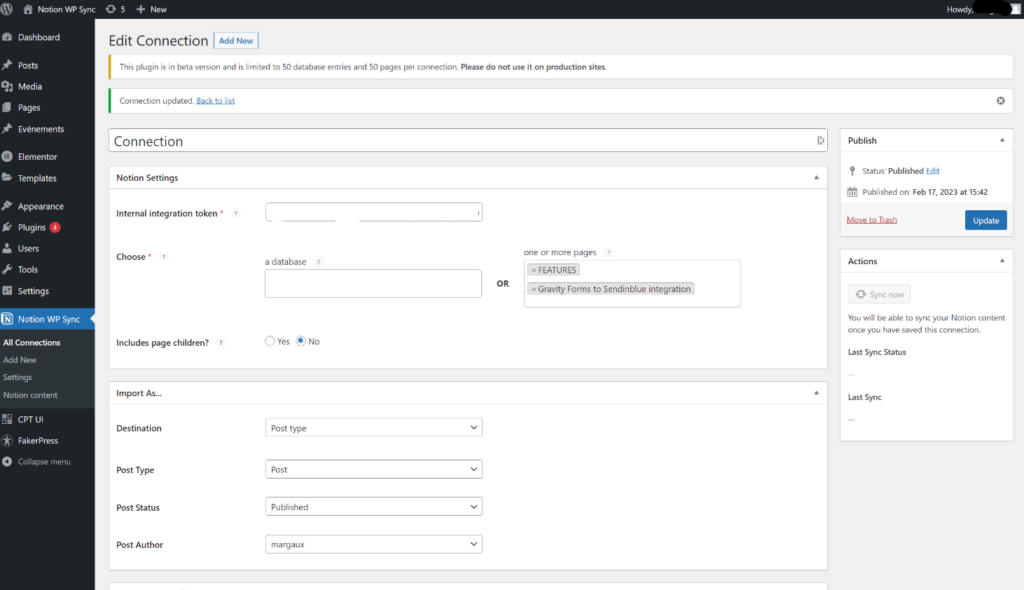
From your WordPress dashboard, navigate to Plugins ⟶ Add New, search for WP Sync for Notion, and click Install Now. After installation, activate the plugin.
This plugin enables seamless synchronization between Notion and WordPress, allowing content creation and updates directly from Notion.
You can designate the post author during configuration to ensure correct content attribution.
Learn about: How to Convert Canva to WordPress
Step 4: Configuring WP Sync Settings
Configuring the WP Sync settings ensures smooth operation.
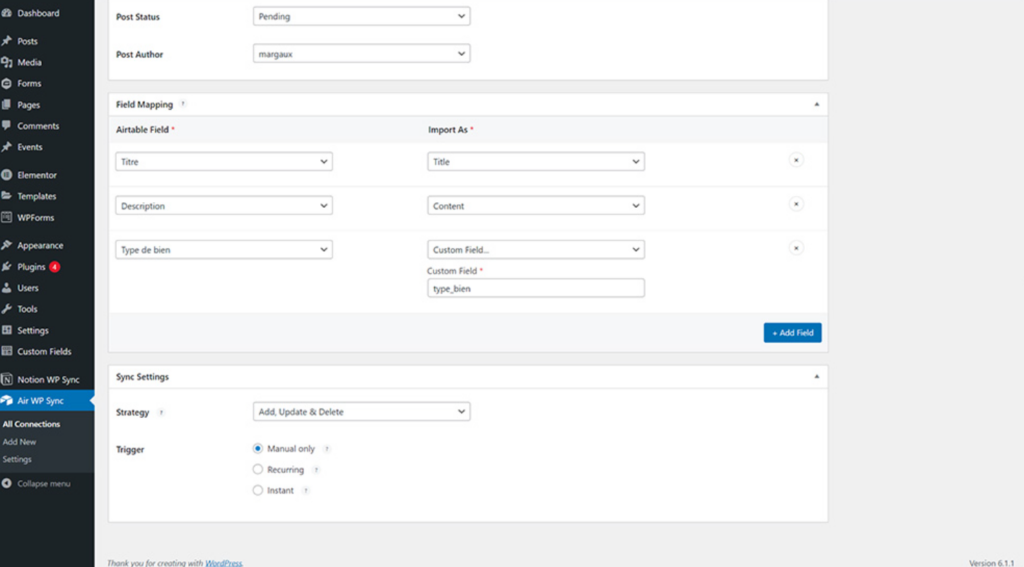
Click Add New next to Connections in the WP Sync for Notion plugin, name your connection, and input your internal integration token to link Notion with WordPress.
Select a data source from Notion pages, ensuring you have access permissions. Configure sync settings to define update handling and synchronization frequency.
Link Notion fields to WordPress fields and publish the connection to keep your content up-to-date and accurately reflected on your WordPress site.
Step 5: Mapping Notion Database Properties
Mapping Notion database properties to WordPress fields ensures accurate data syncing. Select corresponding fields in Notion and enter the correct WordPress meta keys to maintain data integrity and consistency.
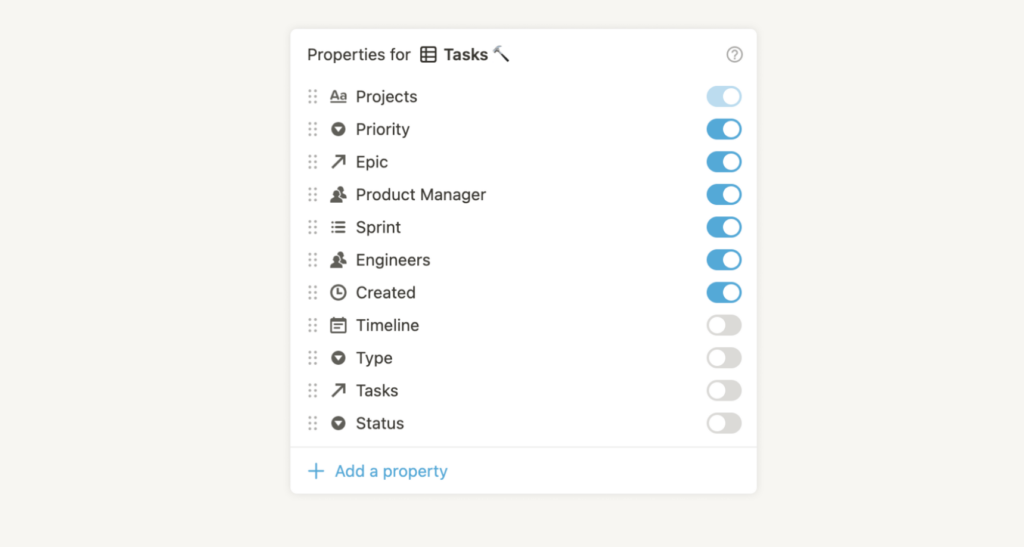
Notion databases support various database types, including relational databases, kanban boards, and calendars, offering flexibility for project management and content creation.
Accurately mapping these fields ensures that structured data like tasks, deadlines, and progress trackers are correctly displayed on your WordPress site.
Learn about: WordPress Database Plugins for Efficient Data Management
Step 6: Syncing Notion Pages with WordPress
With everything set up, sync notion pages with WordPress. The WP Sync for Notion plugin offers manual and automatic synchronization options.
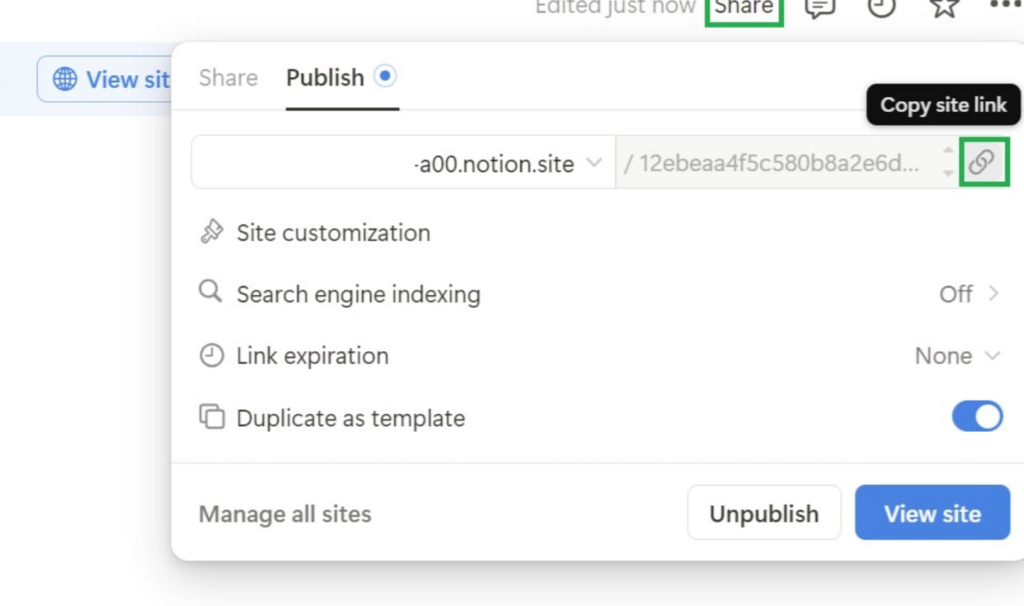
Choose the synchronization frequency, either manual or recurring intervals, and click Sync Now after making modifications in Notion.
Once synced, view updated content directly in the WordPress post editor. This integration ensures your WordPress site reflects the latest Notion changes.
The plugin automatically creates or updates corresponding WordPress posts when the Notion database updates, simplifying content management and maintaining the post status.
You can also import Notion pages and databases into a WordPress website for display using post types or shortcodes, leveraging Notion’s content creation capabilities for a dynamic and interactive user experience.
Also Learn: How to Convert Figma to HTML Website
Step 7: Managing Content Creation Process
Notion effectively manages various content types like pages, posts, and events. Integrated with WordPress, it simplifies content creation, letting users focus on quality over logistics.

Teams can use Feather to manage entire blog content from Notion, streamlining the transition to a professional blog.
Notion’s project management features, including task creation, due dates, and progress tracking, enhance collaboration and productivity.
The WordPress integration allows real-time updates, keeping your content current and relevant.
Read: How to Update WordPress Automatically and Manually
What to Do After Converting Notion to WordPress?
Now that your Notion content is converted into a seamless WordPress website, what to do next? Let’s see below:
Advanced Custom Fields and Features
The WP Sync for Notion plugin is packed with customization options to make your Notion content shine on WordPress.
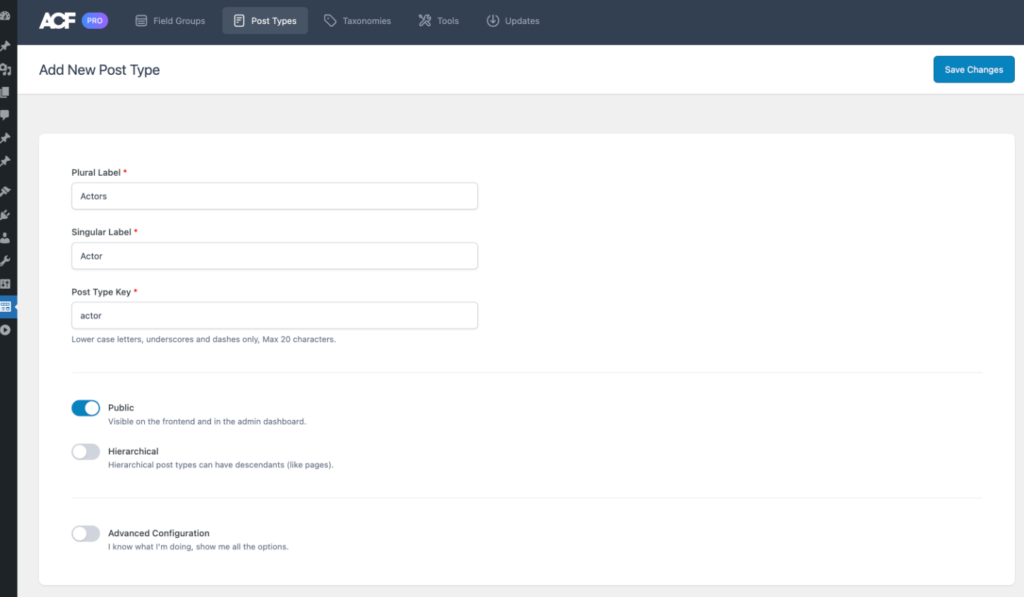
With the Pro version, you can publish content as various post types, including custom ones, giving you more flexibility in how your content is displayed.
Want to take it further?
The Pro version supports Advanced Custom Fields (ACF) for smooth data syncing and adds options to integrate additional data fields.
If you go for the Pro+ version, you’ll unlock even more power with features like ACF support and integration with top SEO tools like AIOSEO to make your content search-engine friendly.
Troubleshooting Common Issues
Even though Notion and WordPress integrate seamlessly, a few hiccups or WordPress common errors can happen.

Don’t worry, here’s how to tackle them:
- Syncing Issues: Before creating a new connection, make sure your Notion fields are set up correctly.
- 403 API Errors: Check if your Notion API token has the necessary permissions, like ‘Read user information, including email addresses.’
- Server Timeout: Large imports might cause timeouts, especially on basic hosting. If this happens, check the logs stored at
/wp-content/uploads/notionwpsync-logsusing FTP.
- Publishing Settings: After making changes to the WP Sync plugin, don’t forget to publish your settings to ensure everything connects properly.
Learn: How to do Emergency WordPress Troubleshooting of Issues
Boosting Productivity with Notion and WordPress
Combining Notion and WordPress is more than just convenient; it’s a productivity powerhouse!
- Team Collaboration: Notion’s real-time collaboration tools let teams work together on content before it’s published on WordPress, saving time and reducing edits.
- Custom Databases and Templates: Create tailored Notion templates to organize your content and keep things structured.
- Automatic Updates: The plugin supports automatic syncing with adjustable frequencies, so your WordPress site always displays the latest version of your content without any manual work.
Explore: Best WordPress Website Management Services
Exploring Pro Versions and Paid Subscriptions
Upgrading to the Pro version of WP Sync for Notion unlocks advanced features that make managing content even easier:
- Pro Version: Add more post types, customize your Sync, and gain extra tools to make your workflow smoother.
- Pro+ Version: Perfect for power users! Get ACF support, plus SEO plugin integrations like AIOSEO, to make your content even more effective.
To access these upgrades, find your license key in your purchase confirmation email or log in to WP Connect.
With flexible pricing plans, there’s an option for everyone. Pro versions make managing Notion and WordPress together a breeze, giving you time to focus on creating great content.
Wrapping Up
In summary, integrating Notion with WordPress using the WP Sync for Notion plugin offers numerous benefits, including seamless content synchronization, enhanced collaboration, and efficient content management.
This guide has walked you through the setup and configuration process, ensuring that you can leverage these tools to boost your productivity.
We hope this guide has provided you with the knowledge and confidence to integrate Notion with WordPress effortlessly. Embrace the power of these platforms to streamline your workflow and create beautiful, dynamic websites with ease.
FAQs About Converting Notion to WordPress
How can I use the Notion plugin to import my content into WordPress?
Install the Notion plugin on your WordPress site. Once configured, it allows you to sync pages directly from Notion to WordPress with ease.
Can I create databases in WordPress similar to Notion?
Yes, you can create databases in WordPress. Using custom post types, you can structure your content similarly to databases in Notion.
Is there a free version of tools for converting Notion content to WordPress?
Some tools offer a free version, which might include basic features for converting content from Notion to WordPress. However, advanced functionalities often require a paid plan.
How do I handle images when transferring content from Notion to WordPress?
Ensure all the images are transferred properly by verifying that they are uploaded and linked correctly in WordPress, especially the featured image for each post.
What happens to children’s pages when migrating from Notion?
Children’s pages in Notion can be converted into hierarchical post structures or separate pages in WordPress, retaining the parent-child relationship.
How can I ensure continuous updates from Notion to WordPress?
Enable WordPress WP sync with a manual trigger or automated updates to keep your WordPress site in sync with changes made in Notion.
How can Notion’s integrations assist a content writer moving to WordPress?
Notion’s integrations can streamline the workflow for a content writer by facilitating data transfer and collaboration, thus enhancing productivity on the new platform.