Converting PX to REM is one of the most impactful decisions a WordPress developer can make. It shifts a site from rigid, fixed measurements to a fluid system that respects how users actually experience the web. Whether you are building a new theme or refactoring a stylesheet, understanding this conversion is fundamental.
TL;DR: Pixel to Root-Em Quick Summary
- REM units scale relative to the browser’s root font size, making layouts flexible across different devices.
- The standard formula divides a pixel value by 16 (the default root font size) to get the REM equivalent.
- Using REM instead of PX improves accessibility, supports text resizing, and creates genuinely responsive designs.
- WordPress developers can apply this conversion manually, via a conversion table, or with dedicated converter tools.
What is PX in CSS, and How Pixel Values Work in Web Design?
A pixel (PX) is an absolute unit in Cascading Style Sheets. It represents a fixed dot on a screen and always renders at the exact size specified, regardless of browser settings or screen resolution.
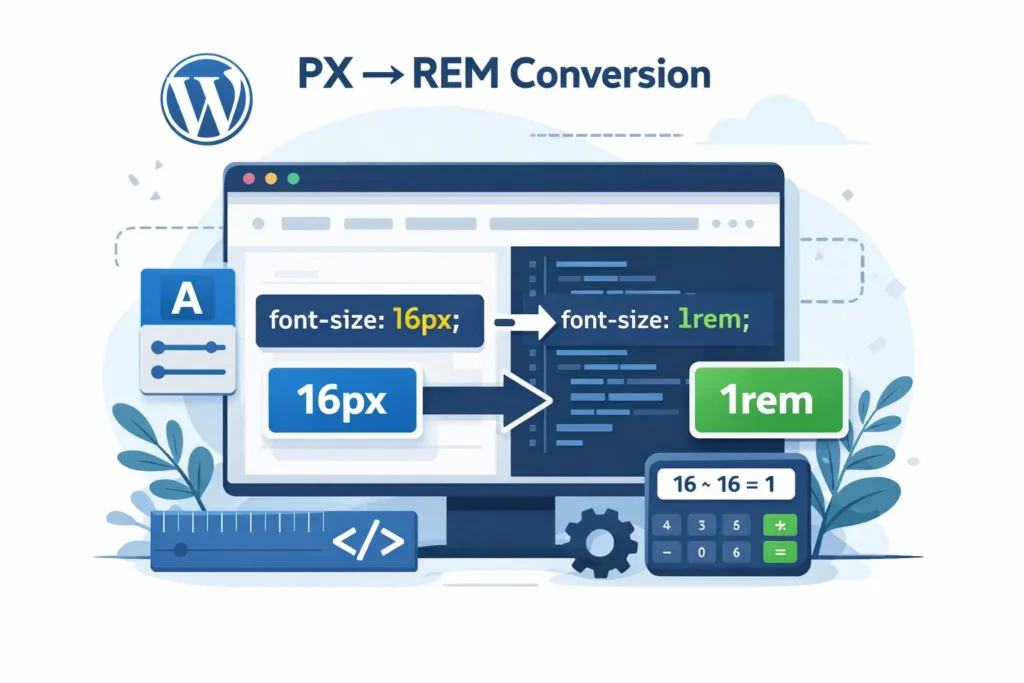
In web design, pixel values were historically the default for sizing fonts, margins, padding, and widths. The appeal was predictability; a 16px font always appeared as 16 physical dots.
However, fixed pixel values create real problems. They do not scale when a user increases their browser’s default font size. They behave inconsistently across high-density and standard displays. And they resist the flexible layouts needed across different screen sizes.
PX still has a valid role. It works well for borders and box shadows where pixel precision genuinely matters. But for font sizes, spacing, and layout dimensions, PX alone limits accessibility and responsiveness.
What is REM in CSS and Why Developers Prefer REM Units?
REM stands for Root EM. It is a relative unit that scales with the font size set on the root element, the <html> tag. Unlike absolute units, REM values adjust dynamically when the root font size changes.
Most browsers set the default root font size to 16px. This means:
- 1rem = 16px
- 0.5rem = 8px
- 1.5rem = 24px
Developers working on responsive web design prefer REM because every element sized in REM scales together when the root changes.
Key benefits include:
- Scaling with user preferences: Users who increase the browser font size for readability get proportionally larger text and spacing.
- Consistent scaling: Unlike EM, REM always references the root element rather than the parent element. This avoids compounding size issues in nested structures.
- Accessible design: Many users with visual impairments rely on browser-level font adjustments, which REM fully supports.
- Cleaner responsive designs: REM-based elements adapt naturally without requiring extensive media query overrides.
Need Help Optimizing Your WordPress CSS?
Our WordPress experts can convert pixel-based styles to scalable REM units to improve responsiveness, accessibility, and performance.
PX vs REM in CSS: Key Differences Every WordPress Developer Should Know
A clear understanding of PX vs REM units helps WordPress developers build scalable layouts, maintain consistent typography, and improve responsiveness across different devices and user settings.
| Property | PX | REM |
|---|---|---|
| Type | Absolute | Relative |
| Reference point | None | Root element (<html>) |
| Scales with browser font size? | No | Yes |
| Affected by parent element? | No | No |
| Accessibility support | Limited | Strong |
| Best for | Borders, shadows | Fonts, spacing, layout |
In custom WordPress theme development, a single change to the root font size can resize the entire layout proportionally. That is a powerful lever for both mobile-first design and accessibility.
PX to REM Conversion Formula Explained with Simple Examples
The PX to REM conversion formula is straightforward:
REM value = Desired pixel value ÷ Base font size
With a default root font size of 16px:
- 16px ÷ 16 = 1rem
- 24px ÷ 16 = 1.5rem
- 12px ÷ 16 = 0.75rem
- 32px ÷ 16 = 2rem
- 10px ÷ 16 = 0.625rem
Some developers set the root font size to 62.5% (equivalent to 10px) to make mental rem calculations easier. However, this approach requires careful accessibility testing, which we address in the best practices section.
Step-by-Step Process for Manual PX to REM Conversion
Follow these simple steps to convert pixel values into scalable REM units and build responsive layouts that adapt smoothly across different screen sizes and devices.

Step 1: Set the Root Font Size in Your CSS
Define the base font size on the HTML element:
html {
  font-size: 100%;
}
Using 100% honors the user’s browser settings. This respects user preferences across different devices.
You can also use the root pseudo-class: root, which targets the same HTML document root element with slightly higher specificity but identical functional results.
Step 2: Divide Pixel Values by the Base Font Size
Divide each pixel value by your base font size. For example:
/* Before: PX */
h1 { font-size: 32px; margin-bottom: 24px; }
/* After: REM */
h1 { font-size: 2rem; margin-bottom: 1.5rem; }
Work through font sizes, line heights, padding, margins, and widths in sequence. Use a conversion table to manage large stylesheets efficiently.
Step 3: Apply the Converted REM Values in Your CSS
Apply changes through a child theme stylesheet to protect the parent theme during updates:
body {
  font-size: 1rem;
  line-height: 1.5rem;
}
.container {
  max-width: 75rem; /* 1200px */
  padding: 0 1.5rem;
}
Step 4: Round REM Values for Clean and Maintainable CSS
Some conversions produce long decimals. 13px ÷ 16 = 0.8125rem.
Round to two decimal places (0.81rem) for readable CSS without significant precision loss. Avoid single decimal rounding, which can cause visible layout differences at large font sizes.
PX to REM Conversion Table for Common Pixel Values
This REM conversion table covers the most common pixel values in WordPress stylesheets, based on a 16px base font size.
| PX | REM |
|---|---|
| 8px | 0.5rem |
| 10px | 0.625rem |
| 12px | 0.75rem |
| 14px | 0.875rem |
| 16px | 1rem |
| 18px | 1.125rem |
| 20px | 1.25rem |
| 24px | 1.5rem |
| 32px | 2rem |
| 40px | 2.5rem |
| 48px | 3rem |
| 64px | 4rem |
| 80px | 5rem |
| 96px | 6rem |
Keep this reference open while editing your WordPress theme CSS to save time and reduce calculation errors.
PX to REM Converter Tools for Designers and Developers
Several online PX-to-REM conversion tools speed up the process, especially for large-scale projects.
- Nekocalc PX to REM converter enters a pixel value in the input field, sets your base font size, and the convert button instantly outputs the REM equivalent.
- CSS Unit Converter: It converts pixel values to REM, EM, percent, and other units. Useful for comparing values across unit types in one view.
- Sass px-to-rem() function for developers using Sass, this automates rem calculations at build time and maintains consistency as the base font size evolves:
@function rem($px, $base: 16) {
  @return #{$px / $base}rem;
}
h1 { font-size: rem(32); } /* outputs 2rem */
This tool simplifies the conversion and eliminates manual calculation errors across large stylesheets.
How to Convert PX to REM in WordPress Themes and Stylesheets?
Applying REM conversions inside a WordPress theme requires a structured approach to avoid breaking existing designs.
- Create a child theme first. This helps protect your custom styles and ensures updates do not overwrite modifications to the main theme.
- Open style.css in your child theme and declare the root font size at the top.
- Use browser DevTools to inspect current PX values in the rendered theme and identify every value that needs conversion.
- Convert and apply REM values for fonts, spacing, and widths using the formula or the conversion table above.
- Test at different screen sizes, mobile, tablet, and desktop, to confirm correct scaling at each breakpoint.
- Validate accessibility, increase your browser’s default font size to 20px or 24px, and confirm the layout scales proportionally without breaking.
EM vs REM in CSS: How Nested Elements Affect Font Scaling?
Both EM and REM are relative units, but they reference different points. This distinction matters in complex layouts with deeply nested elements.
- EM scales relative to the parent element’s font size. If a parent is set to 1.5rem (24px) and a child inside it is set to 1.5em, the child inherits 36px, not 24px. This cascading behavior creates unpredictable results in deeply nested structures.
- REM always references the root element, regardless of nesting depth. Every rem calculation is consistent across the entire HTML document.
Practical guideline:
- Use REM for font sizes, spacing, and layout dimensions across the site.
- Use EM for spacing values that should scale relative to a component’s own font size, such as padding inside a button.
Mixing both units intentionally gives you component-level EM flexibility alongside site-wide REM consistency.
Best Practices for PX to REM Conversion in Modern WordPress Development
Follow these best practices in your web design projects:
- Set root font size as a percentage (100%) rather than a fixed value to respect browser defaults and user preferences.
- Avoid 62.5% without accessibility testing. Some WordPress accessibility plugins and browser zoom features behave unexpectedly at a 10px base.
- Convert font sizes, line heights, padding, and margins to REM, not just font sizes. These values collectively define the layout’s scaling behavior.
- Keep borders in PX: Pixel precision matters for these visual details, and scaling adds no benefit.
- Document your base font size in a CSS comment at the top of your stylesheet.
- Apply changes via a child theme: keep your custom styles safe when the main theme receives updates.
- Test in most browsers: Chrome, Firefox, Safari, and Edge, to confirm consistent REM rendering across platforms.
Accessibility and Responsive Design Benefits of Using REM Units
Switching from fixed pixel values to REM delivers real, measurable benefits for accessible design and responsive performance.

Accessibility benefits:
- Text resizing support: Users with visual impairments who increase browser font sizes get proportionally larger text without breaking the layout. This improves typography in website design for everyone.
- WCAG compliance: The Web Content Accessibility Guidelines recommend using relative units for text. REM directly satisfies this requirement.
- Broader user inclusion: REM-based layouts support ADA-compliant website design requirements by respecting system-level font preferences.
Responsive design benefits:
- Proportional scaling: Fonts, margins, and paddings all scale together when the root font size changes. Visual rhythm is preserved across devices without additional rules.
- Simpler media queries: Adjust the root font size at key breakpoints, and the entire layout resizes automatically:
html { font-size: 100%; }
@media (min-width: 768px) {
  html { font-size: 112.5%; }
}

@media (min-width: 1200px) {
  html { font-size: 125%; }
}
This single pattern scales the entire site for tablet and desktop without modifying individual elements, an efficient technique for any responsive WordPress web design project.
Common PX to REM Conversion Mistakes and How to Avoid Them
Avoid common mistakes during conversion to ensure consistent typography, predictable scaling, and a fully responsive WordPress layout.
- Mistake 1: Forgetting to set the root font size. REM values without an explicit HTML font-size value rely on the browser’s default font size. Always declare your base.
- Mistake 2: Converting borders to REM. Keeping 1px borders in PX is correct. Converting them to 0.0625rem adds complexity with no real benefit.
- Mistake 3: Using the 62.5% trick without testing. Setting html { font-size: 62.5% } can undermine browser zoom and some assistive technology behavior. Test across real devices before adopting this shortcut.
- Mistake 4: Only converting font sizes. A complete REM implementation converts font sizes, line heights, margins, paddings, and widths together. Leaving spacing in PX creates inconsistent scaling.
- Mistake 5: Not testing in real browsers. Always test converted stylesheets on actual devices.
- Mistake 6: Rounding too aggressively. Rounding 0.8125rem to 0.8rem creates visible differences at large font sizes. Two decimal places are the right minimum.
Final Thoughts
Moving from PX to REM is a commitment to building WordPress sites that are more accessible, more scalable, and more aligned with how real users browse the web.
Tying measurements to the root element rather than fixed pixel values creates layouts that adapt naturally across different screen sizes, user preferences, and device types.
The process is straightforward. Set your base font size, apply the division formula, and work through your stylesheet systematically.
Whether you use a manual conversion table, an automated converter tool, or a Sass function, the result is cleaner CSS and a more robust design system.
For WordPress, especially, where themes serve diverse users, numerous plugins, and varied screen sizes, REM offers a scalable foundation that PX cannot match.
Combined with sound WordPress ADA compliance practices and a reliable WordPress theme framework, a REM-based stylesheet becomes one of the most practical investments in long-term site quality.
Start small, convert font sizes first, then move outward to spacing and layout. Each step makes your WordPress site more responsive, more accessible, and easier to maintain.
FAQs About Converting PX to REM
How do you easily convert pixel values to REM in Cascading Style Sheets?
To easily convert pixel values, divide the pixel value by the root font size defined in your cascading style sheets. Most browsers use 16px as the default base font size.
For example, 16px equals 1rem. This simple formula helps developers quickly convert values while maintaining consistent design specs across web design projects.
Why is REM considered better for responsive web design?
REM is a relative unit based on the root font size. This makes layouts scale naturally across various devices.
When users change browser settings, text and spacing adjust automatically. This improves readability and helps create responsive layouts that remain user-friendly on desktops, tablets, and mobile screens.
When should developers still use PX instead of REM?
PX works well for fixed-size elements that require precise control. Examples include borders, icons, and small UI details. In most responsive web design cases, developers combine PX and REM to maintain flexibility while keeping some set sizes stable.
How does converting PX to REM improve browser compatibility?
REM units work consistently across modern browsers and follow standard CSS rules. Because they scale with the root font size, they help create responsive layouts that adapt smoothly across various devices without breaking the original design specs.
Can the PX-to-REM conversion help maintain a consistent design in web projects?
Yes. When designers define typography and spacing using REM units, it becomes easier to maintain consistency.
Developers can adjust the root font size or rem field once, and the entire layout scales proportionally. This simplifies updates and improves long-term maintainability for modern web design projects.