Is your team starting to feel limited by ActiveCampaign? Maybe your business has grown, and you need more than just email automation. That is when many companies start exploring HubSpot. With its all-in-one platform for marketing, sales, CRM, and customer service, HubSpot gives you more power to scale and simplify your operations.
But moving platforms is not just about importing contacts and calling it a day. A proper migration means planning your data structure, recreating workflows, ensuring integration compatibility, and preparing your team. If done right, switching to HubSpot can improve your customer experience, align your teams, and boost your overall productivity.
In this guide, we will walk you through every step of migrating from ActiveCampaign to HubSpot. From planning your strategy to moving your data and onboarding your team, this post covers everything you need to make a smooth and successful transition.
Why Businesses Migrate from ActiveCampaign to HubSpot
Choosing to switch platforms is rarely a decision taken lightly. Businesses move from ActiveCampaign to HubSpot because they are ready for more. As operations grow, teams need more integrated tools, deeper insights, and better collaboration across departments. Here are the main reasons why companies make the leap.
Expanded Capabilities Beyond Email Marketing
ActiveCampaign is strong when it comes to email automation, but HubSpot offers an entire suite of tools across marketing, sales, content, and customer service. Businesses looking to scale need more than email workflows. They need lead tracking, content management, sales pipelines, and reporting that connect everything together.
Better User Experience with Custom CRM
HubSpot’s CRM is clean, intuitive, and highly customizable. From custom properties to advanced filters, it allows teams to segment audiences, view complete contact histories, and adapt the system to match their internal processes. This level of control is often missing in ActiveCampaign’s simpler setup.
Designed for Team Collaboration
HubSpot helps marketing, sales, and service teams work together more smoothly. Shared dashboards, integrated workflows, and team-based access controls allow everyone to stay on the same page. This makes it easier to grow your team without creating silos or confusion.
More Integration Possibilities
HubSpot supports over 1,500 apps in its ecosystem, including tools for advertising, analytics, communication, and customer support. If you are already using platforms like WordPress, Zoom, or Slack, there is a good chance HubSpot has a ready-made integration that works out of the box.
Smarter Reporting and Insights
For businesses that want to move fast with data-driven decisions, HubSpot’s reporting tools are a major upgrade. You can track campaign performance, deal forecasts, lead scoring, and funnel conversion rates – all without switching between platforms.
Switching From ActiveCampaign?
Our HubSpot experts handle your CRM migration with zero data loss and complete automation setup.
Pre-Migration Planning & Strategy: ActiveCampaign to Hubspot

Before you begin your HubSpot migration, it is essential to plan everything in detail. A clear plan will help avoid errors, protect your existing data, and ensure a smooth transition from ActiveCampaign. Most migration failures happen not during the data transfer, but because of poor preparation.
Define Business Needs & Migration Goals
Every company migrates for different reasons. Some are looking for advanced marketing automation, while others want a complete sales and service platform. Before starting the migration process, list the goals you want to achieve. These may include improved analytics, better user management, or more control over marketing efforts.
Think about what problems you currently face with ActiveCampaign and how HubSpot can solve them. This step shapes everything that follows.
Audit Existing Data and Workflows
Take a full inventory of your ActiveCampaign setup. Document all automations, contact email fields, lists, tags, email templates, and landing pages. Understand how these are used in your current campaigns. This audit will help identify what to keep, update, or remove during the migration.
It is also the right time to clean your database. Remove inactive records, merge duplicates, and fix incomplete fields. A smooth transition starts with clean, usable data.
Plan Your HubSpot Properties and Architecture
Start mapping your ActiveCampaign contacts and data into the right HubSpot properties. For instance, if you use custom fields for tracking source or industry, make sure they exist in HubSpot before you import data.
You should also decide how you want to organize contacts, companies, deals, and tasks in HubSpot. Think about your future marketing software workflows and structure your new system around your business needs.
Outline Key Processes and Automations
Rebuilding automations in HubSpot requires more than copy and paste. You need to understand how each workflow supports your customer journey. Start by outlining the logic behind your current ActiveCampaign workflows.
Use visual tools like Figma or Lucidchart to map out your new flows. This makes it easier to recreate them in HubSpot’s automation builder with clarity and accuracy.
Building the Migration Architecture
Once your migration plan is in place, the next step is to design the architecture that supports a smooth transition. This means deciding how your existing setup in ActiveCampaign will map into HubSpot. A well-structured system helps avoid confusion later and ensures that automations, contact records, and properties flow correctly from one platform to the other.
Map ActiveCampaign Features to HubSpot Equivalents
Start by identifying each component of your ActiveCampaign system and mapping it to its counterpart in HubSpot. Use the table below as a reference:
| ActiveCampaign | HubSpot |
|---|---|
| Contacts | Contacts |
| Tags | Contact Properties |
| Custom Fields | HubSpot Properties |
| Lists | Static or Active Lists |
| Campaigns | Marketing Emails |
| Automations | Workflows |
| Landing Pages | Landing Pages |
| Forms | Forms |
This mapping forms the core of your migration plan. Make sure every key element from your old system has a home in the new one.
Define HubSpot Properties for Custom Data
Not all data fields from ActiveCampaign will match HubSpot directly. You may have custom fields like subscription source, industry tags, or product preferences that do not exist by default in HubSpot.
Create new HubSpot properties to support these fields. This ensures you can import data like contact email, phone number, and deal status without losing any key information. Take time to review your custom field setup carefully. Small oversights at this stage can lead to broken records later.
Plan How to Handle Lists and New Contacts
Your contact segmentation in ActiveCampaign may rely on tags, lists, or filters. In HubSpot, lists can be either static or dynamic. Map each list to the appropriate type based on how you plan to use it.
Also, decide how new contacts will be added going forward. Will they come through forms, integrations, or imports? Set rules to ensure new records are automatically assigned the right properties and added to the correct workflows.
Build Automation Pathways in Advance
A seamless transition includes setting up automation paths before the data import. Identify which workflows are essential to your business needs and begin recreating them in HubSpot. Focus on:
- Welcome series for new contacts
- Lead nurturing campaigns
- Follow-up sequences based on activity
- Internal alerts for sales or support teams
Use HubSpot’s automation tools to rebuild these flows with precision. You can test these using sample data before the full migration.
Document Key Account Settings
Before finalizing your setup, double-check critical account settings in HubSpot. Make sure your time zone, currency, domain connection, and tracking code are configured correctly. This avoids small issues later that could disrupt automation or reporting.
Preparing Your Data for Migration
A successful migration starts with clean, well-structured data. Whether you are managing thousands of contacts or a smaller customer base, preparing your ActiveCampaign data before moving to HubSpot ensures accuracy, organization, and a smooth experience. Skipping this step often leads to broken automations, misplaced lists, or missing contact properties.
Export All Data from ActiveCampaign
Begin by exporting your contacts, tags, activecampaign lists, custom fields, and email templates. Download these in CSV format, which HubSpot accepts for import. Include every record that plays a role in your current automation, marketing, or sales efforts.
If you use deals or pipelines, export those as well. Do not forget notes, tasks, or tags that may carry essential customer context.
You may want to organize your data into categories, such as:
- Contacts and company data
- Email templates and campaigns
- Automations and workflows
- Lists and segmentation rules
- Lead scoring models
- Custom fields and tags
This organization helps you clearly map everything into the right HubSpot properties later.
Clean and Structure Your Data
After export, take time to review your existing data. This step is critical for a successful HubSpot based setup. Look for duplicates, incomplete records, and outdated information.
Here is a simple checklist:
- Remove duplicate contacts using contact email as the key
- Merge overlapping records
- Fill in missing values for essential fields like phone number or job title
- Check formatting for dates and phone numbers
- Standardize values for dropdown fields or multiple-choice inputs
Well-structured data not only simplifies the migration but also improves future CRM performance.
Plan HubSpot Properties and Contact Field Mapping
HubSpot offers custom properties to help you store detailed contact, company, and deal information. Based on your audit, create HubSpot properties for all important fields used in ActiveCampaign.
This includes tags, lifecycle stages, lead sources, and any custom fields tied to your marketing automation. Double-check the format of each property, whether it is single-line text, dropdown, or date field.
Proper field mapping is key to making sure all contacts and workflows sync correctly once you migrate.
Evaluate Third-Party Tools for Complex Data
If your data includes multiple objects or complex relationships, manual export may not be enough. In these cases, other tools like Trujay, Import2, or Data2CRM can simplify the process.
These tools automate the mapping, validation, and import steps. They also help when you need to migrate data between custom fields or sync multiple databases.
If your migration involves a large volume of contacts or multiple business units, you may want to explore expert guidance or professional migration support to avoid errors.
Data Migration Options: ActiveCampaign to Hubspot
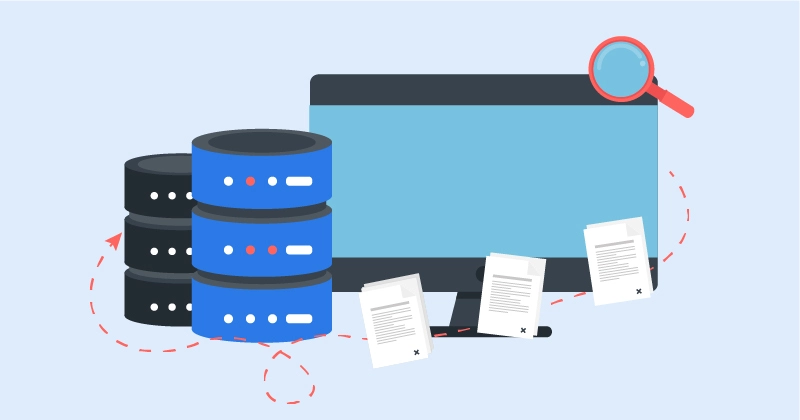
When moving from ActiveCampaign to HubSpot, there is no one-size-fits-all approach. The right method depends on the size of your database, the complexity of your automation, and the experience of your team. Here are the most common ways to handle the actual data migration.
Manual Migration for Small or Clean Databases
If your list of contacts is straightforward and you are confident working with spreadsheets, a manual migration might be the right fit. This involves exporting data from ActiveCampaign and importing it into HubSpot using CSV files.
HubSpot’s import tool lets you map each column to the appropriate contact, company, or deal property. You can also import multiple objects at once, such as contacts and companies together.
This method works best when:
- You have a simple CRM structure
- There are fewer than 10,000 contacts
- Your automation is minimal or being rebuilt
Just make sure to double-check your contact field mapping before you import.
Third-Party Tools to Simplify the Process
For larger migrations or more complex data, tools like Trujay, Import2, and Data2CRM can save hours of manual work. These platforms are built to move your CRM data between systems accurately and efficiently.
Key benefits include:
- Pre-built connections between ActiveCampaign and HubSpot
- Automated field mapping and property creation
- Migration of historical email templates and contact activity
- Better error handling and migration logs
These tools reduce the risk of broken automation and ensure a smoother setup in one platform.
Custom Migration for Complex Business Needs
If your data structure includes advanced marketing automation, multiple lists, or layered workflows, a custom migration may be the safest route. In this case, a developer or agency uses HubSpot’s API to build a personalized migration plan that mirrors your exact CRM logic.
You might consider this path if:
- You manage more than 50,000 contacts
- Your team relies heavily on complex ActiveCampaign automations
- You are merging data from more than one account or platform
A custom approach ensures your workflows, lists, and integrations function just as they did—or even better—in your new HubSpot environment.
Setting Up HubSpot
After preparing and organizing your data, the next step is setting up your new HubSpot account. This involves configuring your CRM, recreating your marketing assets, and laying the foundation for future automation. Taking the time to set everything up properly will ensure a smooth migration and reduce the risk of issues down the line.
Create Custom HubSpot Properties
Start by creating all necessary HubSpot properties to match the fields from your ActiveCampaign account. These include any unique contact details, lead sources, or segmentation tags. For example, if you previously used a custom field like product interest or last webinar attended, create equivalent fields in HubSpot using the correct property type.
This step helps make sure that when you import contacts, the data lands in the right place without errors or loss.
Set Up Contact Lists and Segmentation
HubSpot allows you to create both static and active lists. Static lists are fixed, while active lists update automatically based on defined criteria. Review how your contacts were segmented in ActiveCampaign and rebuild those lists accordingly.
This is also the time to define filters that will be used in workflows, reports, and targeted campaigns.
Rebuild Email Templates and Landing Pages
Next, recreate your email templates and landing pages in HubSpot. Use its drag-and-drop editor to match the design and layout of your original assets. If needed, make improvements to content, layout, or calls to action based on recent performance data.
This is your opportunity to refresh your design and make your messaging more consistent across platforms.
Recreate Workflows and Automation Paths
HubSpot offers powerful marketing automation tools. Rebuild your existing workflows such as:
- Welcome sequences for new contacts
- Nurture series for leads
- Internal alerts for follow-ups
- Re-engagement campaigns
Use the visual workflow builder to set triggers, conditions, and actions. Test each workflow using sample data before turning it live.
Configure Account Settings and CRM Basics
Make sure your account settings are accurate and reflect your brand. This includes your:
- Company name
- Email sending domains
- Time zone and currency
- Branding for forms and landing pages
Then move on to your CRM basics:
- Set up deal pipelines based on your sales process
- Enable lead scoring to prioritize high-value contacts
- Create user roles and assign permissions to your team
When configured correctly, HubSpot becomes more than just a CRM. It becomes a central platform for your sales, marketing, and support operations.
Handling Integrations during HubSpot Migration
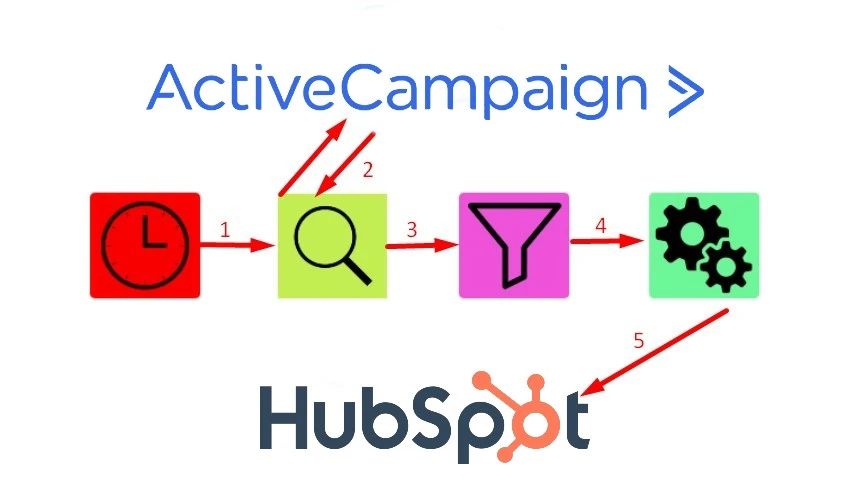
Integrations play a big role in how your tools talk to each other. When migrating from ActiveCampaign to HubSpot, it is important to review all existing integrations and rebuild or replace them inside the new system. HubSpot supports a wide ecosystem of apps and services that can help centralize your work on one platform.
Review All ActiveCampaign Integrations
Start by listing every tool currently connected to ActiveCampaign. This may include:
- E-commerce platforms like WooCommerce or Shopify
- Website platforms like WordPress
- Communication tools like Slack or Zoom
- Form builders and lead generation tools
- Webinar and event platforms
- Payment gateways or customer support systems
Take note of how each integration is being used. For example, are you syncing contacts, triggering automation, or tracking events?
Explore HubSpot’s App Marketplace
HubSpot offers more than 1,500 integrations across various categories. Visit the App Marketplace to find official apps that connect directly to your favorite tools.
Some popular integrations include:
- Google Ads and Google Analytics
- Facebook and LinkedIn Ads
- Stripe and PayPal
- Eventbrite, Calendly, and Zoom
- Salesforce, Pipedrive, and other CRMs
Search for your tools and read the documentation to understand how each integration works within HubSpot.
Set Up or Rebuild Integrations
Once you identify the tools you want to keep, begin setting them up in HubSpot. Some apps offer direct one-click integration, while others may require API keys or custom settings.
Follow these steps:
- Connect the tool to your HubSpot account
- Test the sync by sending sample data
- Confirm that contacts, emails, and events are logging correctly
- Adjust settings for permissions and field mapping
If HubSpot does not offer a native integration for one of your existing tools, explore third-party solutions like Zapier or Make. These platforms allow you to build custom workflows that pass data between services automatically.
Monitor Integration Performance
After setup, test each integration thoroughly. Make sure new contacts are syncing, email events are tracked, and CRM updates are flowing smoothly. It is also helpful to set alerts or reports to monitor errors in the first few weeks.
A well-handled integration setup ensures your marketing efforts continue without disruption and your business runs smoothly on one platform.
Asset Migration into HubSpot
Migrating your marketing assets is one of the most important parts of the entire HubSpot migration process. These assets represent the touchpoints your leads and customers interact with most — from email templates and landing pages to forms and calls to action. Taking the time to rebuild them properly in HubSpot ensures a smooth transition and sets your campaigns up for future success.
Rebuild Email Templates with HubSpot Tools
Begin by reviewing your most-used email templates from ActiveCampaign. Identify which ones should be carried over, which need updates, and which can be retired.
HubSpot offers a flexible drag-and-drop email editor that makes it easy to recreate templates while improving design and layout. You can customize fonts, buttons, images, and branding without writing any code.
Do not forget to update footer information, privacy policies, and subscription settings to match your current standards.
Create Forms That Match Existing Conversions
If you used forms in ActiveCampaign to collect contact information or trigger automation, now is the time to rebuild them in HubSpot. HubSpot allows you to create embedded, pop-up, and standalone forms with detailed styling and behavior options.
Match each form with its original purpose. For example:
- Newsletter sign-ups
- Lead magnet downloads
- Contact requests
- Event registrations
Connect each form to the right lists and workflows so that your CRM stays organized as new contacts come in.
Recreate Landing Pages with Enhanced Design Options
HubSpot’s landing page builder lets you create fully branded pages that align with your goals. Import content from your ActiveCampaign landing pages and use this opportunity to refresh visuals, layout, or copy.
HubSpot also includes options like:
- Smart content blocks for personalization
- SEO settings for each page
- A/B testing features to optimize performance
Keep the URLs similar to your original pages if possible, or set up proper redirects to avoid broken links.
Set Up CTAs, Pop-Ups, and Website Tracking
If you had call-to-action buttons or pop-ups in ActiveCampaign, replicate those using HubSpot’s tools. You can design custom buttons and track clicks inside your CRM.
Next, install HubSpot’s tracking code on your website. This allows you to:
- Track page views and contact activity
- Trigger automation based on behavior
- Build better reports and engagement data
HubSpot offers the ability to manage everything from one dashboard, giving you complete control over how leads interact with your content.
Testing and Quality Assurance Before Launch
Once everything is migrated into HubSpot, it is important to test the system thoroughly before making it live. This step helps prevent issues that may affect your marketing campaigns, contact data, or internal workflows. A smooth transition depends on proper quality checks across every part of your setup.
Begin with a Pilot Group
Before launching company-wide, start with a limited rollout. Choose a small group of users or a single department to test the system. This could be your sales team using the new CRM pipeline or your marketing team testing lead capture through a form.
Monitor how contacts flow through automation, how email templates behave, and whether notifications are triggered as expected. This approach reduces risk and makes troubleshooting easier.
Test Automation Workflows with Sample Contacts
Use test contacts to run through every automation sequence. Check if triggers activate correctly, if the right emails are sent, and whether properties are updated as planned.
Pay attention to the following:
- Email delivery and formatting
- Lead scoring updates
- Task creation for internal users
- CRM data updates after workflow completion
Fix any delays, logic errors, or missing steps. Do not skip over small issues, as they often lead to bigger problems when scaling.
Review Email Templates and Landing Pages
Open each email template across different devices and email clients. Make sure your images, links, and formatting remain consistent everywhere. Then review all landing pages, checking for mobile responsiveness, working forms, and accurate redirects.
HubSpot offers built-in preview and test tools, but manual checks across real browsers are still recommended.
Validate Contact Properties and CRM Fields
Run a spot check on your contacts and companies. Make sure data has landed in the correct HubSpot properties and that values are consistent with your original system.
Review contact filters, saved views, and any active lists created during the migration. This ensures your segmentation works properly once the system goes live.
Monitor Reports and Dashboard Accuracy
Lastly, view your analytics and dashboards. Confirm that metrics like new contacts, email performance, and conversion rates are being tracked accurately. Make adjustments to dashboards or reports if values look incorrect.
Testing is not just about avoiding errors — it is about building confidence in your new system before it becomes central to your business.
Team Onboarding and Deployment
Once your HubSpot setup is tested and ready, it is time to bring your team into the system. A successful migration is not just about data and automation. It also relies on your team understanding how to use the new tools effectively. Smooth onboarding helps drive adoption and ensures your CRM becomes a powerful part of daily operations.
Set Up Users and Assign Roles
Start by creating user accounts for everyone who will work inside HubSpot. Assign them to teams based on their roles in marketing, sales, or customer support.
You can control access to specific tools, reports, or contact views by setting permissions. This keeps your CRM organized and ensures each user only sees what they need to work with.
Some common roles include:
- Sales representative
- Marketing manager
- Content creator
- Admin or super user
Check that account settings such as time zone, default views, and notification preferences are set correctly for each user.
Provide Practical Training Based On Real Use Cases
Generic product tours are not enough. Your team needs to understand how HubSpot applies to your workflows. Build short training sessions around real tasks such as:
- Creating and updating contacts
- Sending marketing emails
- Managing deals in the pipeline
- Using filters and saved views
- Running reports and reviewing dashboards
Use screen recordings, documents with screenshots, and live sessions for hands-on learning. You can also take advantage of HubSpot Academy, which offers free, detailed training for every tool inside the platform.
Create an Internal HubSpot Playbook
Build a simple playbook or standard operating procedures document that outlines how your team should use the CRM. Include links to forms, naming conventions for lists, or rules for updating contact properties.
This guide should evolve with your system. Update it when you make changes to automation, forms, or campaign processes.
Go Live with Full Deployment
Once training is complete and your team is comfortable, it is time to go live. Activate all workflows, connect live forms, and enable campaigns. Monitor closely for the first week, checking that everything works as expected.
Encourage your team to report any issues or questions. Address them quickly and make adjustments where needed. A successful deployment often includes several rounds of feedback and refinement.
Post-Migration Checks & Optimization
After the system is live, take time to review key elements. Check that contacts are syncing correctly, forms are capturing data, and workflows are running as expected. Use HubSpot reports to monitor activity and adjust automation based on performance. Clean up any unused lists or properties to keep your CRM organized. Regular check-ins during the first month will help you catch issues early and optimize faster.
Conclusion
Migrating from ActiveCampaign to HubSpot opens up new possibilities for streamlining your marketing, sales, and CRM efforts. With the right planning, clean data, and team training, your business can make the switch smoothly. From automation to analytics, HubSpot offers tools to grow and manage everything in one platform. If you’re ready to get started or need support along the way, reach out to our team for expert guidance on a seamless migration journey.