WooCommerce is a powerful platform, but it’s overkill if all you need is a simple subscription form, a membership payment, or a recurring donation.
Setting up recurring Square payments in WordPress without WooCommerce takes a fraction of the time, requires far fewer plugins, and results in a simpler checkout experience for your customers. You get the full power of Square’s subscription billing without configuring products, shipping zones, or a full shopping cart.
This guide walks you through exactly how to do it, which plugin fits your use case, and how to test that your recurring payments are working correctly before going live.
The fastest way to accept recurring Square payments in WordPress without WooCommerce is to use a lightweight payment form plugin that supports Square subscriptions and connect it directly to your Square account.
The setup includes creating a Square account, installing a compatible plugin such as WPForms or WP Simple Pay, connecting through Square OAuth, enabling recurring billing, and embedding the payment form on your site.
Most straightforward subscription setups take less than an hour and do not require a shopping cart or product catalog.
Why Accept Recurring Square Payments Without WooCommerce?
WooCommerce is designed for product catalogs, inventory management, and full eCommerce stores. If your goal is to charge customers a recurring fee for a service, membership, or subscription, WooCommerce adds significant overhead for no benefit.
Here is what you avoid by skipping WooCommerce:
- No need to configure products, shipping zones, or tax settings
- No WooCommerce Subscriptions extension required (an additional $279 per year)
- Simpler admin dashboard with no orders, stock, or fulfillment management
- Faster page loads because WooCommerce adds significant JavaScript and CSS to every page
- Easier for non-technical site owners to manage
Lightweight payment form plugins connect directly to Square’s API and handle subscription billing, renewal charges, and payment failure notifications without any eCommerce infrastructure.
Need Help Setting Up Payments on Your WordPress Site?
Seahawk builds custom WordPress payment integrations, membership sites, and subscription flows. No WooCommerce required. No contracts. No retainers.
Which Plugin Should You Use for Recurring Square Payments?
The right plugin depends on how you plan to use recurring payments and what else you need your forms to do.
| Plugin | Best For | Square Recurring Support | Pricing | Difficulty |
| WPForms Pro | Subscriptions + other form types | Yes, via Stripe and Square | From $199/year | Beginner |
| Gravity Forms + Square Add-On | Complex conditional payment flows | Yes, full subscription support | From $59/year + add-on | Intermediate |
| WP Simple Pay | Minimal subscription pages | Yes, Square recurring | From $99/year | Beginner |
| MyPayKit Pro | Square-only simple forms | Yes | From $79/year | Beginner |
| WP EasyPay | Square-specific payment forms | Yes | From $49/year | Beginner |
Choose WPForms if: You want recurring Square payments and also need to build other types of forms on your site, such as contact forms, event registrations, surveys, or membership signups. WPForms handles all of these in one plugin.
Choose Gravity Forms if: You need complex conditional logic, want to offer both one-time and recurring payment options on the same form, or need to authorize cards before capturing payment. The Gravity Forms Square Add-On also unlocks in-dashboard refunds and multi-feed payment routing.
Choose WP Simple Pay if: You only need a standalone subscription form with no other form-building requirements. It is the most focused option and the easiest to configure for single-purpose payment pages.
Choose MyPayKit or WP EasyPay if: You want a Square-specific solution with minimal setup and do not need multi-purpose form capabilities.
What You Need Before You Start
Make sure these are in place before beginning the setup:
- A WordPress website running on HTTPS (SSL certificate required for payment forms)
- A Square account. Create one free at squareup.com. No monthly fees. Square charges 2.6% plus $0.10 per card transaction
- Your chosen plugin is installed and activated on WordPress
- A Square Developer account for sandbox testing (free, created at developer.squareup.com)
Method 1: Recurring Square Payments With WPForms
WPForms is the most widely used form plugin for WordPress and the easiest way for most site owners to set up recurring Square payments.
Step 1: Install WPForms Pro
Go to Plugins > Add New in your WordPress dashboard. Search for WPForms and install the free version. Then, enter your WPForms Pro license key under WPForms > Settings > General to unlock payment features.
The Payments addon for Square is included in WPForms Pro. You do not need to install it separately after entering your license key.
Step 2: Connect WPForms to Your Square Account
Navigate to WPForms > Settings > Payments. Click the Square tab. Click the Connect with Square button. You will be redirected to Square’s OAuth authorization page. Log in to your Square account and authorize WPForms to access your Square data. After authorizing, you will be returned to your WordPress dashboard with a confirmation that Square is connected.
If you want to test before accepting real payments, connect your Square sandbox account first. You will find your sandbox credentials in the Square Developer dashboard under Sandbox > Credentials.
Step 3: Create Your Payment Form
Go to WPForms > Add New. Select the Billing/Order Form template as your starting point. Give your form a name that reflects its purpose, such as “Monthly Membership Payment” or “Coaching Subscription.”
In the form builder, add the fields your subscribers need to complete:
- Name (Single Line Text)
- Email Address
- Payment Amount (Single Item or Multiple Items if you offer tiers)
For subscription tiers, use a Multiple Items field to let users choose their plan level. Set the price for each item directly in the field settings.
Step 4: Configure Square and Enable Recurring Payments
In the form builder, click Payments in the left sidebar. Click Square. Check the box to enable Square payments.
Under Payment Type, select Recurring Subscription. Set your billing period: daily, weekly, monthly, quarterly, or annually. For most membership and subscription use cases, monthly is the standard.
Enable the option to send payment receipts if you want Square to automatically email customers after each recurring charge. This reduces support requests around billing.
Save the form.
Step 5: Configure Form Notifications and Confirmations
Under Settings > Notifications, set up the email your team receives when a new subscriber completes the form. Include the subscriber’s name, email, and plan selection using WPForms smart tags.
Under Settings > Confirmations, customize the message subscribers see after completing payment. Include the billing amount, billing frequency, and instructions for canceling or updating their subscription.
Step 6: Embed the Form on a WordPress Page
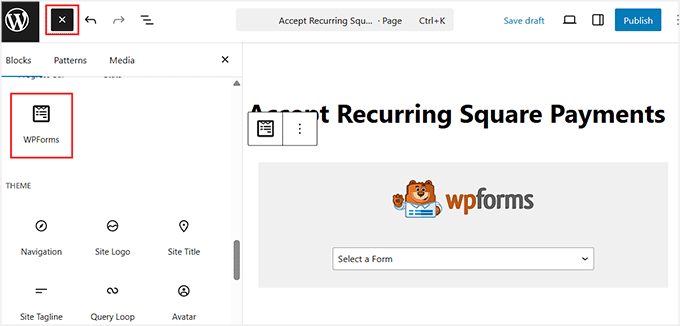
Create a new page in WordPress named “Subscribe,” “Membership,” or whatever fits your use case. In the block editor, click the + button and search for the WPForms block. Select your payment form from the dropdown. Publish the page.
Visit the page on a mobile device and a desktop browser to verify the form displays correctly. Test a payment in sandbox mode before going live.
Method 2: Recurring Square Payments With Gravity Forms
Gravity Forms is the better choice when you need conditional logic, multiple payment options, or a more complex payment flow. The Square Add-On unlocks full support for recurring subscriptions.
Step 1: Install Gravity Forms and the Square Add-On
Purchase Gravity Forms from gravityforms.com (the Elite license includes all add-ons). Install and activate the Gravity Forms plugin from the zip file. Navigate to Forms > Settings > Add-Ons and install the Square Add-On.
Step 2: Connect Gravity Forms to Square
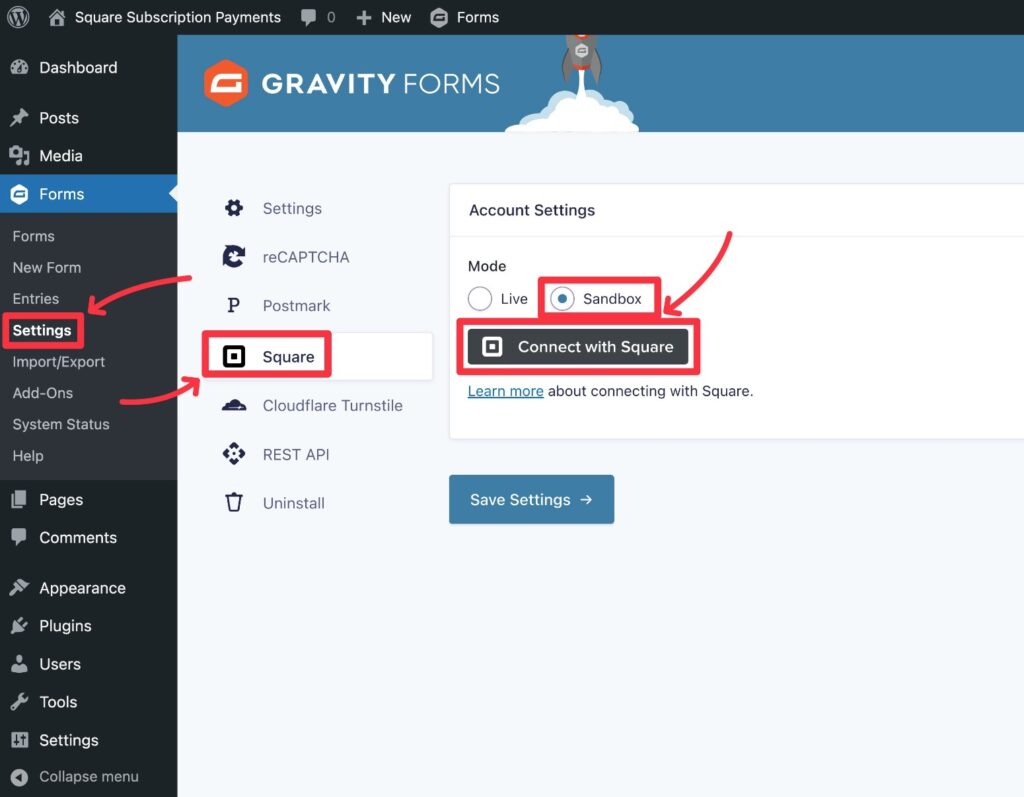
Go to Forms > Settings > Square. Click Connect with Square. Authorize Gravity Forms via Square’s OAuth flow. After connecting, your Square account details will appear in the settings panel. Select your Square location from the dropdown if you have multiple locations configured in Square.
Step 3: Create Your Payment Form
Go to Forms > New Form. Name your form and click Create Form. Add your required fields: Name, Email, and any custom fields relevant to your subscription (such as organization name or subscription tier selection).
Add a Product field and set it as a Single Product with a fixed price, or add a Radio Button field linked to a Product field to offer multiple subscription tiers.
Step 4: Add a Square Feed for Recurring Payments
In the form editor, go to Settings > Square. Click Add New to create a Square feed. In the feed configuration:
Set Transaction Type to Subscription
Map your form fields to Square’s required data points: name, email, and payment amount
Set the Billing Cycle to Monthly (or your preferred interval)
Enable the option for subscriptions to auto-renew until canceled
For conditional payment logic, such as offering both a one-time setup fee and a recurring charge, create two separate feeds with conditions that determine which feed activates based on form field values.
Step 5: Configure Notifications and Embed
Under Settings > Notifications, create notifications for new subscribers, payment failures, and subscription cancellations. Gravity Forms supports conditional notifications, allowing you to send different emails based on the selected subscription tier.
Embed the form on any WordPress page using the Gravity Forms block or shortcode.
Method 3: Recurring Square Payments With WP Simple Pay
WP Simple Pay is the most focused option for sites that only need standalone subscription payment pages.

Step 1: Install WP Simple Pay
Go to Plugins > Add New, search for WP Simple Pay, and install the plugin. Enter your license key under WP Simple Pay > Settings > License.
Step 2: Connect to Square
Go to WP Simple Pay > Settings > Payment Gateways > Square. Click Connect with Square and authorize via OAuth. Select your Square location.
Step 3: Create a Payment Form
Go to WP Simple Pay > Payment Forms > Add New. Name your form. Under the Payment tab, set the Price to your subscription amount. Set the Payment Schedule to Recurring and configure the interval (monthly, annual, and so on).
Under the Form Fields tab, add the fields customers need to complete. For a simple subscription, Name and Email are typically sufficient, along with the card field.
Under the Confirmation tab, customize the message shown after successful subscription setup.
Step 4: Embed and Test
Copy the shortcode from the form list and paste it into any WordPress page or post. Preview the page, run a test transaction using Square’s sandbox credentials, and verify that the confirmation message appears and the confirmation email is received.
Testing Your Recurring Square Payments
Testing is not optional. A recurring payment that charges the wrong amount, sends no confirmation, or fails silently on first renewal creates customer service problems you could have prevented with a 10-minute test.
Use Square Sandbox Mode
Create a sandbox account at developer.squareup.com. Switch your plugin’s Square connection to sandbox mode. Use Square’s test card numbers to simulate successful payments, declined cards, and insufficient funds scenarios.
Square test card numbers:
- Successful payment: 4111 1111 1111 1111 (any future expiration date, any CVV)
- Card declined: 4000 0000 0000 0002
What to Verify Before Going Live
Run through this checklist on staging or sandbox before switching to live Square credentials:
- Test payment completes with the correct amount charged
- Confirmation message appears immediately after payment
- Confirmation email is received by the subscriber
- The notification email is received by your team
- Subscription appears in your Square dashboard under Subscriptions
- Test cancellation: cancel the test subscription from Square’s dashboard and verify it does not attempt a second charge
- Test on mobile: the form is usable on a smartphone with touch-friendly input fields
- Test on Safari and Chrome: payment forms behave differently across browsers
Common Issues and Troubleshooting
Square connection fails during OAuth. Ensure your WordPress site is running on HTTPS. Square’s OAuth flow requires a secure connection. If your SSL certificate is not properly configured, the redirect after authorization will fail.
Recurring payments charge once and do not renew. Check that subscriptions are enabled in your Square account. Some Square account types or regions have limitations on subscription billing. Verify in your Square dashboard under Subscriptions that the initial subscription created is showing as Active with a next billing date.
Confirmation email not received by subscriber. Check that WP Mail SMTP is installed and configured. By default, WordPress sends email through PHP mail, which has poor deliverability. WP Mail SMTP routes emails through a proper mail provider (SendLayer, Brevo, or Gmail SMTP) to ensure delivery.
Form not displaying correctly on mobile. Check for conflicts with your theme’s CSS. Some themes apply styles to form elements that override payment form styling. Use browser developer tools to inspect the form on mobile and identify conflicting CSS rules.
Payment succeeds, but the subscription does not appear in the Square dashboard. This typically indicates a Square API scope issue. Disconnect your plugin from Square and reconnect, ensuring you authorize all requested permissions during the OAuth flow.
Square Recurring Payments: Pricing and Fees
Understanding Square’s fee structure helps you set subscription prices that account for processing costs.
| Transaction Type | Square Fee |
| Online card payment | 2.9% + $0.30 per transaction |
| Recurring subscription charge | 2.9% + $0.30 per charge |
| Manually entered card | 3.5% + $0.15 per transaction |
| Disputed payment (chargeback) | $0 fee (Square absorbs it) |
Square has no monthly fees for the standard payment account. For businesses processing over $250,000 per year, Square offers custom pricing. There are no setup or cancellation fees.
Final Thoughts on Setting Up Recurring Square Payments in WordPress
Setting up recurring Square payments without WooCommerce is significantly simpler than most site owners expect. For the majority of use cases, WPForms takes the payment form live in under an hour with no code and no eCommerce configuration.
The plugin selection comes down to your specific needs. WPForms for versatility, Gravity Forms for conditional logic and complexity, WP Simple Pay for focused subscription pages. All three connect to Square via OAuth and handle recurring billing reliably.
Test everything in sandbox mode before switching to live credentials, configure WP Mail SMTP so confirmation emails reach inboxes, and verify your subscriptions appear correctly in your Square dashboard after setup.
If you need help setting up Square recurring payments on your WordPress site or building a custom subscription flow that goes beyond what form plugins can deliver, Seahawk’s WordPress development team handles the full build.
Frequently Asked Questions About Recurring Square Payments in WordPress
Can I accept recurring Square payments in WordPress without WooCommerce?
Yes. Plugins like WPForms, Gravity Forms, WP Simple Pay, and WP EasyPay all connect directly to Square’s subscription API without requiring WooCommerce. These plugins create payment forms that handle recurring billing, renewal charges, and cancellations without any eCommerce infrastructure.
What is the best plugin for recurring Square payments in WordPress?
WPForms is the best choice for most users because it combines recurring Square payment support with general form-building features for contact forms, registrations, and surveys. Gravity Forms is better for complex conditional payment flows. WP Simple Pay is the best choice if you only need a minimal standalone subscription page.
Does Square support recurring payments?
Yes. Square has native subscription billing support through its API. It handles automatic renewal charges for daily, weekly, monthly, quarterly, or annual billing cycles, payment failure notifications and retry logic, subscription management (including pausing and canceling), and customer receipts for each renewal charge.
How much does Square charge for recurring payments?
Square charges 2.9% plus $0.30 per online card transaction for recurring subscription charges. There are no monthly, setup, or cancellation fees for the standard Square account. Custom pricing is available for businesses processing over $250,000 per year.
Do I need SSL for Square payments on WordPress?
Yes. SSL (HTTPS) is required for Square payment forms on WordPress. Square’s OAuth connection requires a secure connection, and browser security warnings on an HTTP site will prevent customers from entering card details. Most hosting providers include free SSL through Let’s Encrypt.
Can I offer both monthly and annual subscription options?
Yes. With WPForms, add a Multiple Items field to your form with separate monthly and annual pricing options. With Gravity Forms, use a Radio Button field linked to a Product field and configure conditional logic to adjust the billing cycle based on the user’s selection.
How do I cancel a recurring Square payment from WordPress?
Subscription cancellations can be managed directly from your Square dashboard under Subscriptions, or from your plugin’s payment dashboard, depending on the plugin. Both WPForms and Gravity Forms display subscription records in WordPress. Customers can also be given a self-service cancellation link by including it in their confirmation or receipt emails.
How do I test recurring Square payments before going live?
Create a Square Developer account at developer.squareup.com and use your sandbox credentials to connect your plugin in test mode. Use Square’s test card number 4111 1111 1111 1111 to simulate a successful payment. Verify that the subscription appears in your Square sandbox dashboard, that you have received the confirmation email, and that your team notification has been sent before switching to live credentials.