A WooCommerce store is not a set-it-and-forget-it system.
Every week without maintenance is a week in which an unpatched plugin, an unmonitored payment gateway, or an untested backup quietly creates risk. For stores processing real orders and storing customer data, that risk translates directly into lost revenue, lost trust, and in serious cases, legal liability.
This guide covers everything involved in proper WooCommerce maintenance: security hardening, update management, uptime and performance monitoring, and the complete checklist of tasks that keep a store running reliably in 2026.
WooCommerce maintenance keeps your store secure, updated, fast, and continuously monitored. Unlike standard WordPress maintenance, it also protects payment processing, customer data, and order management systems.
Why is WooCommerce Maintenance Important?
Just like any other software or system, regular eCommerce maintenance is vital to ensure the smooth functioning, security, and optimal performance of a WooCommerce store.
Here is what makes WooCommerce maintenance more complex:
Payment Gateway Dependency
When Stripe, PayPal, or another payment processor changes their API or releases a security update, your checkout must adapt immediately. A broken payment flow means every customer who attempts to buy receives an error and leaves, often permanently. This has nothing to do with WordPress core and everything to do with WooCommerce-specific plugin compatibility.
Customer Data Responsibility
WooCommerce stores collect billing addresses, order history, and in some cases, payment details. GDPR, PCI DSS, and regional data protection regulations apply directly. A security incident on a WooCommerce store carries legal consequences that a compromised blog post does not.
Order Database Degradation
As order volume increases, the WooCommerce orders table grows accordingly. Without regular database optimization, query times slow, checkout slows, and admin pages become sluggish. This is a store-specific performance issue with no equivalent on a brochure site.
Plugin Interdependencies
A typical WooCommerce store runs 20-40 active plugins. The more plugins, the more potential for update conflicts. An update to WooCommerce core can break a payment gateway plugin. An update to a gateway plugin can conflict with a subscription extension. Each update requires compatibility verification, not just a click.
Hire a Professional for WooCommerce Maintenance
Hiring a professional service like Seahawk for WooCommerce maintenance can provide numerous benefits, ensuring that your online store operates at its best.

Seahawk offers specialized services to enhance the performance, security, and overall health of your WooCommerce store. Here’s how we can help:
Regular Updates and Patches
We stay informed about the latest updates and patches for WooCommerce, ensuring your store is always running the plugin’s latest, most secure version. We also handle updates seamlessly, minimizing potential disruptions.
Security Audits and Vulnerability Checks
Our WooExperts conduct thorough security audits to identify and address potential vulnerabilities in your WooCommerce store. We implement security best practices, including firewall configurations, malware scans, and other measures, to protect your store from cyber threats.
Performance Optimization
We focus on optimizing your WooCommerce store’s performance through database optimization, image compression, and code optimization. This can improve your site’s loading speed and boost your rankings. We also resolve errors and warnings highlighted on Google Search Console and Google Analytics. To do this, rather than activate maintenance mode, we make the changes on the staging site with a reliable hosting provider.
Backup and Disaster Recovery
Seahawk implements robust backup solutions for your eCommerce website, ensuring your data is regularly backed up and easily recoverable in emergencies. This helps protect your site against data loss from hacking incidents or server failures. Thereby, preventing costly repairs for your WooCommerce shop.
Theme and Plugin Compatibility
We ensure that your WooCommerce store remains compatible with the latest versions of all themes and plugins. We carefully manage updates to prevent compatibility issues, ensuring that all components of your online store work seamlessly together.
Monitoring and Support
Seahawk continuously monitors your WooCommerce site, detecting and addressing issues promptly. Additionally, we offer support services to help you troubleshoot any issues that may arise, ensuring minimal downtime for your online store.
Customization and Development Services
Seahawk experts also offer customization and development services to tailor your WooCommerce store to specific business needs. This can include creating custom features, integrating third-party tools, and optimizing your online store’s overall design and functionality.
Is Your WooCommerce Store Maintained by Experts?
Seahawk handles WooCommerce security, updates, backups, and monitoring so you never lose revenue to downtime or a broken checkout. No contracts. No retainers.
How to Prepare for WooCommerce Maintenance?
Before diving into the intricacies of WooCommerce maintenance, it’s essential to lay a strong foundation by adequately preparing for the tasks ahead. Proper preparation ensures that you can navigate the maintenance process smoothly and minimize disruptions to your online store’s operations.
Backing Up Your WooCommerce Store
One of the first and foremost steps in preparing for maintenance is creating reliable backups of your WooCommerce store.

Backups serve as insurance against unforeseen issues that might arise during updates or changes. They enable you to restore your store to a previous working state, reducing potential downtime and data loss.
- Different Backup Methods: Explore various backup methods, including manual backups via your hosting control panel or specialized backup plugins. Each method has its advantages and disadvantages, so choose the one that aligns with your technical expertise and requirements.
- Choosing the Right Backup Frequency: Determine how frequently you should back up your store. Factors like the frequency of content updates, sales activity, and the criticality of your data contribute to this decision. Establish a backup schedule that balances the need for up-to-date backups without overburdening your server resources.
Creating a Staging Environment
A staging environment is a clone of your live WooCommerce site, created specifically for testing and making changes before implementing them on the live site. This invaluable tool ensures that updates, modifications, and new features can be thoroughly tested without risking the integrity of your main store.
Staging environments allow you to identify potential conflicts or issues that might arise from updates or changes. They give you the freedom to experiment without affecting the user experience or the store’s performance.
How to Set Up a Staging Site: Depending on your hosting provider and technical proficiency, setting up a staging site might involve various methods.
Some hosts offer built-in staging features, while others might require manual cloning. Choose a method that suits your resources and expertise.
How to Enable WooCommerce Maintenance Mode
Enabling maintenance mode for your WooCommerce store is necessary when you need to carry out essential updates, troubleshoot, or make significant changes that might temporarily affect the user experience. Here’s how to do it:
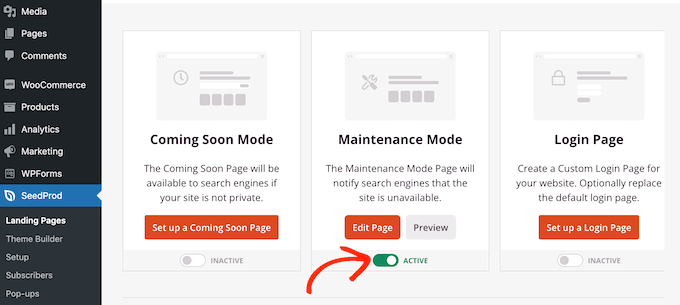
Step 1: Log in to your WordPress admin dashboard using your credentials.
Step 2: If you don’t already have a maintenance mode plugin installed, navigate to the “Plugins” section in your dashboard. Click on “Add New,” search for a maintenance mode plugin, and install it.
Step 3: Once installed, activate the maintenance mode plugin. This action typically creates a new section in your WordPress dashboard menu dedicated to maintenance settings.
Step 4: Access the maintenance settings section and configure the mode according to your requirements. You can often set a custom message informing visitors that your store is undergoing maintenance. You may also be able to enter an estimated duration for the maintenance period.
Step 5: Activate maintenance mode from within the plugin settings. This step essentially triggers the temporary maintenance page to display to your visitors.
Step 6: Many plugins allow customization of the maintenance page’s appearance and content. You can add your logo, brand colors, and any relevant messages to keep your customers informed.
Step 7: Before making the maintenance plugin mode live, use the plugin’s preview or testing mode to ensure the page displays correctly and that all necessary elements are in place.
Step 8: Once satisfied with the setup, activate the maintenance mode page. Visitors to your store will now see the maintenance page rather than the regular site.
Note: Once the maintenance tasks are complete, return to your dashboard and deactivate the maintenance mode. Your store will then revert to its standard appearance, and visitors can resume shopping as usual.
Updating Core WooCommerce Components
Staying up to date with core components is essential to maintaining the security, performance, and compatibility of your WooCommerce store. Let’s learn more about it.
WooCommerce comprises several integral components, including the WooCommerce plugin, WordPress core, themes, and various plugins that contribute to your store’s functionality. Each of these components plays a vital role in delivering a seamless user experience.
Upgrading WooCommerce Plugin
Regular updates to the WooCommerce plugin introduce new features, bug fixes, and security enhancements. Keeping this plugin up to date ensures your store benefits from the latest capabilities and remains protected against vulnerabilities.
Updating WordPress Core
As the foundation of your online store, WordPress core requires regular updates. These updates improve security, address bugs, and introduce new functionalities. A well-maintained WordPress core is crucial for the overall health of your WooCommerce store.
Managing Theme Updates
Themes dictate your store’s appearance and functionality. Regularly updating your theme ensures compatibility with the latest WordPress and WooCommerce versions, as well as access to new features and design enhancements.
Ensuring Plugin Compatibility
WooCommerce integrates with numerous third-party plugins to expand its capabilities. However, these plugins can sometimes conflict with each other or the core components. Regularly updating and monitoring plugins guarantees compatibility and minimizes potential issues.
Proactive Testing and Rollback Plans
Before implementing updates on your live store, it’s wise to test them in your staging environment. This step helps identify conflicts or issues that might arise from the updates. Additionally, having a rollback plan in place can mitigate unexpected complications that may arise during the update process.
Monitoring Website Performance for Online Stores
Maintaining optimal website performance is paramount for providing a seamless shopping experience to your customers and maximizing conversions.
Website speed and responsiveness directly impact user satisfaction, search engine rankings, and overall conversion rates. Monitoring your website’s performance helps identify and address potential bottlenecks or slowdowns promptly.
Using Tools like Google PageSpeed Insights
Seahawk’s Speed Test Tool is a valuable tool for assessing your website’s speed and performance. It provides actionable insights and recommendations to optimize various aspects of your site, from image compression to script loading.
Analyzing Website Speed and Load Times
Regularly analyze your website’s speed and load times using tools like GTmetrix or Pingdom. These tools offer detailed reports that help pinpoint specific areas that need improvement, such as server response times and resource loading sequences.
Optimizing Images and Media Files
Large images and media files can significantly slow down your website. Utilize image compression techniques, lazy loading, and responsive image design to ensure that visuals don’t compromise your site’s performance.
Caching and Content Delivery Networks (CDNs)
Implement caching mechanisms to store static resources locally on users’ devices, reducing server load and improving load times. CDNs distribute your content across multiple servers worldwide, minimizing latency and ensuring fast delivery to users.
The 3 Pillars of WooCommerce Maintenance
Every reliable WooCommerce maintenance plan is built on three pillars: security, updates, and monitoring. Neglect any one of them, and the other two cannot compensate.
Part 1: WooCommerce Security
Security is the highest-stakes area of WooCommerce maintenance. The average cost of a data breach for a small business is $3.3 million. For an e-commerce store, that number includes customer notification requirements, potential fines, and lost revenue during recovery.
Keep WordPress Core, WooCommerce, and Plugins Updated
Outdated software is the leading cause of WooCommerce store compromises. Most successful attacks exploit known vulnerabilities in plugins or themes for which patches already exist. Applying updates promptly closes those vulnerabilities before attackers can use them.
Security patches should be applied immediately, even on live stores. Feature updates should be tested on staging first. The distinction matters: a critical security fix cannot wait for a testing cycle.
Install a Web Application Firewall
A WAF (Web Application Firewall) filters malicious traffic before it reaches your store. It blocks SQL injection attempts, brute force login attacks, cross-site scripting, and known bot traffic. Wordfence and Sucuri Security both offer WAF functionality for WordPress and WooCommerce.
Wordfence Free covers basic firewall rules and malware scanning. Wordfence Premium adds real-time threat intelligence, blocking newly identified attack signatures within hours of discovery rather than days.
Enable Two-Factor Authentication
Admin accounts on WooCommerce stores are high-value targets. A compromised admin account gives an attacker access to customer data, payment settings, and the ability to redirect transactions. Two-factor authentication on all admin and shop manager accounts is non-negotiable.
Use a plugin like WP 2FA or Google Authenticator for WordPress to add 2FA without modifying core files.
Conduct Regular Malware Scans
Schedule automated malware scans at least weekly. Sucuri SiteCheck offers free external scanning. Wordfence and MalCare offer deeper file-level scanning that external tools cannot reach.
File integrity monitoring, which alerts you when core WordPress or WooCommerce files are modified unexpectedly, adds another layer. Any unexpected file change outside of an update cycle should be treated as a potential compromise until confirmed otherwise.
Enforce Strong Password Policies and Limit Login Attempts
Brute-force attacks are among the most common on WooCommerce admin pages. Limit login attempts using a plugin like Login Lockdown or Wordfence’s built-in rate limiting. Require all admin, editor, and shop manager accounts to use passwords of at least 16 characters, including a mix of character types.
Maintain an SSL Certificate and Verify PCI Compliance
Every WooCommerce store must run on HTTPS. An expired SSL certificate triggers browser security warnings that immediately suppress conversion. Set a calendar reminder 30 days before SSL expiration and automate renewal where your hosting provider supports it.
PCI DSS compliance applies to any store that processes, stores, or transmits cardholder data. Most WooCommerce stores that use hosted payment gateways like Stripe or PayPal significantly reduce their PCI scope. Verify that your payment gateway remains compliant and that you are not inadvertently storing card data in your database.
Review User Roles and Access Controls
Audit your WordPress user list every 90 days. Remove accounts for former staff, contractors, or developers who no longer need access. Assign the minimum necessary role to each active user. A content editor does not need shop manager access. A developer working on a theme does not need access to customer order data.
Log user activity using WP Activity Log to maintain an audit trail. Suspicious behavior, such as unexpected login times, bulk order exports, or changes to settings outside scheduled maintenance windows, should trigger an immediate investigation.
Part 2: WooCommerce Updates
Updates are the most operationally complex part of WooCommerce maintenance because they carry the highest risk of introducing compatibility issues on a live store.
The Right Update Sequence
Order matters when updating a WooCommerce store. Follow this sequence every time:
- Create a full backup before any update
- Test the update on a staging environment
- Update WordPress core first
- Update WooCommerce core second
- Update payment gateway plugins third
- Update remaining plugins in order of criticality
- Update themes last
- Test checkout, payment processing, and order management on staging
- Deploy to live store during low-traffic periods
- Monitor error logs for 24 hours after deployment
Skipping staging and updating directly on a live store is the single most common cause of WooCommerce store downtime.
Staging Environment Setup
Every WooCommerce store should have a staging environment that mirrors its production environment. Most managed WordPress hosts (DreamHost, WP Engine, Kinsta) include one-click staging. For stores on shared hosting, use a plugin like WP Staging to create a local or subdomain staging copy.
The staging environment must include a copy of the live database to accurately test order management, customer account behavior, and checkout flows.
HPOS Compatibility
High-Performance Order Storage (HPOS) is WooCommerce’s replacement for the legacy post-based order storage system. It delivers up to 5x faster order creation and 1.5x faster checkout by storing orders in dedicated database tables optimized for ecommerce queries.
If your store has not migrated to HPOS, check plugin compatibility before enabling it. Not all third-party WooCommerce extensions are fully HPOS-compatible. WooCommerce’s own compatibility checker flags incompatible plugins before migration. Enabling HPOS on a store with incompatible plugins can break order management workflows.
For stores that have already migrated, HPOS compatibility should be verified for every WooCommerce and gateway update.
Payment Gateway Updates
Payment gateway updates are the highest-risk updates on a WooCommerce store. Always test the complete checkout flow on staging after any gateway plugin update:
- Add a product to the cart
- Proceed through checkout with test payment credentials
- Confirm that the order confirmation email has been delivered
- Confirm the order appears in WooCommerce order management
- Verify the transaction registers correctly in your payment processor dashboard
A gateway update that passes visual inspection but breaks the transaction capture step can result in hours of lost orders before the problem is identified.
Part 3: WooCommerce Monitoring
Monitoring is what transforms maintenance from reactive firefighting into proactive store management. Without monitoring, you learn about problems from angry customers rather than your own systems.
Uptime Monitoring
Every WooCommerce store should have 24/7 uptime monitoring with instant alerting. Tools like Jetpack Monitor, UptimeRobot, and Better Uptime check your store at 1 to 5 minute intervals and send an alert the moment your site becomes unreachable.
For stores with significant revenue, downtime alerts should go to multiple channels: email, SMS, and Slack. An alert that sits unread in an email inbox for four hours while the store is down is not much better than no alert at all.
Performance Monitoring
Slow stores lose customers. A one-second delay in checkout page load time reduces conversions by 7% on average. Monitor Core Web Vitals using Google Search Console and set up real-user monitoring with a tool like New Relic or Cloudflare Analytics.
Track these metrics at a minimum monthly:
- Time to First Byte (TTFB): should be under 600ms
- Largest Contentful Paint (LCP): should be under 2.5 seconds
- Cumulative Layout Shift (CLS): should be under 0.1
- Time to Interactive (TTI): should be under 3.8 seconds on mobile
Gradual performance degradation is easy to miss without baseline tracking. Monthly monitoring provides a trendline that gives early warning of infrastructure or plugin issues.
Error Log Monitoring
WordPress and WooCommerce write errors to a debug log that most store owners never look at. Enable WP_DEBUG_LOG in your wp-config.php file and check the log weekly for PHP errors, database query failures, and plugin conflicts. Many critical issues appear in error logs hours or days before they manifest as visible problems.
For automated error monitoring, tools like Query Monitor and Sentry integrate with WordPress and can alert you to recurring errors without requiring manual log review.
Database Monitoring and Optimization
WooCommerce databases accumulate unnecessary data over time. Expired transients, orphaned order metadata, revision history, and spam comments grow the database without providing any operational value. A database twice the necessary size runs queries twice as slowly.
Run WP-Optimize or WP Rocket’s database cleanup tool monthly to remove expired transients, clean post revisions, and optimize database tables. For large stores processing hundreds of orders per day, consider a dedicated database optimization schedule with automated weekly cleanup.
Payment Gateway and Webhook Monitoring
Payment gateway webhooks notify WooCommerce of payment events, including successful charges, refunds, and disputes. If a webhook fails, WooCommerce may not update order statuses correctly, leading to unfulfilled orders, incorrect inventory, or missed dispute notifications.
Check your payment gateway dashboard monthly for webhook delivery failures. Stripe’s dashboard shows webhook event logs and failure rates. PayPal’s IPN history shows the same. Any consistent failure rate above 1% warrants immediate investigation.
Security Measures and Best Practices for WooCommerce
E-commerce stores are prime targets for cyberattacks due to the valuable customer data they hold. Protecting against security breaches not only safeguards your customers but also maintains your reputation and prevents potential legal consequences.
Ensuring the security of your WooCommerce store is paramount to safeguard sensitive customer information and maintain your business’s credibility.
Implementing SSL Certificates
Secure Sockets Layer (SSL) certificates encrypt data transmitted between your website and users’ browsers. This encryption ensures that sensitive information, such as login credentials and payment details, remains confidential and secure.
Regular Security Audits
Conduct regular security audits to identify vulnerabilities and potential entry points for malicious attacks. These audits should encompass both your website’s code and server configurations.
Managing User Permissions and Roles
Assign user roles and permissions appropriately to limit access to sensitive areas of your store. For instance, only authorized personnel should have access to settings and administrative functions.
Security Plugins and Firewall Integration
Leverage security plugins and firewalls designed specifically for WooCommerce to fortify your store’s defenses. These tools can detect and prevent malicious activities, such as brute force attacks and unauthorized login attempts.
Staying Updated with Patches
Keep your WooCommerce, WordPress, and plugin versions up to date. Developers release updates not only for new features but also to address security vulnerabilities discovered in previous versions.
Regular Backups and Recovery Plans
Maintain consistent backups of your WooCommerce store’s data. In the event of a security breach, having recent backups allows you to restore your store to a safe state and minimize potential data loss.
Payment Gateway and Checkout Maintenance for eCommerce
A seamless and secure payment process is at the heart of any successful e-commerce store. Regularly assess the integration of your chosen payment gateways to ensure they are functioning correctly.
Test various payment methods to ensure customers can complete transactions smoothly.
- Fixing Payment-Related Issues: If customers encounter payment errors or issues, address them promptly. Common problems might include declined transactions, payment method errors, or discrepancies in the checkout total.
- Ensuring Smooth User Experience: The checkout process should be intuitive and straightforward. Minimize the number of steps required to complete a purchase, and provide clear instructions for entering payment information and billing details.
Managing Inventory and Products for WooCommerce Stores
Maintaining accurate inventory records is crucial to preventing stockouts or overstock situations. Implement practices such as regular stock counts, reorder point monitoring, and setting safety stock levels.
- Adding and Updating Products Efficiently: When adding new products or updating existing ones, ensure that product information, images, and pricing are accurate and consistent. Use product templates and data import/export tools to streamline updates.
- Dealing with Out-of-Stock Items: Out-of-stock items can lead to customer frustration and lost sales. Implement automated notifications to alert customers when products are back in stock, and consider offering alternative options.
- Product Descriptions and Images Optimization: Compelling product descriptions and high-quality images are essential for effectively showcasing your products. Craft engaging, informative descriptions and use clear, high-resolution images to help customers make informed purchasing decisions.
Search Engine Optimization for WooCommerce Stores
A well-executed SEO strategy can significantly impact your store’s success by increasing your website’s visibility to potential customers. Higher search engine rankings drive more organic traffic, boosting brand exposure and sales opportunities.
- Optimizing Product Descriptions for SEO: Craft product descriptions that not only inform customers but also incorporate relevant keywords. Well-optimized product descriptions improve your store’s visibility in search engines’ results.
- Managing Permalinks and URL Structure: Configure your permalink structure to be both user-friendly and SEO-friendly. Include keywords and maintain a clear hierarchy in your URL structure to enhance search engine understanding.
- Utilizing SEO Plugins: Leverage SEO plugins, such as Rank Math, to streamline on-page optimization. These tools offer guidance on keyword usage, meta descriptions, and overall content optimization.
- Internal and External Linking Strategies: Implement internal linking to guide visitors to related products and pages within your store. External linking to authoritative sources can also improve your e-commerce site’s credibility and search ranking.
Dealing with Common WooCommerce Maintenance Issues
Being prepared to tackle common issues ensures your WooCommerce store runs smoothly and delivers a positive customer experience.
- Identifying and Troubleshooting Plugin Conflicts: Conflicts between plugins can lead to functionality issues or even site crashes. When encountering unexpected behavior, systematically deactivate plugins to isolate the culprit and resolve the issue.
- Resolving Theme Compatibility Problems: Themes can sometimes clash with new plugins or updates. Test plugins in your staging environment before deploying them to your live site. If issues arise, consult the theme documentation or support for solutions.
- Addressing Slow Loading Times: Slow loading times can drive users away and impact your site’s search engine rankings. Optimize images, enable caching, and consider using a content delivery network (CDN) to improve your site’s performance.
- Fixing Broken Links and 404 Errors: Broken links and 404 errors frustrate users and negatively impact SEO. Regularly use tools to scan for broken links and ensure proper redirects or fixes are in place.
Other Recommended WooCommerce Maintenance Providers
Explore our recommended maintenance providers for reliable upkeep and security of your online store. They handle all WooCommerce maintenance tasks for your online business, right from routine maintenance and security scans to WooCommerce database optimization to improving uptime with performance monitoring tools.
WP Whitelabel: White Label Maintenance Services
Ensure your client’s WordPress website operates seamlessly and delivers an exceptional user experience with WP Whitelabel’s white-label eCommerce maintenance solutions. Their comprehensive maintenance services are designed to keep the site secure, up to date, and performing at its best.
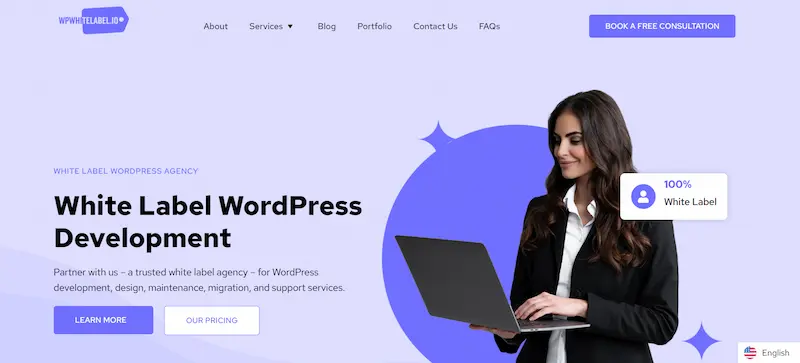
Why Choose WP Whitelabel for Website Maintenance & Care
- Dedicated Support: Their expert team provides round-the-clock assistance, ensuring prompt responses to your queries and concerns.
- Security Prioritized: They offer complete malware removal services and regular security audits to safeguard the site from potential threats.
- Uptime Monitoring: A proactive monitoring system ensures the website is always online and accessible to your audience.
- Automated Tools for Updates: They handle all core WordPress, theme, and plugin updates, keeping the site secure and compatible with the latest software versions.
- Backup Security: Regular backups of the site ensure data integrity and enable quick restoration in the event of unforeseen issues.
- Performance Optimization: Their team analyzes and optimizes site speed by implementing techniques such as asset optimization and content delivery network (CDN) integration for a lightning-fast user experience.
Read More: Common WooCommerce Maintenance Mistakes to Avoid at All Costs
WPServices: Expert WooCommerce Maintenance Service Provider
Secure your online storefront effortlessly with WP Services’ comprehensive WooCommerce maintenance service. Designed to elevate and safeguard your e-commerce journey, their service ensures optimal functionality and security for your website.
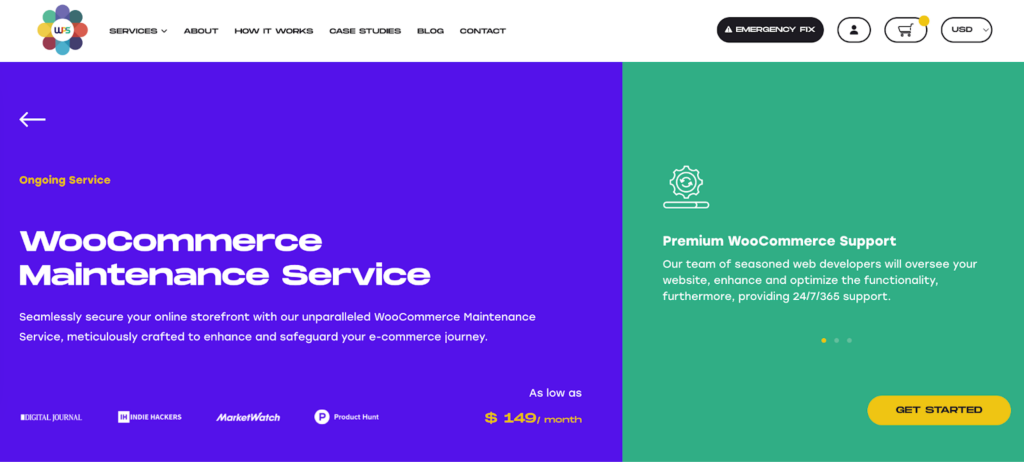
Key Features:
- Continuous Support: Access a team of experienced web developers round-the-clock for a well-maintained WooCommerce site.
- Tailored Packages: WooCommerce website owners can choose from customizable support packages.
- Enhanced Functionality: Through an ongoing process, they optimize and improve your WooCommerce website’s functionality.
- Security: They ensure your online store’s security with regular updates. All updates are performed in maintenance mode to avoid downtime. Also, they strengthen the site’s security to protect sensitive customer data.
- 24/7 Monitoring: They continuously monitor your website’s performance and security.
Complete WooCommerce Maintenance Checklist
Use this schedule as your baseline maintenance calendar.
| Frequency | Task |
| Daily | Verify automated backup completed successfully |
| Daily | Check the uptime monitoring dashboard for any alerts |
| Daily | Review the new order flow to confirm that payment processing is working |
| Weekly | Run malware scan |
| Weekly | Apply available security patches |
| Weekly | Check error logs for recurring PHP errors or database issues |
| Weekly | Review staging-tested updates and deploy to the live store |
| Monthly | Test backup restoration to verify recoverability |
| Monthly | Run database optimization and cleanup |
| Monthly | Check Core Web Vitals and page speed metrics |
| Monthly | Review user accounts and remove inactive or unnecessary access |
| Monthly | Verify SSL certificate expiration date |
| Monthly | Check payment gateway webhook delivery logs |
| Quarterly | Full security audit, including plugin vulnerability scan |
| Quarterly | Review and update WooCommerce payment gateway configurations |
| Quarterly | Audit product catalog, pricing, and tax configuration |
| Quarterly | Test all checkout flows end-to-end with live payment credentials |
| Quarterly | Review the hosting plan against the current traffic and resource usage |
| Annually | Renew the SSL certificate if not set to auto-renewal |
| Annually | Review PCI DSS compliance status |
| Annually | Full codebase review for deprecated functions or legacy code |
Best Tools for WooCommerce Maintenance
| Category | Tool | Purpose | Cost |
| Security | Wordfence Premium | Firewall, malware scanning, and real-time threat intelligence | $119/year |
| Security | Sucuri Security | WAF, malware scanning, DNS-level protection | $199/year |
| Backups | UpdraftPlus Premium | Automated backups with off-site cloud storage | $70/year |
| Backups | BlogVault | Real-time backups with one-click restore | $99/year |
| Updates | ManageWP | Bulk updates, staging, and visual regression testing | $2/site/month |
| Uptime | UptimeRobot | 1-minute uptime monitoring with multi-channel alerts | Free / $7/month |
| Performance | WP Rocket | Caching, database cleanup, Core Web Vitals optimization | $59/year |
| Database | WP-Optimize | Database cleanup, caching, image compression | Free / $49/year |
| Monitoring | Query Monitor | Error log visibility, database query analysis | Free |
| Activity | WP Activity Log | User action audit trail for security review | Free / $99/year |
| Staging | WP Staging | Staging environment creation for safe update testing | Free / $77/year |
Summary: A Well-Tuned WooCommerce Store
WooCommerce maintenance is not optional for stores that depend on uptime and customer trust to generate revenue. The cost of proper maintenance is predictable. The cost of skipping it is not.
A single data breach, a checkout outage on a high-traffic day, or a botched plugin update that corrupts order data can cost more in one incident than years of professional maintenance service.
The maintenance calendar above covers everything you need to run a secure, stable, and performant WooCommerce store. The tools table provides the best options for every budget level. What separates stores that stay up and stay secure from those that do not is simply whether maintenance happens consistently or only after something goes wrong.
If you want this handled entirely by WordPress and WooCommerce experts, Seahawk’s maintenance and support service covers every task outlined in this guide on your terms, with no contracts or retainers.
WooCommerce Maintenance FAQs
What is WooCommerce maintenance?
WooCommerce maintenance is the ongoing process of keeping your store secure, up to date, backed up, and monitored. It includes WordPress and WooCommerce core updates, plugin and theme updates, security hardening, daily automated backups, uptime monitoring, database optimization, and payment gateway reliability checks. WooCommerce maintenance is more complex than standard WordPress maintenance because it involves payment processing, customer data security, and the performance of the order database.
How often should I update WooCommerce?
WooCommerce core and all store plugins should be reviewed for updates weekly. Security patches should be applied immediately without waiting for a scheduled maintenance window. All other updates, including feature releases and major version upgrades, should be tested in a staging environment before deployment to the live store.
How do I secure my WooCommerce store?
Securing a WooCommerce store requires a layered approach: keep all software updated, install a web application firewall, enable two-factor authentication on admin accounts, run weekly malware scans, enforce strong password policies, limit login attempts, maintain a valid SSL certificate, verify PCI DSS compliance, and audit user access roles every 90 days. No single security measure is sufficient on its own.
What is HPOS in WooCommerce, and does it affect maintenance?
HPOS (High-Performance Order Storage) is WooCommerce’s modern order storage system that stores orders in dedicated database tables instead of the legacy WordPress post tables. It delivers significantly faster order management and checkout performance. For maintenance, HPOS compatibility must be verified for all WooCommerce and gateway plugin updates. Stores migrating to HPOS should use WooCommerce’s compatibility checker to confirm all active plugins support the new system before enabling it.
How often should I back up my WooCommerce store?
WooCommerce stores should be backed up daily at a minimum, with backups stored offsite (in a cloud storage service separate from your hosting server). Stores processing high order volumes benefit from real-time or hourly backups using tools like BlogVault. Equally important is regularly testing backup restoration. A backup you have never successfully restored cannot be relied upon in an actual emergency.
What is the cost of professional WooCommerce maintenance?
Professional WooCommerce maintenance services typically range from $99 to $500 per month, depending on store size, update complexity, and the scope of included security and monitoring. This cost is significantly lower than the average cost of recovering from a security breach, a botched update, or a major downtime incident. Seahawk’s WooCommerce maintenance service starts at $99 per month with no contracts or retainers.
What happens if I do not maintain my WooCommerce store?
Neglecting WooCommerce maintenance creates compounding risk over time. Outdated plugins accumulate known vulnerabilities that attackers actively exploit. Unmonitored uptime means downtime goes undetected for hours. Untested backups may fail when needed. Performance degrades as databases grow without optimization. Payment gateway compatibility issues can cause checkout to break without warning. Most WooCommerce store emergencies are the direct result of maintenance that was deferred for too long.