When it comes to building WordPress websites, Beaver Builder is one of the most reliable page builders around. Known for its stability, clean code, and easy-to-use interface, it’s a favorite among beginners, freelancers, and agencies.
As we move into 2025, Beaver Builder’s strengths, stability, ease of use, and white-labeling options for agencies, make it a smart choice for anyone looking to create websites that are both fast and future-proof.
In this tutorial, we’ll walk you through installing the Beaver Builder Plugin, Theme, and Themer Add-on step-by-step. So, let’s dive in.
What is a Beaver Builder?
Beaver Builder is a powerful drag-and-drop WordPress page builder designed to make website creation simple, flexible, and professional.
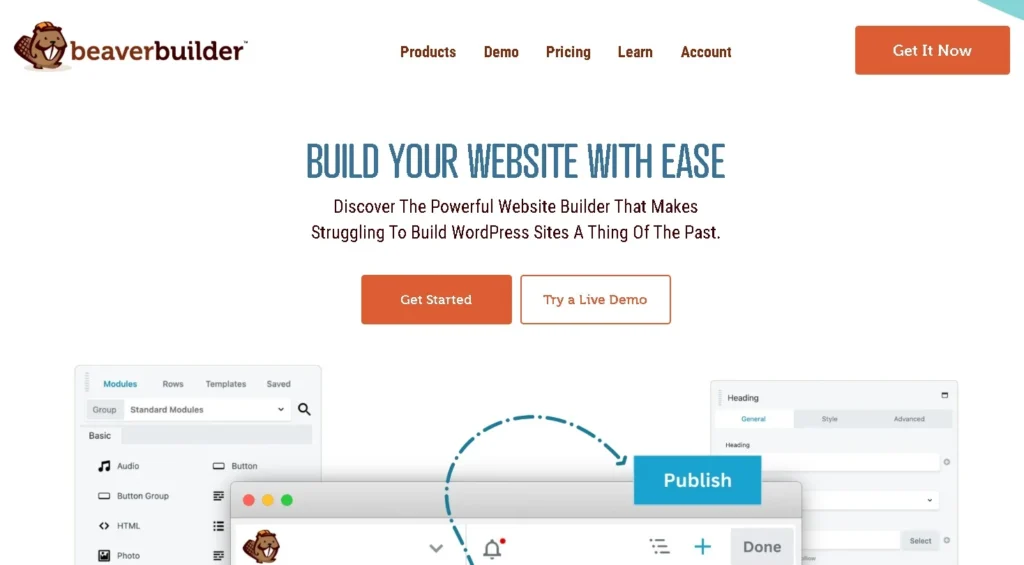
Instead of relying on code or complex design tools, users can visually build and edit their websites in real time using an intuitive interface.
From beginners launching their first site to agencies managing client projects, Beaver Builder provides the right balance of usability and functionality.
Since its launch in 2014, Beaver Builder has built a strong reputation in the WordPress ecosystem as one of the most stable and developer-friendly builders.
Unlike some tools that frequently introduce bloated features or experience compatibility issues, Beaver Builder is known for its clean code, reliable updates, and commitment to performance.
This makes it especially appealing for agencies and professionals who value long-term stability over constant hype.
When compared to other page builders like Elementor or Divi, Beaver Builder stands out for its lightweight structure and intuitive workflow.
Elementor and Divi often come with steeper learning curves and heavier code output, while Beaver Builder focuses on keeping things simple and efficient without compromising design flexibility.
In 2025, Beaver Builder continues to be a strong choice because of three key reasons: stability, simplicity, and scalability.
It integrates seamlessly with modern WordPress sites, empowers beginners with easy drag-and-drop editing, and supports agencies with white-labeling options and unlimited usage across client projects.
For those who want a builder they can trust for years to come, Beaver Builder remains a top contender.
Beaver Builder Product Suite Explained
Beaver Builder isn’t just a single plugin, it’s a complete suite of tools designed to give you full control over your website’s design. Each product works individually, but together they create a seamless design experience:
- Beaver Builder Plugin: The core page builder that lets you design custom pages with a drag-and-drop interface. You can add rows, columns, text, images, buttons, sliders, and more, all without touching code. It’s lightweight, fast, and works with almost any WordPress theme.
- Beaver Builder Theme: A clean, lightweight WordPress theme built to integrate perfectly with the plugin. It comes with built-in layout options, typography controls, and presets, making it easy to customize site-wide design without third-party themes.
- Templates & Modules: Prebuilt page templates and design modules allow you to quickly create professional layouts. Whether you need a homepage, landing page, or contact form, these ready-to-use designs speed up the process significantly.
- Beaver Themer Add-on: This powerful extension takes Beaver Builder beyond pages, giving you control over headers, footers, archive pages, WooCommerce layouts, and even 404 pages. Essentially, it allows you to design your entire website visually, not just the content areas.
When it comes to pricing, Beaver Builder offers flexible plans: Standard, Pro, and Agency. Each tier unlocks additional features, from theme access to multisite support and white-labeling.
The Agency plan in particular is a favorite among professionals, as it lets you rebrand Beaver Builder with your own agency’s name and logo when delivering client projects.
Learn More: How to Create Your Own Logo for Website
Build a Powerful WordPress Site with Beaver Builder!
Contact Seahawk Media today, and let our experts design, customize, and scale your website the right way.
Steps to Install the Beaver Builder Plugin
Setting up the Beaver Builder plugin is simple, but walking through each step carefully ensures you make the most of its features from the very beginning. Here’s a complete guide:
Step 1: Download the Plugin from Your Beaver Builder Account
Once you’ve purchased Beaver Builder, log in to your account at the official Beaver Builder website.
From your Downloads area, you’ll see the latest version of the plugin available as a .zip file. Click the download button and save the file to your computer.
This .zip package is what you’ll upload to your WordPress site. Make sure to store it somewhere easy to access so you don’t waste time searching later.
Step 2: Upload and Activate the Plugin in WordPress
Now, head to your WordPress dashboard. Go to Plugins ⟶ Add New ⟶ Upload Plugin. Choose the .zip file you just downloaded and click Install Now. Once WordPress finishes installing the plugin, hit Activate Plugin.
You’ll notice that Beaver Builder is now listed in your installed plugins and a new menu option appears in your dashboard. At this point, the plugin is active, but you’ll need to activate your license key to unlock all premium features and updates.
Step 3: Activate the License Key for Full Access
When you purchased Beaver Builder, you also received a license key in your account dashboard. Copy this key and return to your WordPress admin area.
Navigate to Settings ⟶ Beaver Builder ⟶ License. Paste the license key into the provided field and save changes.
Activating your license does two important things:
- It gives you access to all premium modules, templates, and support.
- It ensures you receive automatic updates so your builder stays compatible with the latest version of WordPress.
Step 4: Walkthrough of Plugin Settings
After activation, you’ll want to familiarize yourself with Beaver Builder’s settings panel. Here’s what you’ll find:
- Modules Management: Beaver Builder includes a variety of modules, from simple text editors and images to advanced elements like sliders, accordions, and pricing tables. The settings let you toggle modules on or off, helping keep your workspace organized and loading faster by only enabling what you need.
- Templates Access: Inside Beaver Builder, you’ll find a collection of professionally designed templates. These cover everything from homepages and about pages to contact forms and landing pages. You can import them with one click and then customize to match your brand, perfect for speeding up your workflow.
- Branding (White-Labeling for Agencies): If you’re using the Agency plan, you’ll see extra branding options. Here, you can replace the Beaver Builder name, logo, and even plugin details with your own agency’s branding. This is ideal for freelancers and agencies who want to deliver websites under their own professional label.
Step 5: First Look at the Beaver Builder Editor
With everything installed and activated, you’re ready to start building. Create a new page in WordPress, then click Launch Beaver Builder.
The editor opens up in a front-end, drag-and-drop environment. You’ll see a clean, intuitive interface divided into rows, columns, and modules.
Adding content is as simple as dragging a module (like text, images, or buttons) into a row. Once placed, you can click on any element to adjust its typography, colors, spacing, or even animations, all while seeing the changes in real time.
This first look gives you a sense of just how user-friendly Beaver Builder is. Even if you’ve never built a website before, you’ll quickly understand how to create professional layouts without writing a single line of code.
Want to see Beaver Builder in action? Check out our step-by-step video tutorial for a complete walkthrough:
Installing and Exploring the Beaver Builder Theme
Let’s see how:
Why Use Beaver Builder Theme Instead of Other Themes?
While Beaver Builder works with almost any WordPress theme, the Beaver Builder Theme is specifically built to work hand-in-hand with the plugin. It’s lightweight, cleanly coded, and avoids the bloat that many multipurpose themes carry.
This ensures faster load times, fewer compatibility issues, and a smoother design user experience. For users who want maximum flexibility and website performance, the Beaver Builder Theme is the perfect foundation.
Installation Process Uploading & Activating the Theme
- Log in to your Beaver Builder account and download the theme package as a .zip file.
- In your WordPress dashboard, go to Appearance ⟶ Themes ⟶ Add New ⟶ Upload Theme.
- Select the .zip file, click Install Now, and then Activate.
- Once activated, your site will immediately switch to the Beaver Builder Theme.
Installing a Child Theme (Best Practice)
It’s always recommended to use a child theme so that any customizations you make aren’t lost during theme updates. Beaver Builder provides a prebuilt child theme package, which you can upload the same way.
After installation, activate the child theme and keep the parent theme installed as a dependency. This ensures your design stays intact while you continue to receive parent theme updates.
Read: How to Create a Child Theme in WordPress
Key Features of Beaver Builder Theme

Let’s see:
- Lightweight and Fast: Built with performance in mind, the theme avoids unnecessary scripts and heavy styling, which keeps your website loading quickly.
- Presets: The theme comes with ready-made style presets such as light, dark, and bold. These act as design starting points, helping you launch a professional-looking site in minutes.
- Layout Customization: You can easily control headers, footers, and overall content width from the theme settings. Whether you want a boxed layout, full-width header, or custom footer design, it’s all manageable without code.
- Breakpoint Customization for Responsive Design: The theme allows you to fine-tune breakpoints for tablets, mobiles, and desktops. This ensures your design adapts beautifully across all devices, which is crucial in today’s mobile-first world.
- Typography, Colors, and Global Settings: From a single dashboard, you can set site-wide typography (fonts, sizes, weights), choose a global color palette, and adjust other branding elements. These global controls ensure consistency throughout your site and save time when updating styles.
Comparison with WordPress Default Theme
To truly appreciate the Beaver Builder Theme, compare it with a default WordPress theme like Twenty Twenty-Five.
While default themes are functional, they often lack the level of flexibility designers need. The Beaver Builder Theme, by contrast, provides:
- More control over headers and footers.
- Built-in responsiveness that can be customized.
- Professional presets that speed up development.
- Seamless integration with the Beaver Builder Plugin.
This makes the Beaver Builder Theme a far better choice for those serious about crafting professional websites, whether for personal use or client projects.
Using Beaver Builder to Build a Page
Once Beaver Builder is installed, you’re ready to start designing your first page. The interface is intuitive, but here’s a breakdown of how to use it.
Creating a New Page and Enabling Beaver Builder
From your WordPress dashboard, go to Pages ⟶ Add New. Give your page a title, then click Launch Beaver Builder. This will switch you into the front-end editor, where you can see and design your page in real time.
Exploring Rows, Columns, and Modules
Beaver Builder’s structure is based on three main building blocks:
- Rows: The horizontal sections that make up the backbone of your layout.
- Columns: Vertical divisions inside rows that help structure your content.
- Modules: The actual content blocks (like text, images, buttons, or sliders) that you drag and drop into place.
This hierarchy makes layouts flexible and responsive across devices.
Drag-and-Drop Functionality
Adding content is as simple as dragging a module from the right-hand panel into your row or column. Beaver Builder comes with a variety of modules, including:
- Headings & text blocks.
- Images & icons.
- Buttons & call-to-action elements.
- Sliders, videos, and galleries.
Everything can be placed exactly where you want it without touching code.
Adding and Styling a Button (Example Walkthrough)
Let’s say you want to add a call-to-action button:
- Drag the Button module into a row.
- Enter your button text (e.g., “Get Started”).
- Add your link or URL.
- Style the button by adjusting its color, typography, border radius, and hover effects in the settings panel.
This quick example shows how easy it is to build interactive, clickable elements.
Using Templates to Build an Agency-Style Homepage
If you don’t want to start from scratch, Beaver Builder offers a wide range of templates.
For example, you can load an agency homepage template and simply replace the content with your own branding, text, and images. This is one of the fastest ways to get a polished website online.
Styling Options: Colors, Typography, Spacing, Animations
Each module comes with styling settings that let you tweak your design. You can adjust:
- Global or module-specific colors.
- Typography (font family, weight, size).
- Margins and padding for spacing.
- Subtle animations for interactive effects.
These customization options give you creative freedom while maintaining a professional look.
Advanced Features: Conditional Visibility & Responsive Breakpoints
Beaver Builder also includes advanced controls:
- Conditional Visibility: Show or hide modules based on user roles, devices, or custom conditions.
- Responsive Breakpoints: Preview and adjust your design for desktops, tablets, and mobile devices, ensuring a seamless experience across platforms.
Once you’ve built a page you love, you can save it as a template. This allows you to reuse the same design across multiple projects, saving time and keeping your brand consistent.
Learn More: Elementor Breakpoints in Web Design
Installing and Using Beaver Themer
While the Beaver Builder Plugin handles page content, Beaver Themer takes things a step further by letting you design your entire website structure, including headers, footers, and templates.
What is Beaver Themer and Why It’s Powerful?
Beaver Themer is an add-on that transforms Beaver Builder into a full site-building solution.
Instead of relying on your WordPress theme’s limitations, you can visually design headers, footers, archive layouts, and even WooCommerce product pages, all from the same drag-and-drop interface.
- Download Beaver Themer from your Beaver Builder account.
- In your WordPress dashboard, go to Plugins ⟶ Add New ⟶ Upload Plugin.
- Upload the .zip file, install, and activate.
- Once active, you’ll find Themer options under Beaver Builder ⟶ Themer Layouts.
Creating Custom Site Parts
With Beaver Themer, you can build the structural parts of your site, such as:
- Custom Headers: Replace your default theme header with a fully customizable one. Add logos, navigation menus, and CTAs.
- Custom Footers: Build a footer with contact details, social icons, or newsletter signup forms.
- Archive Pages: Design unique layouts for blog categories or product archives.
- Single Post Templates: Control how individual blog posts or WooCommerce products are displayed.
- 404 Pages: Create branded error pages that guide visitors back to important content.
Example: Building a Custom Sticky Header with Beaver Themer
Imagine you want a header that stays visible while users scroll. With Beaver Themer:
- Create a new Themer Layout and choose Header.
- Drag in your logo, navigation menu, and a call-to-action button.
- Enable the “sticky” option in the row settings to keep the header visible as users scroll.
- Publish, and now your custom sticky header is live across the site.
Location Rules and Exclusion Rules
One of Themer’s most powerful features is location rules. You can assign different layouts to different parts of your site. For example:
- Show one header on your homepage.
- Use a different header on your blog pages.
- Exclude certain layouts from specific categories.
This level of control allows you to deliver highly customized user experiences without relying on multiple plugins or custom code.
WooCommerce and Beaver Builder
Beaver Builder works seamlessly with WooCommerce, making it an excellent choice for anyone building an eCommerce store.
Since the Beaver Builder Theme is WooCommerce-ready, you don’t need extra tweaks to get started, everything integrates smoothly out of the box.

Example: Customizing Product Page or Shop Layout
With Beaver Builder, you can visually edit your product pages and shop layouts. For example:
- On a product page, you can rearrange elements like the product image, description, price, and add-to-cart button.
- You can enhance the layout by adding custom banners, testimonials, or related products below.
- The shop page can be redesigned to feature product grids, promotional sections, or category callouts.
This flexibility gives your WooCommerce store a professional, conversion-optimized look.
Benefits of Using Beaver Builder for eCommerce Stores
- Full control over design: Unlike default WooCommerce layouts, Beaver Builder lets you craft unique, branded shopping experiences.
- Responsive by default: Ensures your product pages look great on mobile, where most online shopping happens.
- Better user experience: Add custom CTAs, highlight offers, and guide buyers toward checkout with strategic layouts.
- Scalable solution: As your store grows, you can easily expand layouts and add new features without rebuilding from scratch.
For store owners who want clean, fast, and reliable customization without relying on heavy add-ons, Beaver Builder is a smart choice.
White-Labeling Beaver Builder (For Agencies)
Beaver Builder is not only popular among freelancers but also a go-to solution for agencies. The Agency Plan allows full white-labeling, meaning you can rebrand Beaver Builder as your own tool when delivering websites to clients.
Explaining Agency Plan Benefits
The Agency Plan unlocks advanced features like white-labeling, unlimited site usage, and priority support. It’s tailored for agencies that manage multiple client projects and want to deliver a seamless experience under their own brand.
Rebranding Plugin and Theme with Your Own Logo & Name
Instead of showing the Beaver Builder branding, agencies can:
- Replace the plugin and theme name with their agency name.
- Add their own logo in the WordPress dashboard.
- Customize the color scheme and branding to match their style.
Clients see your branding everywhere, which strengthens your professional image.
Unlimited Site Usage for Clients
Agencies can use Beaver Builder on an unlimited number of client websites. This makes it cost-effective, scalable, and consistent across all projects, no need to buy separate licenses per client.
Why Agencies Prefer Beaver Builder for Client Work
Let’s see:
- Reliability & clean code: Fewer headaches compared to bloated builders.
- Easy handoff to clients: The editor is intuitive, so non-technical clients can make edits without breaking the site.
- Faster project delivery: Prebuilt templates and modules help agencies launch sites quickly.
- Professional branding: White-labeling keeps the agency’s brand front and center.
For agencies, Beaver Builder is not just a builder, it’s a client-facing tool that reinforces trust and efficiency.
Pros and Cons of Beaver Builder (2025 Edition)
Like any tool, Beaver Builder has its strengths and limitations. Here’s a balanced overview for 2025:

Pros
- Stability & simplicity: Lightweight, reliable, and doesn’t slow down sites.
- Clean code output: Ensures sites are fast, SEO-friendly, and developer-ready.
- White-label support: A huge win for agencies wanting to brand the tool as their own.
- WooCommerce support: Seamless integration for eCommerce projects.
- Responsive controls: Easy to adjust layouts for desktop, tablet, and mobile.
- Long-term reputation: Trusted in the WordPress ecosystem for years, known for consistent updates.
Cons
- Not as hyped as Elementor or Divi: The community and marketplace are smaller.
- Fewer third-party add-ons: Compared to Elementor’s huge ecosystem, Beaver Builder has fewer ready-made widgets.
Verdict: Why It’s Still a Fantastic Tool for Professionals
Despite not being the “trendiest” builder, Beaver Builder remains one of the most dependable and professional tools in 2025. Its balance of simplicity, clean code, WooCommerce readiness, and agency-focused white-label features makes it ideal for developers, agencies, and serious site owners who value stability over hype.
Read Here: WordPress SEO Plugins
Beaver Builder vs Competitors (Quick Comparison)
When choosing a page builder in 2025, Beaver Builder often gets compared to heavyweights like Elementor, and Divi. Each has its strengths, but Beaver Builder stands out for its balance of simplicity, stability, and professional features.
Beaver Builder vs Elementor
- Elementor is flashier, with a huge ecosystem of widgets, templates, and third-party add-ons. It’s highly popular among beginners who want creative freedom quickly.
- Beaver Builder, on the other hand, focuses on clean code, long-term stability, and an uncluttered interface. While Elementor has more features, it can sometimes feel bloated or cause conflicts with themes/plugins.
Choose Beaver Builder if you want speed, reliability, and agency-friendly white-labeling, rather than chasing design trends.
Beaver Builder vs Divi
- Divi is an all-in-one solution with its own theme + builder combo, plus hundreds of design templates. However, Divi tends to lock in your content, making it harder to switch themes or builders later.
- Beaver Builder avoids lock-in by keeping layouts clean and portable. Its Theme + Plugin + Themer suite integrates seamlessly, giving you flexibility without overloading your site.
Choose Beaver Builder if you want freedom from lock-in and a tool that clients can easily understand.
When to Choose Beaver Builder Over Others
- If you’re an agency that needs white-label features.
- If you value clean code and site performance over flashy effects.
- Beaver is also ideal if you want a stable, long-term solution that won’t break with every WordPress update.
- If your goal is to build professional, scalable websites without worrying about plugin bloat.
Conclusion
Beaver Builder has proven itself as more than just another WordPress page builder, it’s a complete design suite. With the Plugin, Theme, and Theme add-on, you gain full control over every part of your WordPress website, from headers and footers to product pages and custom layouts.
In 2025, while other builders battled over flashy features, Beaver Builder continued to stand out for its stability, simplicity, and professional-grade results.
Whether you’re a beginner experimenting with drag-and-drop design, a freelancer building client sites, or an agency looking for scalable, white-label solutions, Beaver Builder remains a worthwhile investment.
FAQs About Beaver Builder
Do I need the Beaver Builder Theme to use the plugin?
No, you don’t need the Beaver Builder Theme to use the plugin. The plugin works with almost any WordPress theme. However, the Beaver Builder Theme is optimized for speed, flexibility, and seamless integration, making it the best choice if you want full design control.
Can I use Beaver Builder for client websites?
Absolutely. Beaver Builder’s Agency plan includes white-labeling, so you can rebrand it with your own logo and name. It’s perfect for agencies or freelancers who build multiple websites for clients.
Is Beaver Builder good for beginners?
Yes! Beaver Builder is one of the most beginner-friendly page builders. Its clean drag-and-drop interface, prebuilt templates, and intuitive styling options make it easy to use even if you have no coding experience.
What is Beaver Theme used for?
Beaver Themer is an add-on that lets you design headers, footers, archive pages, single post templates, and even WooCommerce layouts. Essentially, it helps you go beyond page design and take full control of your website’s structure.
Is Beaver Builder free or paid?
Beaver Builder offers both a free Lite version and premium plans. The Lite version has limited modules and templates, while the paid version unlocks advanced features, the Beaver Builder Theme, and the Themes add-on for full site design flexibility.