Adding a WooCommerce shop to Google Merchant Center can put your products directly in front of shoppers searching on Google. The right setup helps your store appear in Google Shopping results, free product listings, and AI-powered search experiences.
Many WooCommerce store owners miss key feed settings, shipping details, or product data requirements that limit visibility.
This guide explains how to connect WooCommerce with Google Merchant Center correctly, improve product discoverability, and increase qualified traffic from search-driven buyers.
To add a WooCommerce shop to Google Merchant Center, store owners need to create a Merchant Center account, verify their website, and connect a product feed from WooCommerce using a plugin or feed management tool. Accurate product titles, pricing, availability, GTINs, and shipping information are required for product approval.
Once connected, products can appear in Google Shopping listings, free product results, and AI driven search experiences across Google surfaces. Regular feed updates help maintain visibility, improve product indexing, and reduce the risk of product disapprovals caused by outdated or incomplete data.
Understanding Google Merchant Center
Google Merchant Center is a tool that allows you to upload your product information to Google and make it available for shopping ads on Google.com, Google Shopping, and other Google properties.

Adding your WooCommerce shop to the Google Merchant Center can be a great way to increase product exposure and sales. In this article, we’ll show you how to add your WooCommerce shop to Google Merchant Center.
Benefits of Adding a WooCommerce Shop to Google Merchant Center
Adding a WooCommerce shop to the Google Merchant Center has numerous benefits.
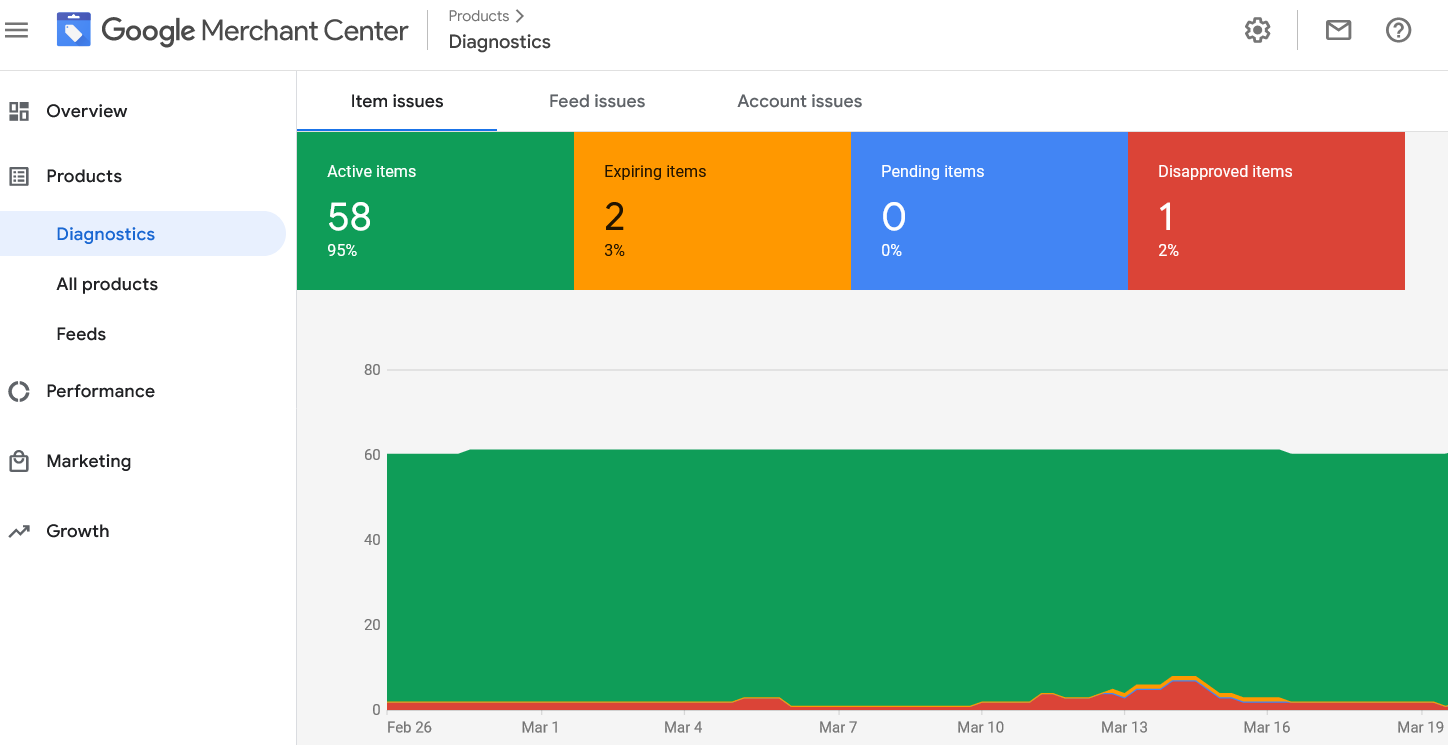
Increase Visibility
Perhaps the most obvious benefit is that it can help increase your visibility in search results. When potential customers search for products you sell, your WooCommerce shop will appear in the search results along with a link to your website. This can help you attract new customers and boost traffic to your site.
Streamline Product Listings
Another benefit of adding a WooCommerce shop to Google Merchant Center is that it can help streamline your product listings.
You can manage all your product listings in one place, making it easier to keep track of inventory and pricing. Additionally, you can use Google’s powerful tools to optimize your listings and ensure that they appear in front of the right audience.
Grow Business & Reach New Customers
Adding a WooCommerce shop to Google Merchant Center can be a great way to grow your business and reach new customers. With increased visibility and streamlined product management, you can focus on running your business and leave the marketing to Google.
Looking for WooCommerce Setup?
Contact us and get our expert WooCommerce development services to set up and optimize your online stores.
Step-by-Step Guide to Connecting Your WooCommerce Shop to Google Merchant Center
To connect your WooCommerce shop to Google Merchant Center, you will need to follow these steps:
Step 1: Set Up a Google Merchant Center Account
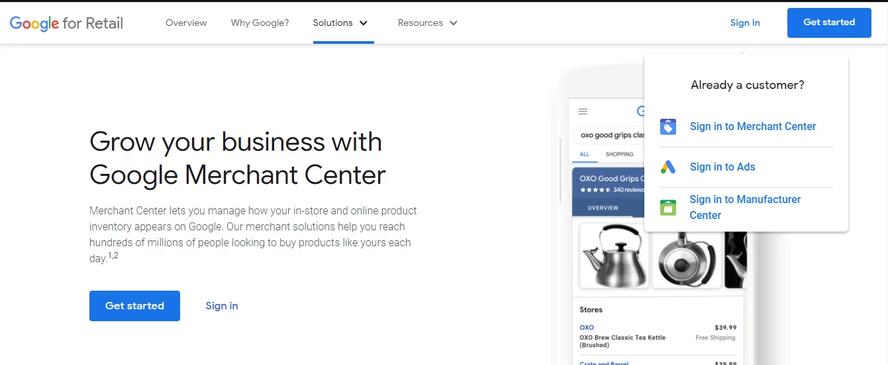
To set up a Google Merchant Center account:
- Go to https://merchantcenter.google.com/ and click “Sign in” in the top right corner.
- Sign in with your Google account. If you don’t have a Google account, you can create one at https://accounts.google.com/signup/.
- Click “Create Account.”
- Enter your business information, then click “Continue.”
- Accept the Terms of Service, then click “Create Account.“
Step 2: Create an XML Product Feed for Your WooCommerce Store Products
Assuming you have a WooCommerce store up and running, the next step is to create an XML product feed for your products. This product feed will be used to submit your products to Google Merchant Center, which can then be displayed on Google Shopping.

There are a few different ways to generate an XML product feed for WooCommerce:
- Use a plugin: Several plugins can automatically generate an XML product feed for you, including WP All Export and WooCommerce Product Feed Manager.
- Manually create your feed: If you’re comfortable working with XML, you can create your own product feed manually. This Google guide provides detailed instructions on how to do so.
Once your XML product feed is created, submit it to the Google Merchant Center.
Step 3: Create Your Data Feed in the Google Merchant Center
If you want to link your WooCommerce store products to Google Merchant Center, you first need to create a data feed. This data feed will include all necessary information about your products, including product names, prices, images, and more.
You’ll need to use a plugin like WooCommerce Product Feed Manager to create your data feed. This plugin makes it easy to generate a data feed compatible with Google Merchant Center.
Once you’ve installed the plugin, setting up your data feed is a breeze. Select the fields you want to include in your feed, and the plugin will do the rest.
Once your data feed is set up, all you need to do is submit it to Google Merchant Center. From there, your products will be eligible to appear in Google Shopping results.
Step 4: Connect Your Store and Google Merchant Center
Assuming you have a WooCommerce store and products ready, the next step is to connect your store to Google Merchant Center. There are a few ways to do this, but we recommend using the WooCommerce plugin for WordPress.
Once installed and activated, go to Settings> Integrations in your WordPress dashboard. Find the Google Merchant Center section and click the link to connect your account.
You will be prompted to sign in to your Google account and then give WooCommerce permission to access your Merchant Center account. After that, you should see a message that your accounts are successfully linked!
Step 5: Update Your Data Feed Regularly
It’s essential to keep your data feed up to date so potential customers always have the most accurate information about your products.
You should update your data feed at least once a week, and more frequently if you have many products or your inventory changes often.
To update your data feed, log in to your WooCommerce account and go to the Products page. From there, you can edit any product information that has changed and then resubmit your data feed to Google Merchant Center.
Learn: How to Migrate from PrestaShop to WooCommerce
Troubleshooting Common Issues When Setting Up Your WooCommerce Shop on Google Merchant Center
If you’re having trouble setting up your WooCommerce shop on Google Merchant Center, there are a few common issues that you can check for.
- First, ensure you’ve added your WooCommerce shop to Google Merchant Center as a product source.
- Next, check that your products are being correctly pulled into Google Merchant Center by checking the “Products” tab.
- If your products are not appearing, ensure you’ve set up your WooCommerce product feed correctly.
Finally, if you’re still having trouble, contact WooCommerce support or Google Merchant Center support for more help.
Tips for Optimizing Your WooCommerce Store on Google Merchant Center
Here are some tips for optimizing your WooCommerce store on Google Merchant seamlessly:
- Keep your products up to date: Ensure the products in your WooCommerce store are regularly updated. This includes ensuring that product descriptions, prices, and images are all accurate and up to date.
- Use high-quality product images: Product images are among the most critical factors in whether a customer will make a purchase. Make sure that your product images are high-quality and clear.
- Optimize your product titles and descriptions: They play a significant role in how your products appear in search engine results pages (SERPs). Ensure your titles and descriptions are keyword-rich and accurately reflect your products’ content.
- Offer competitive prices: Customers always seek the best deal possible. Make sure that your prices are competitive to attract potential customers.
- Provide customer reviews: They can help convince potential customers to make a purchase. If you have existing customers, ask them to leave reviews on your WooCommerce store.
Conclusion
Adding a WooCommerce shop to Google Merchant Center is an excellent way to increase your reach and engage more customers. With the proper steps, it can be quickly done.
To ensure you get the best out of this process, correctly set up your Google Merchant Center account and double-check all product information and images before uploading them to your store.
By doing this, you can quickly increase brand visibility and reach new potential customers!
FAQs About Adding a WooCommerce Shop to Google Merchant Center
How do I connect WooCommerce to Google Merchant Center?
You can connect WooCommerce to Google Merchant Center using a product feed plugin. Install a compatible plugin, generate a product feed, and link it to your Merchant Center account. Google will then sync your store products automatically.
Is Google Merchant Center free for WooCommerce stores?
Yes. Google Merchant Center is free to use. WooCommerce store owners can list products in free Google Shopping results without paying for ads. However, paid Google Shopping campaigns require an advertising budget.
Why are my WooCommerce products disapproved in Google Merchant Center?
Products are usually disapproved for missing GTINs, inaccurate pricing, broken landing pages, or policy violations. Incorrect shipping and tax information can also trigger disapprovals. Regular feed updates help prevent these issues.
Which WooCommerce plugin is best for Google Merchant Center?
Popular plugins include Google for WooCommerce, CTX Feed, and Product Feed PRO for WooCommerce. The best plugin depends on your store size, feed customization needs, and syncing requirements.
How long does Google Merchant Center take to approve products?
Google typically reviews products within a few days. Some stores may see approvals within 24 hours, while larger catalogs can take longer. Policy checks and feed accuracy also affect approval times.