If you’ve encountered an E_COMPILE_ERROR in WordPress, you’re probably feeling a bit frustrated and eager to get your site back up and running. This isn’t just any common WordPress error; it’s a serious one that requires immediate attention.
But don’t worry; by pinpointing the exact cause of the issue, whether it’s a file path problem or a mismatch with your PHP version, you can start working on a solution.
While you can always have WordPress support fix WordPress errors, it’s important to understand the root cause of the error to guide your self-help.
This guide is here to help you every step of the way. We’ll walk you through how to fix the E_COMPILE_ERROR in WordPress so you can get your site back online and functioning smoothly as soon as possible.
E_COMPILE_ERROR in WordPress is a fatal PHP error that occurs when the server cannot compile a script before execution. It is commonly triggered by incompatible plugins or themes, corrupted WordPress files, unsupported PHP versions, or syntax conflicts after updates. Most fixes involve disabling recently added plugins or themes, switching to a default WordPress theme, increasing PHP compatibility, or restoring clean core files from a backup. Reviewing server error logs and enabling WordPress debugging can help identify the exact source of the issue faster.
Understanding E_COMPILE_ERROR in WordPress
An E_COMPILE_ERROR happens when PHP hits a fatal roadblock during script compilation, which can stop your website development in its tracks.
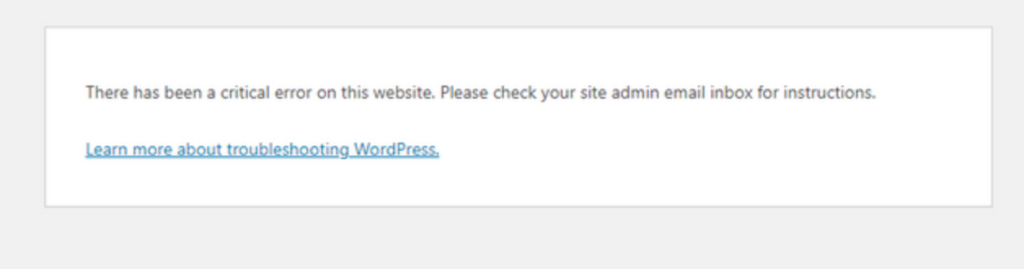
This kind of error is a real showstopper; it completely breaks the script and can make parts of your site, or even the whole site, inaccessible. Picture this: you’re trying to visit your favorite website, only to be greeted by a blank page or an error message due to a technical glitch. Frustrating, right?
The impact of an E_COMPILE_ERROR can be anything from minor functionality hiccups to a full-blown site crash, so tackling it as soon as possible is crucial.
Whether a missing file, an inaccessible server file, or server issues like aggressive file scanning caused it, understanding what triggered the E_COMPILE_ERROR is key to fixing the problem and ensuring it doesn’t happen again.
Read: Fix “There Has Been A Critical Error On Your WordPress Site”
How to Identify the E_COMPILE_ERROR in WordPress?
Recognizing the error message is the first step in getting your site back on track. When an E_COMPILE_ERROR hits, the details are often found in the WordPress recovery email, which becomes your go-to source of information. Think of this email as your lifeline; it’s packed with insights into what went wrong and where to start troubleshooting.
Sometimes, the error message will clearly state that a critical error occurred, using phrases like “fatal error” or “failed opening.” These are the big red flags indicating a serious technical issue that needs your immediate attention.
The error details might even point you directly to the specific file or line of code where the problem lies, giving you a clear starting point for your troubleshooting.
If you’re not receiving recovery emails, don’t worry. You can still get to the bottom of things by using site health plugins or running a malware scan.
These tools are incredibly helpful; they provide a complete overview of your site’s health and highlight any critical errors that need fixing, even during recovery mode.
Learn: How to Protect Your WordPress Site From Malware?
Need Expert Help Fixing WordPress Errors?
Get fast WordPress troubleshooting and recovery support to resolve critical website errors and restore site performance.
Common Causes of E_COMPILE_ERROR
Understanding what causes an E_COMPILE_ERROR can save you a lot of headaches. Here’s what you need to know:
- Incomplete Updates or Missing Files: One common cause is incomplete updates or missing files, which can throw your site into chaos. Imagine updating your theme or a plugin, only to have your site crash because a vital file didn’t upload correctly. This is a typical scenario that can lead to an E_COMPILE_ERROR error.
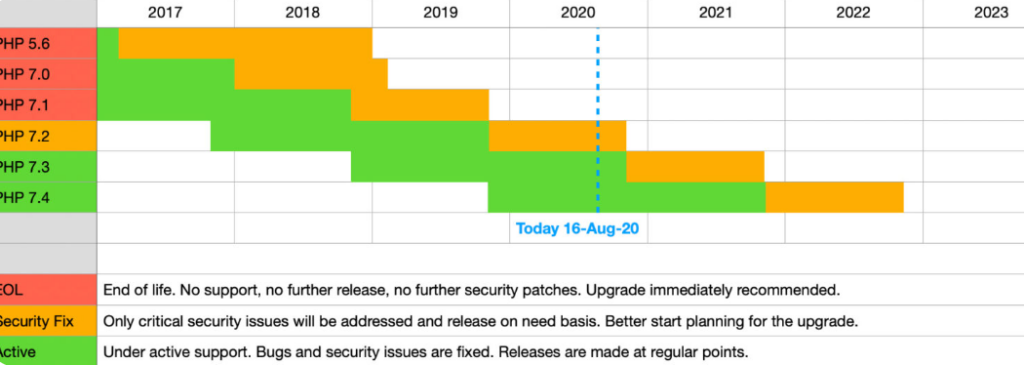
- Outdated PHP Versions: Another frequent culprit is using outdated PHP versions. WordPress recommends using PHP 7.3 or newer for optimal performance and security. Running an old version can cause compatibility issues with plugins or themes, leading to a fatal error. Keeping your PHP version up to date ensures access to the latest features and improved performance.
- Plugin and Theme Incompatibility: Plugin and theme incompatibility is also a major cause of these errors. Faulty plugin installations, outdated themes, or issues with function declarations can result in an E_COMPILE_ERROR. Ensuring all site components are compatible and up to date can significantly reduce the risk of encountering this type of error.
Read: How to Fix Dangerous & Deceptive Site Ahead Warning?
How to Fix E_COMPILE_ERROR in WordPress: Top 7 Methods
Check how you can fix E_COMPILE_ERROR in WordPress with some of the top solutions below:
Method 1: Check Your PHP Version
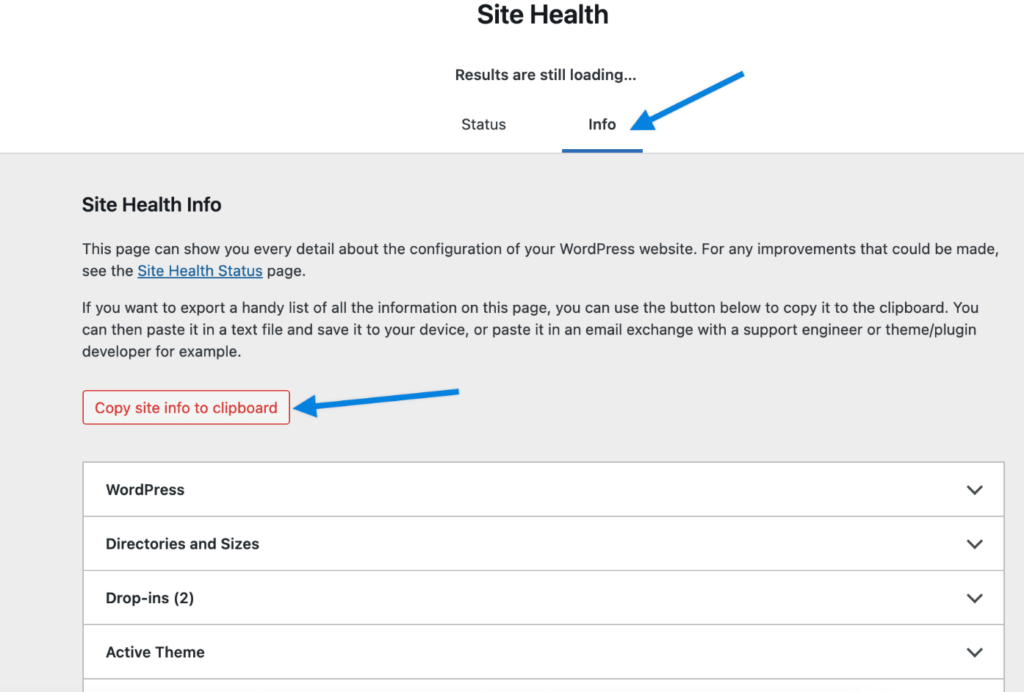
Before you start updating or fixing, you need to know what PHP version your site is running. Think of this as gathering your tools before starting a project; it sets you up for success. There are a few ways to check your PHP version, and it’s easier than you think.
One way is to create a PHP file with the code echo phpversion, then open it in your browser. Boom! Your current PHP version will be displayed, and you have a starting point for troubleshooting.
Another easy way is to check your PHP version from your WordPress dashboard. Go to Tools → Site Health → Info and look under the Info tab.
This section has all the information about your server setup, including the PHP version, so you have everything you need in one place.
Read: How to Fix the WordPress Upload Limit
Method 2: Update WordPress and Plugins
Updating your WordPress site, plugins, and themes is key to protecting your site from security risks and ensuring everything works with newer versions.
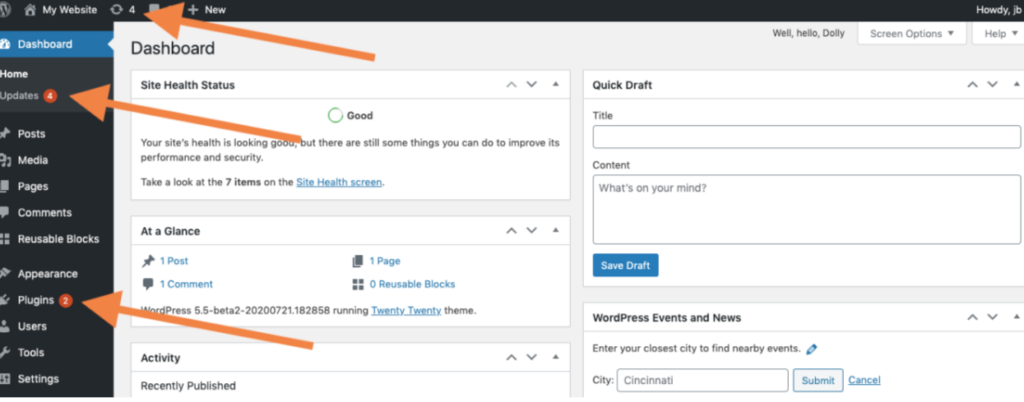
Outdated themes can cause problems, such as E_COMPILE_ERROR, if they’re not updated to support the latest PHP versions.
Updating plugins is easy and can be done from your WordPress dashboard. You can even update everything at once; it’s super easy to stay up-to-date. If you prefer a more hands-on approach, you can update it via FTP.
If you’re comfortable with command-line tools, WP-CLI is the way to go. It lets you update efficiently with just a few commands.
If you need to manually update WordPress, you can download the latest version, extract the files, and upload them to your server. Just remember to delete the old wp-admin and wp-includes directories before uploading the new ones.
Method 3: Deactivate All Plugins
Sometimes, the quickest way to identify the problematic plugins is to deactivate all of them. Incompatible plugins can cause E_COMPILE_ERROR by not functioning correctly with the current version of WordPress or PHP.
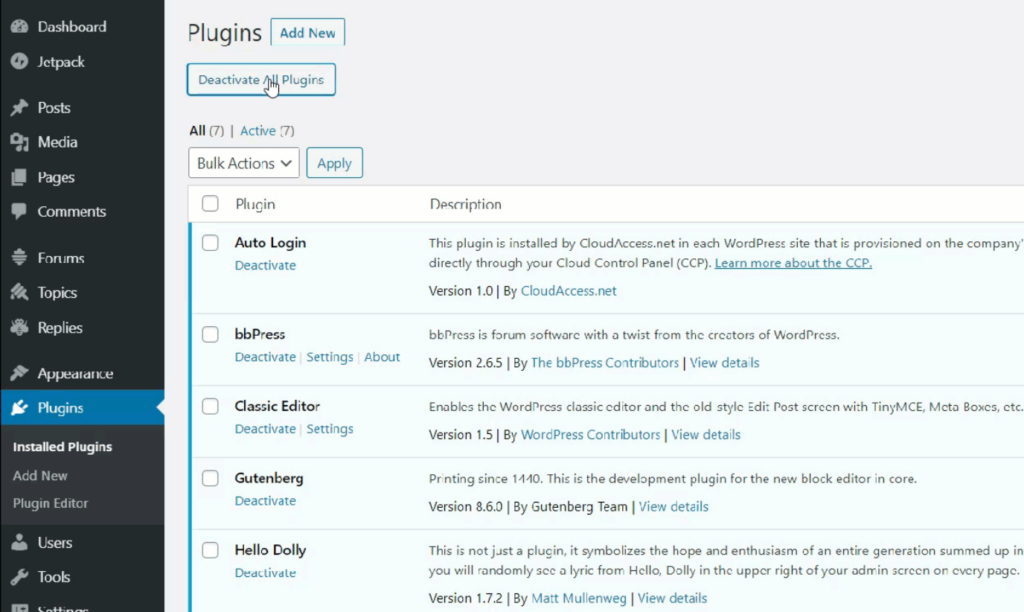
To do this via FTP, simply rename the ‘plugins’ folder in the wp-content directory to ‘plugins_old.’ This will deactivate all plugins, allowing you to pinpoint which one is causing the error.
If you can access the WordPress dashboard, you can deactivate multiple plugins at once by selecting them and choosing ‘Deactivate’ from the dropdown menu.
Then, you can rename ‘plugins_old’ back to ‘plugins’ to reactivate them. This is a quick and easy way to troubleshoot without having to go into each plugin individually.
Learn: Why are Niche WordPress Plugins Essential for Your Business
Method 4: Enable WordPress Recovery Mode
WordPress 5.2 introduced a lifesaver: recovery mode. This feature allows you to access the admin dashboard to fix critical errors without needing FTP. When an error occurs, WordPress will send a recovery mode email with a link to access the admin dashboard.
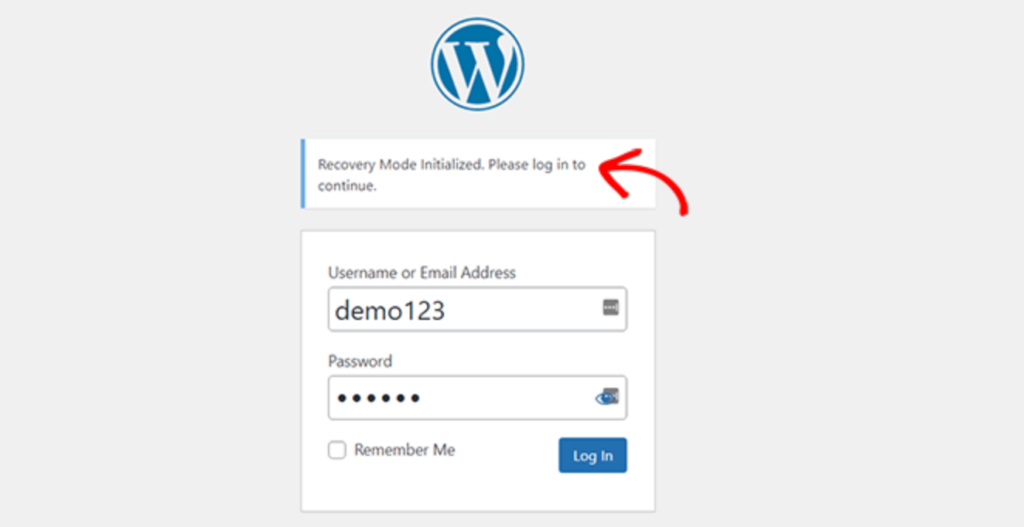
If you don’t receive the email, you can manually access recovery mode by visiting a specific URL format with your domain.
Once in recovery mode, you can deactivate problematic plugins or themes to fix the issue. This mode makes troubleshooting easier by giving you a safe environment to make the necessary changes.
Know More: Understanding and Resolving WordPress Multisite Issues
Method 5: Manually Update or Replace Problematic Files
When automatic updates fail, manual intervention is required. Connect to your website’s root directory via an FTP client and upload the WordPress files.
Select all files from the extracted WordPress folder and choose to overwrite existing files during the FTP upload. This will ensure all files are in place and up to date.
After the upload, verify that all files have been uploaded to your server. Also, make sure to check your WordPress dashboard for any database updates. This will ensure all components are synced and working correctly.
Method 6: Restore from Backup
Before you update anything, make sure you have a full backup of your site to prevent data loss in case something goes wrong. If things go south, restoring from a backup will save the day.
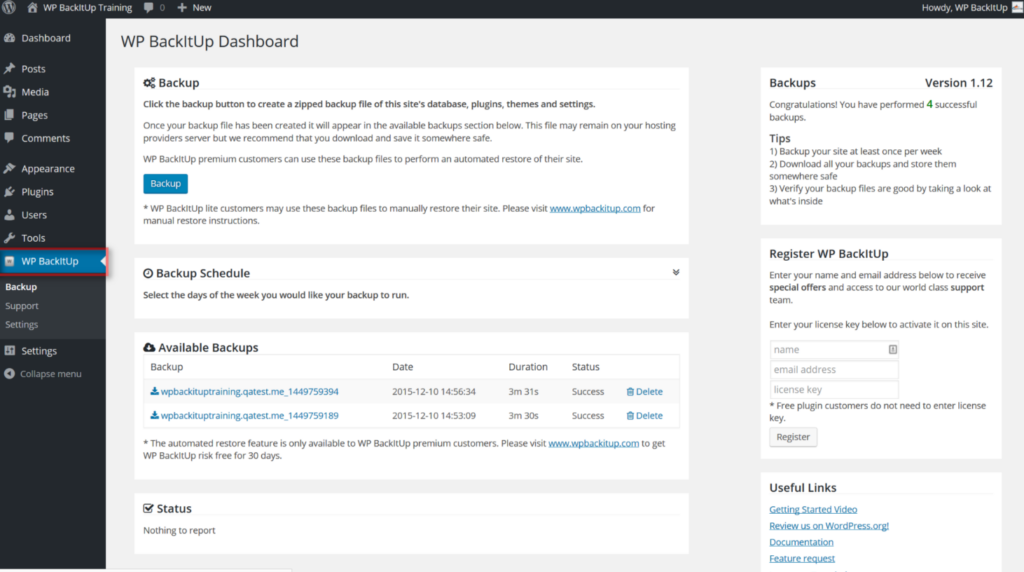
Go to the Jetpack section in your dashboard, select ‘Backup,’ and use the date options to find the backup you want.
Restoring from a backup can take some time, depending on your site’s size. You can choose to restore specific parts of your site, such as themes, plugins, the root directory, and the database. This gives you the flexibility to recover exactly what you need without any changes.
Know: Best Solutions to Back Up Multiple WordPress Websites
Method 7: Contact Your Host
Sometimes, despite our best efforts, the issue is too complex to handle alone. In that case, it is recommended that you contact your host for help. They can help restore your site, access backups, and troubleshoot technical issues.
Hosting providers have tools and expertise beyond basic troubleshooting. They can help you restore from backups, fix file permissions, or even diagnose server-related issues that might be causing the error. Don’t hesitate to reach out when you’re stuck; that’s what they’re there for.
Know: Which is Better, VPS or Managed WordPress Hosting for Your WordPress Site?
Preventing Future Errors
The best fix is prevention. Update your WordPress, plugins, and themes regularly to prevent compatibility issues that lead to critical errors. Think of updates as regular website maintenance; everything will be in top shape and less likely to break.
Using a security plugin to scan your site for malware and vulnerabilities is another proactive measure. These other plugins can catch potential issues before they become fatal errors, adding an extra layer of security.
Monitoring your site’s error logs will help you catch and fix issues early. By being vigilant and proactive, you can keep your site running smoothly and avoid the headaches of an E_COMPILE_ERROR.
Know: Best WordPress Website Maintenance Service Providers
Conclusion
In summary, dealing with an E_COMPILE_ERROR in WordPress can be scary, but with the right knowledge and tools, it’s manageable. From identifying the cause of the error to applying the fixes, we’ve covered everything you need to get your site back up and running.
Update, monitor, and ask for help when needed; that’s the secret to a solid and error-free site.
FAQS About E_COMPILE_ERROR in WordPress
What causes the E_COMPILE_ERROR in WordPress?
E_COMPILE_ERROR usually happens when PHP cannot compile a script. Common causes include incompatible plugins, broken themes, corrupted files, outdated PHP versions, or coding conflicts after updates.
How do I fix E_COMPILE_ERROR in WordPress quickly?
Start by disabling recently installed plugins or themes. You can do this through File Manager or FTP if you cannot access the WP admin. Then switch to a default WordPress theme and clear caches.
Can a PHP version mismatch trigger E_COMPILE_ERROR?
Yes. Many WordPress plugins and themes require newer PHP versions. Running outdated PHP can create fatal compile errors. Updating PHP often resolves the issue.
How can I find the exact file causing E_COMPILE_ERROR?
Enable WordPress debug mode by editing the wp-config.php file. You can also check server error logs in your hosting control panel. These logs usually show the affected file and line number.
Will E_COMPILE_ERROR break my entire WordPress website?
In most cases, yes. It is a fatal PHP error that can make the website inaccessible until fixed. However, the issue is usually recoverable through troubleshooting, backups, or restoring clean files.