Migrating from Craft CMS to WordPress gives you more flexibility, easier management, and access to a larger plugin and theme ecosystem. The process may seem complex, but with the right steps, you can transfer your content without losing data or disrupting your site.
This guide shows you exactly how to migrate your Craft CMS site to WordPress in a clear, structured way. You will learn what to prepare, what to export, how to protect your SEO, and how to set everything up so your new WordPress site runs smoothly from day one.
Craft CMS to WordPress migration is the process of transferring your website’s content, media, custom fields, users, and SEO settings from Craft CMS to WordPress while preserving site structure and search rankings.
A complete migration includes content export, media transfer, custom field mapping, user migration, SEO metadata preservation, URL redirect setup, Twig template rebuilding into WordPress themes, and post migration monitoring.
Proper migration planning helps prevent broken URLs, SEO ranking drops, and content structure issues after launch.
A Brief Overview of Craft CMS and WordPress
Before migrating, it helps to understand exactly what you are moving from and to. The two platforms serve different audiences and have meaningfully different strengths.
Craft CMS is a powerful, flexible content management system that developers love for its customization and robust features. It is particularly favored for projects that require tailored content structures and advanced functionality. However, it requires developer involvement for most content and structural changes, which increases operational costs as sites grow.
WordPress, on the other hand, is the world’s most popular CMS, powering over 43% of all websites. It is renowned for its user-friendly interface, extensive plugin ecosystem with over 59,000 plugins, and strong SEO capabilities. Whether you are a beginner or a seasoned developer, WordPress makes it easy to create, manage, and scale your website without depending on a developer for every change.
Craft CMS vs WordPress: Quick Comparison
| Feature | Craft CMS | WordPress |
|---|---|---|
| Market share | ~0.1% | 43%+ |
| Ease of use | Developer-focused | Beginner-friendly |
| Plugin ecosystem | Limited | 59,000+ plugins |
| SEO tools | Basic | Yoast, Rank Math, AIOSEO |
| Content editing | Twig templates | Block editor (Gutenberg) |
| Developer dependency | High | Low |
| Licensing cost | Paid | Free, open-source |
| Community support | Small | Largest CMS community |
| Hosting flexibility | Limited | Any PHP host |
Migrate from Craft CMS to WordPress with Ease!
Looking to switch from Craft CMS to WordPress? Our expert team at Seahawk can help you make a seamless migration.
What Data Transfers in a Craft CMS to WordPress Migration?
Understanding what moves and what requires manual handling prevents surprises mid-migration.
Transfers cleanly:
- Blog posts and pages, including titles, body content, and publish dates
- Categories and tags
- Media files: images, videos, PDFs, and other uploads
- User accounts and basic role assignments
- SEO metadata when using a compatible export tool and an SEO plugin on WordPress
- Navigation menus (require manual recreation in WordPress)
Requires extra planning:
- Custom fields: Craft CMS sections and custom fields must be mapped to WordPress custom post types or Advanced Custom Fields (ACF) equivalents before import
- Relational data: Craft’s relational field types (entries, assets, categories) need manual mapping to WordPress taxonomies and post relationships
- Twig templates: Craft uses Twig for templating. WordPress uses PHP. Your front-end must be rebuilt as a WordPress theme
- Matrix fields: Craft’s Matrix field type has no direct WordPress equivalent and typically requires a page builder or ACF repeater field as a replacement
- User passwords: encryption differences between platforms usually require users to reset passwords after migration
Key Considerations Before Starting the Craft CMS to WordPress Migration Process
Careful planning before the first export prevents the most common migration failures. Work through every item in this section before touching any data.
Site Structure
Analyzing your current site structure is a good start. How are your pages, posts, and custom fields organized? Knowing this helps you map out how content will be transferred to WordPress. For instance, if Craft CMS entries are highly customized, you’ll need to figure out the best way to replicate that in WordPress.
SEO Settings
SEO settings are another critical factor. Losing your search engine rankings during a migration can be disastrous. Ensure you have all your meta titles, descriptions, and other SEO settings documented. WordPress plugins like AIOSEO can be a lifesaver here, helping you manage these elements post-migration.
Content Volume
Next, consider the volume of content you have. Do you have a lot of text, images, or videos? The amount and type of content can significantly impact the time and resources needed for the migration.
For example, a site with hundreds of blog posts will take longer to migrate than a simpler site.
Functionality
Functionality is key, too. List out any custom features or third-party integrations you’re currently using. How will these be replicated or replaced in WordPress? Researching WordPress plugins and themes that match or enhance your current setup is crucial.
Backup
Don’t forget to backup your data. It’s like having an insurance policy for your website. Make sure you have a complete backup of all files and WordPress databases before starting. Setting up a staging environment to test the migration process can help avoid any hiccups on your live site.
URL Structure
Maintaining your URL structure is essential to avoid broken links. Consistent URLs help preserve SEO rankings. Planning for 301 redirects ensures that any changed URLs still point to the correct new locations, preventing a drop in traffic.
User Experience
Lastly, review the user experience. Confirm that the new WordPress site matches or improves the design, layout, and usability of the original site. Run usability tests to identify issues before launch.
Addressing these points gives you a solid base for a smooth migration and ensures the new WordPress site performs to the same standard as your Craft CMS setup.
Migrating Craft CMS to WordPress: Steps Follow
Ready to get started with your WordPress website migration? Here’s a comprehensive step-by-step guide to ensure a smooth transition from Craft CMS to WordPress.

Step 1: Preparing for Migration
Backup Your Craft CMS Website
First things first, make sure you back up your Craft CMS website. This step is crucial to ensure that you don’t lose any data during the migration. Think of it as your safety net. Use tools like Craft’s built-in backup options or third-party backup solutions to save all your files and databases.
Evaluate the Current Site Structure
Next, take a close look at your current site structure. Mapping out this structure helps you understand how to transfer your content to WordPress effectively.
For example, if you have many custom entries in Craft CMS, plan how they will translate into WordPress’s format.
Set Up a Staging Environment
Setting up a staging environment is like having a sandbox to play in. It allows you to test the migration process without affecting your live site. You can experiment, make mistakes, and perfect your migration strategy here. Use a subdomain or a local server to set up this staging environment and install WordPress.
Step 2: Installing WordPress
Choosing and installing WordPress is a critical step that sets the stage for a successful migration. Let’s break it down into two simple parts: selecting a hosting provider and installing WordPress.
Choosing a Hosting Provider
The first step in installing WordPress is choosing a reliable hosting provider. Think of your hosting provider as the foundation of your website. You want one that’s fast, secure, and offers good customer support.
Popular choices include Hostinger, DreamHost, & WP Engine. They all offer one-click WordPress installations, making your job much easier. Ask yourself, what are your needs: shared hosting, VPS, or dedicated hosting? Pick the one that best suits your site’s requirements.
Installing WordPress
Once you’ve chosen your hosting provider, it’s time to install WordPress. Most hosting providers offer a simple one-click installation process. If you’re doing it manually, download WordPress from WordPress.org and upload it to your server.
Then, follow the setup wizard to configure your site. You’ll need to create a database and a WordPress user; most hosts have guides or support to help you with this.
Step 3: Exporting Data from Craft CMS

Twig to WordPress PHP. Craft CMS uses Twig templating. WordPress uses PHP. Your Craft templates cannot be directly converted. You have two options: choose a WordPress theme that closely matches your current design and customize it, or have a developer rebuild your templates into a custom WordPress theme in PHP.
For the PHP rebuild approach, each Craft CMS template file maps to a WordPress template hierarchy file:
index.twigbecomesindex.php_entry.twigbecomessingle.php_category.twigbecomescategory.php_layout.twigbecomesheader.phpandfooter.php
Choose and install a WordPress theme. If using an existing theme, install it via Appearance > Themes > Add New. Activate and use the WordPress Customizer to configure colors, fonts, and layout to match your brand.
Install essential plugins:
- Redirection for 301 redirect management
- Yoast SEO or Rank Math for SEO management
- ACF (Advanced Custom Fields) for custom field support
- WP Rocket for caching and performance
- Wordfence or Sucuri for security
- UpdraftPlus for automated backups
Exporting Media Files
Next, you’ll need to export all your media files, including images, videos, and other uploads. Media files are usually stored in the “assets” folder within your Craft CMS installation.
Use an FTP client or your hosting control panel to download these files to your local machine. This way, you have all your visual content ready to be uploaded to your new WordPress site.
Step 4: Importing Data into WordPress
With your data safely exported from Craft CMS, it’s time to bring it into WordPress. This step ensures all your content and media files find their new home without a hitch.
Importing Content
First, let’s get your content into WordPress. Navigate to the WordPress dashboard, then go to “Tools” and “Import.” Here, you’ll find various options; choose the one that matches the format of your exported content, usually “WordPress” for XML files.
Install any necessary plugins if prompted, and follow the on-screen instructions to upload your content file. This step imports all your posts, pages, and custom entries into WordPress, preserving the structure and details from Craft CMS.
Importing Media Files
Now, it’s time to upload your media files. If your content import didn’t automatically include media files, you can use a plugin like “Add From Server” to upload your media library.
Alternatively, you can manually upload your media files via FTP or the hosting control panel into the WordPress “uploads” directory. Once uploaded, you may need to update links within your posts to point to the new media locations.
Step 5: Setting Up Themes and Plugins
With your data in place, it’s time to make your WordPress site look and function the way you want. This involves choosing the right theme and adding essential plugins.
Choosing a WordPress Theme
Start by selecting a WordPress theme that aligns with your site’s goals and aesthetics. The WordPress theme repository offers thousands of free themes, and there are plenty of premium themes available on sites like SeaTheme. Look for a theme that is responsive, well-supported, and customizable.
For example, if you’re running a blog, a clean and simple theme like Astra might be perfect. If you’re setting up an eCommerce site, consider something like an Organic Store.
Installing and Customizing the Theme
Once you’ve chosen a theme, install it by navigating to “Appearance” > “Themes” in your WordPress dashboard, then click “Add New” and search for your theme. After installing, activate it.
Use the WordPress Customizer (found under “Appearance” > “Customize”) to tweak your theme’s settings. You can adjust colors, fonts, layout options, and more to match your brand.
If you’re using a premium theme, it may come with its own customization panel and additional features.
Essential Plugins for WordPress
To enhance your site’s functionality, you’ll need some essential plugins. Here are a few recommendations:
- AIOSEO: Helps optimize your site for search engines.
- Akismet: Protects your site from spam comments.
- Jetpack: Offers a suite of tools for security, performance, and site management.
- WooCommerce: Essential if you’re running an online store.
Contact Form 7: Easily add contact forms to your site. Installing plugins is straightforward go to “Plugins” > “Add New” in your dashboard, search for the plugin you need, install, and activate it.
Step 6: Configuring SEO and Permalinks
To ensure your new WordPress site is easily found by search engines and user-friendly, it’s important to properly configure SEO settings and permalinks.
SEO Best Practices for WordPress
Optimizing your site for search engines is crucial. Start by installing an SEO plugin, such as Rank Math or All in One SEO Pack. These plugins help you manage your SEO settings directly from the WordPress dashboard. Focus on the following key areas:
- Meta Titles and Descriptions: Ensure each page and post has a unique, keyword-rich title and meta description.
- XML Sitemaps: Generate an XML sitemap to help search engines index your site more effectively.
- Content Optimization: Use the plugin to analyze your content for keyword usage, readability, and other SEO factors.
- Internal Linking: Strengthen your site’s SEO by creating a robust internal linking structure. This helps distribute page authority and improves user navigation.
Configuring Permalinks
Permalinks are the URLs used for your posts and pages. Clean, descriptive URLs improve both SEO and user experience. To configure permalinks, go to “Settings” > “Permalinks” in your WordPress dashboard. Here are a few tips:
- Post Name: Select the “Post name” option for a clean URL structure (e.g., yourdomain.com/sample-post). This is generally considered the best practice for SEO.
- Custom Structure: If you need more specific URL patterns, you can create a custom structure. For example, /category/post-name/ might be useful for sites with lots of content categories.
Step 7: Testing and Debugging
Before launching your new WordPress site, it’s essential to thoroughly test and debug to ensure everything works as expected. Here’s how you can do it:
Testing the Migration
Begin by thoroughly testing your new WordPress site to ensure all content has been migrated correctly. Check that all pages, posts, and media files are present and displayed as intended. Navigate through your site as a user would:
- Links: Verify that all internal and external links work correctly. Broken links can frustrate users and harm your SEO.
- Forms: Test all forms (contact, subscription, etc.) to ensure they function and submit data properly.
- Functionality: Ensure any custom functionalities, such as eCommerce features, galleries, or interactive elements, work as expected.
Debugging Common Issues
During testing, you may encounter some issues. Here are common problems and their solutions:
- Broken Links: Use a broken link checker to identify and fix them on your site.
- Missing Media: If media files aren’t displaying correctly, check that they were uploaded to the correct directory and that the links are accurate. Use the “Add From Server” plugin if needed.
- Formatting Issues: If content formatting appears off, double-check your theme settings and any custom CSS. Sometimes, minor tweaks can resolve these issues.
- Plugin Conflicts: If your site behaves unexpectedly, deactivate all plugins and reactivate them one by one to identify any conflicts. Once identified, you can look for alternative plugins or contact the plugin developers for support.
Step 8: Launching Your New WordPress Site
You’re ready to launch your site. Check the basics, fix any small issues, and make sure everything works.
Final Pre-Launch Checklist
Before going live, go through this final website launch checklist to ensure everything is ready:
- SEO Settings: Double-check that all your SEO settings are correctly configured, including meta titles, descriptions, and permalinks.
- Backups: Ensure you have a final backup of your site in case anything goes wrong during the launch.
- Testing: Revisit the testing phase to confirm that all links, forms, and functionalities are working perfectly.
- Mobile Optimization: Make sure your site is fully responsive and looks great on mobile devices. Google’s Mobile-Friendly Test tool can be handy here.
- Analytics: Set up Google Analytics or another tracking tool to monitor your site’s performance from day one.
- Security: Contact security service providers or install plugins like Wordfence or Sucuri to protect your site from potential threats.
Going Live
Now, it’s time to flip the switch and go live! Here’s how to do it:
- Domain Settings: Update your domain settings to point to your new WordPress site. This might involve changing your domain registrar’s DNS settings.
- Staging to Live: If you’ve been working in a staging environment, push the changes to your live server. Many hosting providers offer tools to make this process seamless.
- 301 Redirects: Implement 301 redirects from old Craft CMS URLs to the new WordPress URLs to maintain SEO rankings and avoid broken links.
- Announce the Launch: Share the news of your new site with your audience! Use social media, email newsletters, and any other channels to let everyone know.
How to Protect SEO During Craft CMS to WordPress Migration
SEO protection is not a single step. It runs through every phase of the migration.
Before Migration
- Export your top 50 URLs by organic traffic from Google Search Console
- Record your current rankings for your top 10 target keywords
- Crawl your Craft CMS site with Screaming Frog and export all URLs and response codes
- Set your WordPress staging site to noindex
During Migration
- Transfer all SEO metadata before going live
- Match your WordPress permalink structure to your Craft CMS URL structure, where possible
- Configure 301 redirects for every changed URL before removing maintenance mode
- Verify canonical tags are rendering correctly on the new site
After Migration
- Remove noindex and submit sitemap within 24 hours of go-live
- Monitor Google Search Console daily for the first two weeks
- Watch for spikes in 404 errors and index coverage drops
- Verify all 301 redirects are returning HTTP 301 status codes with no chains
A 2 to 4 week ranking fluctuation after migration is normal as Google re-crawls your site. With clean redirects and transferred metadata, rankings typically return to baseline within a month.
Post-Migration Monitoring: 30-Day Plan
Going live is not the end of the migration process. The 30 days after launch determine whether your migration holds.
| Timeframe | Task |
|---|---|
| Day 1 | Submit XML sitemap to Google Search Console |
| Day 1 | Verify all 301 redirects are returning correct status codes |
| Days 1 to 7 | Monitor Google Search Console daily for 404 spikes |
| Days 1 to 7 | Confirm transactional emails are delivering via WP Mail SMTP |
| Week 2 | Run a full site crawl with Screaming Frog to catch missed redirects |
| Week 2 | Compare Core Web Vitals against pre-migration baseline |
| Week 3 | Review organic traffic in Google Analytics vs pre-migration period |
| Week 4 | Full SEO audit: verify meta data, canonical tags, and internal links |
| Day 30 | Compare rankings for the top 10 keywords against the pre-migration baseline |
Avoid These Pitfalls When Moving Your Site From Craft CMS to WordPress
Migrating from Craft CMS to WordPress can seem straightforward, but there are common mistakes that could derail your project. Below, we’ve outlined key pitfalls to watch for and how to avoid them at each step of the process.

Pitfall 1: Skipping Proper Backups Before Migration
Aligned to Step 1: Preparing for Migration
You need a clear plan before moving any data from Craft CMS to WordPress. This step covers the essentials you must complete before the migration begins.
Overview: Forgetting to create a full backup of your Craft CMS site before starting the migration can result in critical data loss if something goes wrong. Without a reliable backup, there’s no safety net to restore your site.
Steps to Correct:
- Use Craft CMS’s built-in tools or a third-party service to create a full backup of your database and files.
- Store the backup securely, such as in the cloud or on an external drive.
- Test the backup to ensure it is complete and usable.
Pitfall 2: Choosing an Inadequate Hosting Plan for WordPress
Aligned to Step 2: Installing WordPress
Overview: Installing WordPress on a subpar hosting plan that doesn’t meet performance requirements can result in downtime or slow page loads, especially when traffic increases.
Steps to Correct:
- Review the specific hosting requirements for WordPress, including PHP versions and memory limits.
- Select a reliable hosting provider that offers scalable options and strong performance for WordPress.
- Ensure the hosting plan includes essential features such as automatic backups, security, and caching.
Pitfall 3: Incomplete Data Export From Craft CMS
Aligned to Step 3: Exporting Data from Craft CMS

Overview: Not exporting all necessary content, including custom fields, media files, and relational data, can result in missing or broken content on your new WordPress site.
Steps to Correct:
- Ensure that all pages, posts, media, and custom fields are selected when exporting data.
- Use export tools or plugins that handle complex data types from Craft CMS.
- Maintain a checklist of all essential data to verify that nothing is missed during export.
Keep Exploring: How to Migrate Your Website to WordPress?
Pitfall 4: Incorrect Data Mapping During Import
Aligned to Step 4: Importing Data into WordPress
Overview: Failing to properly map Craft CMS fields to WordPress structures can result in misplaced or incorrectly formatted content, disrupting the layout and functionality of your site.
Steps to Correct:
- Familiarize yourself with WordPress content types, including custom post types and taxonomies.
- Use plugins like WP All Import to accurately map fields during the import process.
- Test on a staging site to ensure proper mapping before going live.
Pitfall 5: Overloading Your WordPress Site With Plugins
Aligned to Step 5: Setting Up Themes and Plugins
Overview: Relying on too many plugins can bloat your site, slow performance, and cause conflicts between plugins, making your site harder to maintain.
Steps to Correct:
- Install only the plugins essential to your site’s core functionality.
- Verify compatibility between plugins and your WordPress theme.
- Regularly update plugins and remove any that are unnecessary or outdated.
Pitfall 6: Ignoring SEO Settings and Permalink Structure
Aligned to Step 6: Configuring SEO and Permalinks
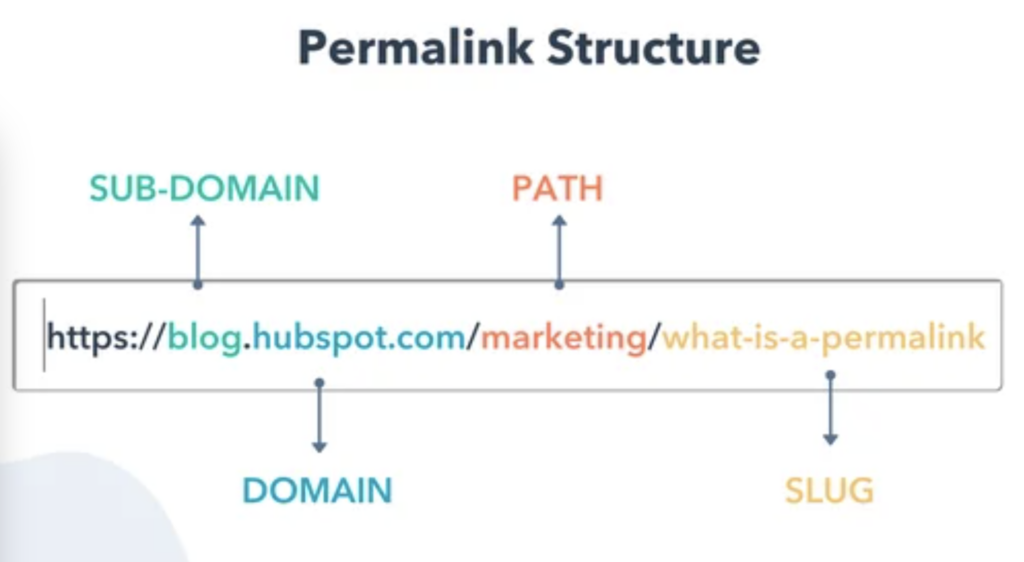
Overview: Neglecting to configure proper SEO settings and permalinks can cause a drop in search rankings, leading to a significant loss of traffic and visibility post-migration.
Steps to Correct:
- Install an SEO plugin such as Yoast or Rank Math to handle meta tags, sitemaps, and structured data.
- Adjust permalink settings to match the URL structure of your Craft CMS site.
- Conduct a post-migration SEO audit to ensure all pages are optimized for search engines.
Keep Checking: How to Fix Broken Links After WordPress Migration
Pitfall 7: Failing to Thoroughly Test Before Launching
Aligned to Step 7: Testing and Debugging

Overview: Launching your site without fully testing it across different devices, browsers, and functionalities can leave critical errors unaddressed, impacting the user experience and site performance.
Steps to Correct:
- Perform cross-browser and cross-device testing to ensure the site works consistently.
- Check for broken links, missing images, and functionality issues across the site.
- Debug any advanced custom fields, features, or plugins to ensure they work smoothly.
Pitfall 8: Not Setting Up 301 Redirects After Migration
Aligned to Step 8: Launching Your New WordPress Site

Overview: If you don’t set up 301 redirects from old Craft CMS URLs to the new WordPress URLs, users and search engines will encounter broken links, causing a loss in both traffic and search rankings.
Steps to Correct:
- Use a redirection plugin to set up 301 redirects for all important pages.
- Test all redirects to ensure they lead to the correct WordPress pages.
- Update your XML sitemap and submit it to Google to help search engines index the new URLs quickly.
Final Thoughts on Craft CMS to WordPress Migration
Migrating from Craft CMS to WordPress gives you a more flexible, scalable, and easy-to-manage platform. By following each step carefully, backing up your data, exporting content, importing it into WordPress, setting up themes and plugins, configuring SEO, and testing, you ensure a stable and accurate migration.
A structured approach reduces errors, protects your data, and keeps your site functioning the way it should. After launching the new WordPress site, continue monitoring performance, security, and SEO to maintain a smooth and reliable experience for your users.
Your site is now ready to operate fully on WordPress with a strong foundation and room for growth.
FAQs About Craft CMS to WordPress
Why should I migrate from Craft CMS to WordPress?
WordPress offers a user-friendly interface, an extensive plugin ecosystem, and strong SEO capabilities. It’s easier to manage, especially for non-developers, and provides robust support through its vast community.
Will migrating to WordPress affect my SEO?
If done correctly, your SEO should not be negatively impacted. Ensure you preserve your SEO settings, implement proper 301 redirects, and use SEO plugins like AIOSEO to maintain your search engine rankings.
How do I handle media files during the migration?
Export your media files from Craft CMS and upload them to your WordPress site. You can use an FTP client or plugins like “Add From Server” to streamline this process and ensure all media files are correctly linked.
What are the common challenges during the migration process?
Common challenges include broken links, formatting issues, and plugin conflicts. Thorough testing and debugging can help identify and fix these issues before your site goes live.
Do I need technical skills to migrate from Craft CMS to WordPress?
While some technical knowledge is helpful, many aspects of the migration can be handled with guides and tutorials. If needed, you can also hire a professional to assist with more complex tasks.
How long does the Craft CMS to WordPress migration take?
Migration time depends on site complexity. A simple brochure site with standard content takes 1 to 3 days. A mid-size site with custom fields and moderate content volume typically takes 1 to 2 weeks, including staging testing. Complex sites with extensive custom field structures, Matrix blocks, and custom integrations can take 3 to 8 weeks. Professional migration services from Seahawk include a timeline estimate as part of the initial audit.
How do I migrate Craft CMS Twig templates to WordPress?
Twig templates cannot be directly converted to WordPress PHP templates. The migration requires rebuilding your front-end as a WordPress theme. Each Twig template maps to a WordPress template hierarchy file: your entry templates become single.php, category templates become category.php, and your base layout becomes header.php and footer.php. If your design is straightforward, a WordPress theme with customization is faster. For complex custom designs, a developer rebuild in PHP is the most reliable approach.
Can I migrate Craft CMS to WordPress without losing rankings?
Yes. The key is a three-part process: transfer all SEO metadata to your WordPress SEO plugin before going live, configure 301 redirects for every changed URL before removing maintenance mode, and submit your XML sitemap to Google Search Console within 24 hours of launch. Monitor Google Search Console daily for the first two weeks and address any 404 errors or crawl anomalies immediately.