AI website builders have completely changed how websites are made in 2026. You can go from idea to a fully designed site in under an hour, without touching a single line of code. But once the build is done, most people hit the same wall: how do you actually host an AI-built website on WordPress and make it live for the world to see?
That question is exactly what this guide answers. Whether you used ZipWP, KadenceWP, or any other AI-powered website builder, this step-by-step walkthrough covers everything from exporting your site to going live on a reliable WordPress hosting provider.
TL;DR: AI-Built Website on WordPress
- AI website builders create your site’s design and structure, but WordPress gives you full ownership, SEO control, and long-term flexibility that closed platforms simply cannot match.
- Not all hosting is equal. For AI-built sites, look for managed WordPress hosting with strong Core Web Vitals performance, PHP 8+ support, and a one-click WordPress installation.
- Different AI builders output different formats. Tools like ZipWP and KadenceWP export WordPress-ready packages, while others output raw HTML that needs conversion before it works on WordPress.
- Once hosted, configure Rank Math for on-page SEO, add a caching plugin for speed, and always test forms, mobile layout, and page performance before going live.
- If you would rather skip the technical setup entirely, Seahawk Media handles the full transition from AI-built design to a production-ready WordPress site.
Why WordPress is Still the Best Platform for AI-Built Sites?
You might be wondering why not just stay on the AI builder’s native platform. It is a fair question. Many AI WordPress website builders offer their own hosting. However, that convenience comes with trade-offs that matter the moment your site starts to grow.
- When you host on WordPress, you own everything: your content, your data, your design. No platform decides what you can or cannot do with your own site.
- You also get access to the entire WordPress ecosystem, which includes thousands of plugins for SEO, e-commerce, membership, performance, and more.
- Speaking of SEO, tools like Rank Math give you granular control over meta titles, descriptions, schema markup, and on-page optimization. That level of control simply does not exist on most closed AI builder platforms. As you know, search visibility is one of the most important long-term assets any website can have.
- WordPress also scales with you. Whether you are running a personal blog or a high-traffic business site, the platform handles it.
That is why most developers and agencies use AI builders for speed and design, then move the site to WordPress for production. It is the smarter long-term move.
What to Look for in a WordPress Hosting Provider for AI-Built Sites?
Not all WordPress hosting is built the same. Before you pick a plan, it helps to know what actually matters for AI-generated sites specifically.
Speed and Core Web Vitals
AI-generated sites can carry extra page weight from auto-generated scripts, unoptimized images, and redundant CSS. This means your hosting environment has to work harder to deliver a fast experience.
Look for a host that offers strong Time to First Byte (TTFB) performance, SSD storage, and PHP 8+ support as a baseline. These directly affect your Core Web Vitals scores, which Google uses as a ranking signal.
Managed vs Shared Hosting
Shared hosting puts your site on a server with hundreds of other sites, sharing the same resources. It is cheap, but performance suffers when traffic picks up, and you are on your own for security updates and caching.
Managed WordPress hosting providers like WP Engine, Pressable, and Kinsta handle all of that automatically. Updates, security patches, caching, and backups are handled for you. For anyone moving an AI-built site into a production environment, managed hosting is almost always the better choice.
One-Click WordPress Installation
If you are not a developer, the setup process can feel intimidating. Look for a host that offers one-click WordPress installation from the control panel. Hostinger, SiteGround, and DreamHost all make this seamless. You pick your domain, set your credentials, and WordPress is ready in minutes.
How Can Seahawk Media Help You Go Live Faster?
Moving an AI-built site to WordPress involves several moving parts: exporting correctly, choosing the right host, configuring performance settings, installing plugins, and ensuring nothing breaks along the way.
If any part of that sounds like something you would rather not manage alone, Seahawk Media is built for exactly this.
Our team specializes in WordPress services for businesses, agencies, and developers.
Whether your site was built with a WordPress AI website builder or designed from scratch, we can handle the full handoff to a production-ready WordPress environment. That includes hosting setup, WordPress configuration, performance optimization, plugin installation, and ongoing support.
Instead of spending hours troubleshooting DNS settings or broken form handlers, you hand it off and get a live, fast, fully optimized WordPress site in return.
Explore our WordPress development services here and see how the team can take your AI-built site from draft to deployment.
AI Built It. We Make It Production Ready!
Your AI-generated website needs proper hosting, structure, and performance tuning. We help you get it live the right way.
Steps to Host Your AI-Built Website on WordPress
Now let’s get into the actual process. Follow these steps in order, and you will have your AI-built site live on WordPress without any major headaches.
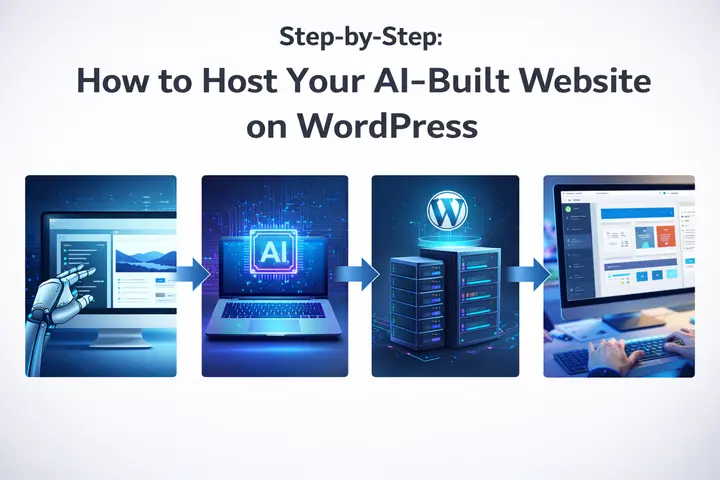
Step 1: Export Your AI-Built Site
The first thing to understand is that different AI builders output different formats, and that affects what you do next.
- If you built your site using ZipWP or KadenceWP, you are in good shape. Both tools generate standard WordPress sites natively, which means your export is already a WordPress-compatible package ready to import. This makes the whole process considerably faster.
- If you used a builder like Framer, Webflow, or a code-based AI WordPress tool, what you get is a folder of HTML, CSS, and JavaScript files. Raw HTML cannot be uploaded directly to WordPress. It needs to be converted into a proper WordPress theme structure, with files like header.php and footer.php, and proper asset loading. Some tools automate this conversion, or a WordPress developer can handle it.
Knowing which category your builder falls into before you move forward will save you a lot of confusion.
Step 2: Choose and Purchase Your Hosting Plan
Match your hosting plan to your site’s actual needs. A personal portfolio or small business site does not need the same infrastructure as a high-traffic ecommerce store.
- For most users just starting, Hostinger offers an excellent balance of affordability, speed, and ease of use. Their WordPress hosting plans come with built-in AI tools, strong uptime, and one-click installation.
- SiteGround is another reliable option for small business sites, with solid performance and responsive support.
- If you are building or delivering client sites professionally, WP Engine or Kinsta is worth the higher price. Both are managed WordPress hosting providers with staging environments, automatic backups, and performance infrastructure that holds up under real traffic.
Most plans across these providers include a free domain for the first year, so you can register your domain and activate hosting in the same step.
Step 3: Install WordPress
Once you have a hosting plan, log in to your hosting dashboard and look for the WordPress installation option.
- On most hosts, it is labeled something like Install WordPress or One-Click Install.
- Select the domain you want to install WordPress on, set your admin username and a strong password, and complete the installation. The whole process usually takes less than 2 minutes.
Once done, you can access your WordPress dashboard at yourdomain.com/wp-admin. That is your control center for everything that follows.
Step 4: Import or Upload Your Site
This step depends on what you exported in Step 1.
If you exported a WordPress package from ZipWP or a similar tool, log in to your WordPress dashboard, go to Tools, and click Import. Follow the on-screen prompts to upload your file.
WordPress will rebuild your pages, content, and settings from the package.
- If you have a converted WordPress theme as a ZIP file, go to Appearance ⟶ Themes, then click Add New.
- From there, click Upload Theme and select your ZIP file.
- Once uploaded, click Install and then Activate. Your site design will now appear on the front end.
After activation, take a few minutes to check the homepage layout, navigation menus, images, and how the site looks on mobile. AI-generated sites sometimes carry minor formatting issues that only show up once you activate the theme inside a real WordPress environment.
Step 5: Connect Your Domain and Enable SSL
If you registered a new domain through your hosting provider during signup, it is likely already connected. However, if you own a domain registered elsewhere, you need to log in to your domain registrar, find the DNS settings, and update the nameservers to match those provided by your hosting provider.
- Log in to your domain registrar’s account, locate the DNS management settings, and update the nameservers to match those provided by your hosting provider. This change can take anywhere from a few minutes to 48 hours to propagate fully, though it is usually much faster.
- Once your domain is connected, enable SSL to activate HTTPS. Nearly every major WordPress host provides a free SSL certificate through Let’s Encrypt.
On most dashboards, it is a single button or toggle. HTTPS is not optional in 2026. It affects both trust and search rankings.
Step 6: Configure Essential Plugins
Your site is live, but it is not quite ready yet. A small set of well-chosen WordPress plugins will cover the critical gaps.
- Start with Rank Math for on-page SEO. It guides you through setting meta titles, meta descriptions, and schema markup, and provides a clear checklist to ensure each page is properly optimized before it gets indexed.
- Add a caching plugin to improve page load speed. This reduces server load and helps deliver pages to visitors faster.
- A security plugin rounds out the essentials, protecting your site from brute force attacks, malware, and unauthorized login attempts.
Keep the plugin count low at this stage. A bloated plugin list creates maintenance overhead and can slow your site down. Stick to what you actually need.
Step 7: Test Before Going Live
Before you start sharing your URL or running any traffic to the site, run through a basic quality check.
- Test the site on mobile and tablet, not just desktop. AI-generated layouts can behave unexpectedly on smaller screens if the original design skipped careful responsive planning.
- Click every navigation link and button yourself to confirm they lead exactly where they should.
- Pay close attention to forms. Most AI-generated contact and lead capture forms are frontend-only, meaning they look functional but send data nowhere.
- Rebuild these using a native WordPress form solution before going live. If your host offers a staging environment, and both WP Engine and Pressable do, take full advantage of it.
- Push a copy of your site to staging, test everything thoroughly there, and only then push the confirmed working version to production.
Run a quick page speed check using Google PageSpeed Insights or a similar tool. If scores are low, check for unoptimized images, unused scripts, or missing caching configuration.
Common Mistakes to Avoid When Hosting AI-Built WordPress Sites
One of the most frequent mistakes people make is trying to upload raw HTML files directly to WordPress. WordPress does not run on static files. It requires a proper theme structure with PHP templates.
If you skip the conversion step, nothing will display correctly, and you will end up rebuilding from scratch anyway. Take the time to export or convert properly before touching the WordPress dashboard.
- Choosing a hosting provider purely on price is another mistake that can cause real problems later. A slow host hurts your SEO, frustrates visitors, and creates a poor first impression. The cost difference between a basic shared plan and a quality managed host is often smaller than people expect, especially when you factor in the value of avoiding downtime and slow load times.
- Skipping the staging environment when you have access to one is a risk that experienced WordPress developers simply do not take. Never push untested changes directly to a live site. Real visitors will catch every mistake before you do. If your host offers a staging environment, use it every single time without exception.
- Finally, review every piece of AI-generated content before you publish. AI builders produce placeholder copy that is often generic, sometimes inaccurate, and rarely reflects your actual brand voice. Read every page yourself before the site goes live, and rewrite anything that doesn’t sound like you or your business.
Final Thoughts
Hosting an AI-built website on WordPress is a manageable process when you follow the right sequence.
Export from your AI builder, choose a reliable WordPress hosting provider, install WordPress, import your site, connect your domain, configure the essentials, and test before you share it with the world.
The result is a site you fully own and control, built on the most flexible and SEO-friendly platform available.
If you would rather have an experienced WordPress team handle the transition from AI-built to production-ready, the team at Seahawk Media is ready to help. Get in touch and take your AI-built site live the right way.
Frequently Asked Questions
How long does it take to go from AI builder to a live WordPress site?
If your builder outputs a WordPress-native export and you already have hosting set up, you can complete the whole process in a couple of hours. If your site requires conversion, significant plugin configuration, or thorough testing, set aside a full day to get everything done properly.
Do I need coding skills to host an AI-built site on WordPress?
Not necessarily. Most WordPress hosting providers offer one-click installation, and builders that export WordPress-native packages make the import process simple. However, if your AI builder outputs raw HTML, you’ll need some technical knowledge or outside help to handle the conversion correctly.
Can I host any AI-built website on WordPress?
It depends on how the site was built. If the AI builder outputs a native WordPress site, like ZipWP or KadenceWP does, the process is straightforward. If the builder outputs HTML and CSS, you will need to convert those files into a WordPress theme structure before hosting on WordPress.