Nothing is more frustrating than seeing messages from your website’s contact form disappear or land in a spam folder. Visitors expect a quick response when they reach out, and if their message never arrives, you can lose valuable leads and hurt your brand’s reputation. The good news is that you can prevent this by linking your SiteGround email account directly to your site’s contact form.
In this guide, you will learn how to connect SiteGround email to your website contact form so every message reaches your inbox reliably. This process uses secure SMTP settings and proper DNS records to improve email deliverability and strengthen your domain’s credibility. Whether you run a WordPress site or another content management system, following these steps will ensure your contact form works smoothly and gives visitors confidence that their messages will be answered.
Why Connecting Your SiteGround Email to the Contact Form Matters
A contact form is often the first step for potential customers to reach you, so every message must arrive without delay. When your website uses a generic email server or a free service like Gmail for form submissions, messages are more likely to be flagged as spam or blocked entirely. Connecting a SiteGround email address to your contact form solves this problem by authenticating your emails through your own domain.
Using a SiteGround mailbox improves trust and brand consistency. Recipients see messages coming directly from your domain, which looks professional and reassures them that the email is legitimate. It also boosts deliverability because SiteGround provides the DNS records needed for proper authentication. Records such as MX, SPF, and DKIM verify that the email is coming from an approved source, reducing the risk of spam filters stopping your messages.
By linking your contact form to a SiteGround email account, you create a reliable communication channel that supports quick responses and builds credibility with every interaction.
Need Expert Help Setting Up Your Contact Form?
Ensure every customer message reaches your inbox with a seamless SiteGround email integration. Our WordPress specialists handle everything from SMTP configuration to DNS optimization for reliable email delivery.
How to Connect SiteGround Email to Your Website Contact Form
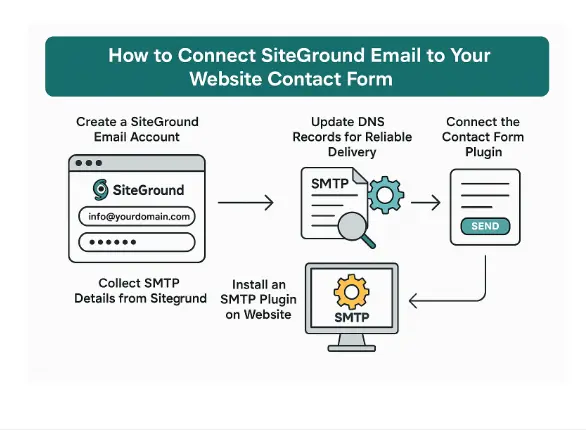
Setting up your SiteGround email account to send messages from your website contact form requires a few clear steps. This method ensures that every visitor’s message is delivered safely to your inbox while maintaining your brand’s professional image. Follow the guide below to configure everything correctly.
Create a SiteGround Email Account
Begin by logging in to your SiteGround account and opening Site Tools. Go to Email and select Accounts to create a new mailbox such as [info@yourdomain.com](mailto:info@yourdomain.com). Choose a strong password and save it securely. Once created, access Webmail to confirm the address works. Keep your full email address and password handy because you will need them in the next steps.
Collect SMTP Details from SiteGround
Open the three-dot menu next to your new mailbox and choose Mail Configuration. Copy the important settings:
- SMTP Host: usually mail.yourdomain.com
- Port: 465 for SSL or 587 for TLS
- Encryption: SSL/TLS or STARTTLS
- Username: your full email address
- Password: the mailbox password you just set
These details will allow WordPress or any other website system to authenticate and send emails through SiteGround servers.
Update DNS Records for Reliable Delivery
For best deliverability, add or update MX, SPF, and DKIM records in your domain’s DNS. If your domain is managed inside SiteGround, you can edit these in the DNS Zone Editor. If it is with another provider, then you need to update the records there. This step verifies that SiteGround is the authorized sender for your domain, reducing the chance of messages landing in spam folders.
Install an SMTP Plugin on Your WordPress Site
In your WordPress dashboard, install a plugin like WP Mail SMTP. Go to its settings page and fill in the SiteGround SMTP details you collected earlier. Enter your new SiteGround email address as the “From Email” and select the same address as the username. Choose the correct port and encryption type, then save the configuration.
Connect the Contact Form Plugin
Open the settings of your contact form plugin, whether it is Contact Form 7, WPForms, Elementor Forms, or Gravity Forms. Set the “From Email” field to your SiteGround address and add a “Reply-To” header using the visitor’s email field so you can reply directly. Avoid using free email addresses here, as they can break authentication and send messages to spam.
Test and Confirm the Setup
Send a test message from the SMTP plugin and then submit your contact form. Check that the email arrives in your SiteGround inbox or any connected email client such as Gmail or Outlook. If you experience errors, double-check your SMTP host, port, encryption, and DNS records. Correcting these details usually resolves common issues like authentication failures or messages not appearing.
By following these steps, you can confidently connect your SiteGround email to your website contact form. This setup improves email deliverability, strengthens your domain’s credibility, and ensures that every visitor message is delivered to your inbox without interruption.
Tips for Smooth Email Delivery and Troubleshooting
Even with the correct setup, ongoing checks help keep your contact form reliable. Here are key practices to maintain strong email delivery and fix common problems quickly.
Regularly Test Your Contact Form
Send a test email every few weeks to confirm that messages reach your inbox. A simple form submission helps you spot any hidden issues before potential leads are lost.
Monitor DNS Records
If you change hosting, update or move your domain, revisit MX, SPF, and DKIM records. Outdated or conflicting records can cause sudden delivery failures. Use online tools like MXToolbox to verify that SPF and DKIM pass.
Check Spam and Promotions Folders
Sometimes email clients misclassify new messages. Remind your team to look in spam or promotions tabs, especially after changes to plugins or hosting settings.
Limit Attachments and Large Images
Heavy attachments and oversized images increase the chance of being flagged by spam filters. Keep form submissions light by requesting only essential details.
Review Error Logs
If emails stop sending, check the WP Mail SMTP debug log or your hosting error logs. Common errors include wrong port numbers, encryption mismatches, or authentication failures. Adjust the SMTP settings accordingly.
Keep Plugins Updated
Update WordPress, your contact form plugin, and the SMTP plugin regularly. Outdated plugins can introduce security risks or break compatibility with SiteGround’s email service.
By keeping an eye on these factors, you protect the connection between your SiteGround email account and your website contact form, ensuring that every visitor message continues to arrive safely and promptly.
When to Consider Other Email Services
SiteGround email hosting is dependable for many small and medium sized websites, but as your business expands you may reach a point where additional features and capacity become essential. Understanding when to move beyond the built in SiteGround email can help you avoid delivery problems and meet the growing needs of your team.
Higher Email Volume and Advanced Deliverability
If your website begins sending hundreds or thousands of messages each day for example order confirmations, marketing newsletters, or automated notifications you may find SiteGround’s standard email limits restrictive. Third party providers such as Google Workspace, Microsoft 365, or Zoho Mail are built to handle heavy traffic with advanced infrastructure, stronger spam filtering, and better analytics. These services use dedicated mail servers and sophisticated routing systems to maintain high deliverability rates even during large campaigns.
Collaboration and Shared Mailboxes
As your team grows, you might need shared inboxes, team chat, or integrated productivity tools. Platforms like Google Workspace offer collaboration features such as Google Meet, shared calendars, and easy file sharing. Microsoft 365 provides Microsoft Teams and OneDrive integration for smooth communication and document management. If you need a single mailbox where several staff members can respond to customer inquiries together, these services make it simple to create and manage shared addresses such as [support@yourdomain.com](mailto:support@yourdomain.com).
Security and Compliance Requirements
Businesses that handle sensitive customer data, financial information, or medical records often need stricter security standards. Third party providers typically include enterprise grade encryption, advanced spam detection, and multi factor authentication. Some also offer compliance certifications for regulations like HIPAA or GDPR which can be critical if you operate in healthcare, finance, or international markets.
Global Scaling and Reliability
If your brand grows internationally, using a global email network can help reduce latency and maintain consistent performance for users across different regions. Services like Google Workspace and Microsoft 365 maintain multiple data centers worldwide, offering redundancy and near perfect uptime guarantees. This is especially valuable if you have customers or employees spread across time zones and need uninterrupted communication.
Smooth Transition from SiteGround
Migrating to another email provider is straightforward. You simply update your domain’s MX records to the new provider and replace the SMTP details in your WordPress SMTP plugin or website settings. Your contact form will continue to function, and you gain the benefits of advanced email infrastructure without losing any core functionality.
By evaluating these factors early, you can decide whether SiteGround email is sufficient or if a specialized service would better support your business as it grows. This proactive approach ensures that your website contact form and every customer message remain secure, professional, and reliable at any scale.
Conclusion
Connecting a SiteGround email account to your website contact form creates a dependable communication channel between you and your visitors. By creating a SiteGround mailbox, configuring DNS records, adding SMTP details, and linking everything through your contact form plugin, you can send emails that reach the inbox every time.
This setup protects your brand image, reduces missed messages, and provides a professional appearance that encourages trust. Regular testing and maintenance keep the system running smoothly so you never lose important leads. For expert help with WordPress email configuration or advanced website development, visit our WordPress Development Services and ensure your site delivers messages with confidence.
FAQs
Do I need a SiteGround hosting plan to use a SiteGround email address with my contact form?
Yes. You must have a SiteGround hosting account with email service enabled. This allows you to create a domain-based mailbox such as [info@yourdomain.com](mailto:info@yourdomain.com) and connect it to your website contact form using SMTP settings.
Can I use SiteGround email with any WordPress contact form plugin?
Absolutely. Popular plugins like Contact Form 7, WPForms, Gravity Forms, and Elementor Forms all work with SiteGround email. Just configure the plugin’s “From Email” and SMTP details with your SiteGround credentials.
What DNS records are required for better email deliverability?
To avoid spam issues, set up MX records pointing to SiteGround servers and add SPF and DKIM records. These records authenticate your messages and help them reach inboxes instead of spam folders.
How do I test if my SiteGround email connection is working correctly?
Use the “Email Test” feature in your SMTP plugin, such as WP Mail SMTP, to send a test email to a personal inbox like Gmail or Outlook. Also submit a live form to confirm that messages arrive promptly.
What should I do if emails still go to the spam folder after setup?
Double-check that SPF and DKIM records are correct, ensure your “From Email” matches your SiteGround domain, and avoid using free email addresses in the “From” field. Reducing links or large attachments in messages also helps.